


 4134
4134
The Cap per Visit refers to the maximum amount that can be deducted from your benefits balance in a single transaction.
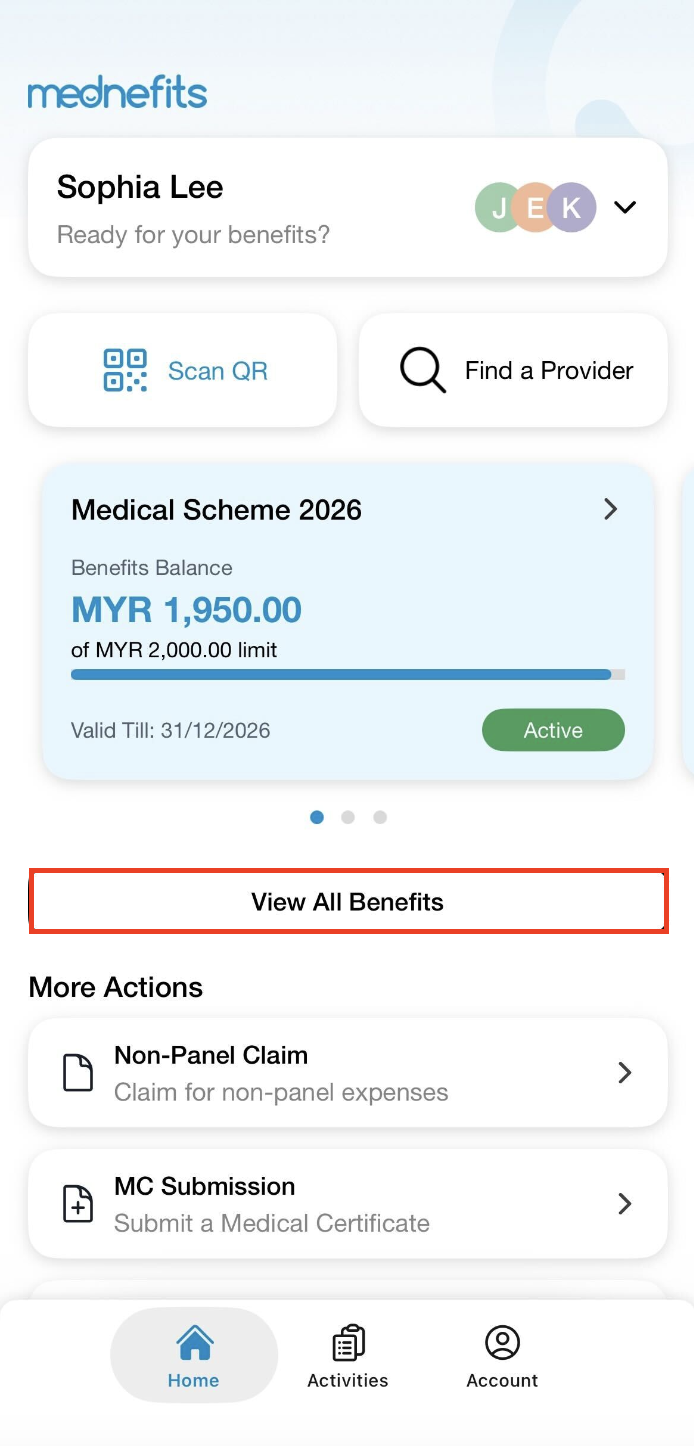
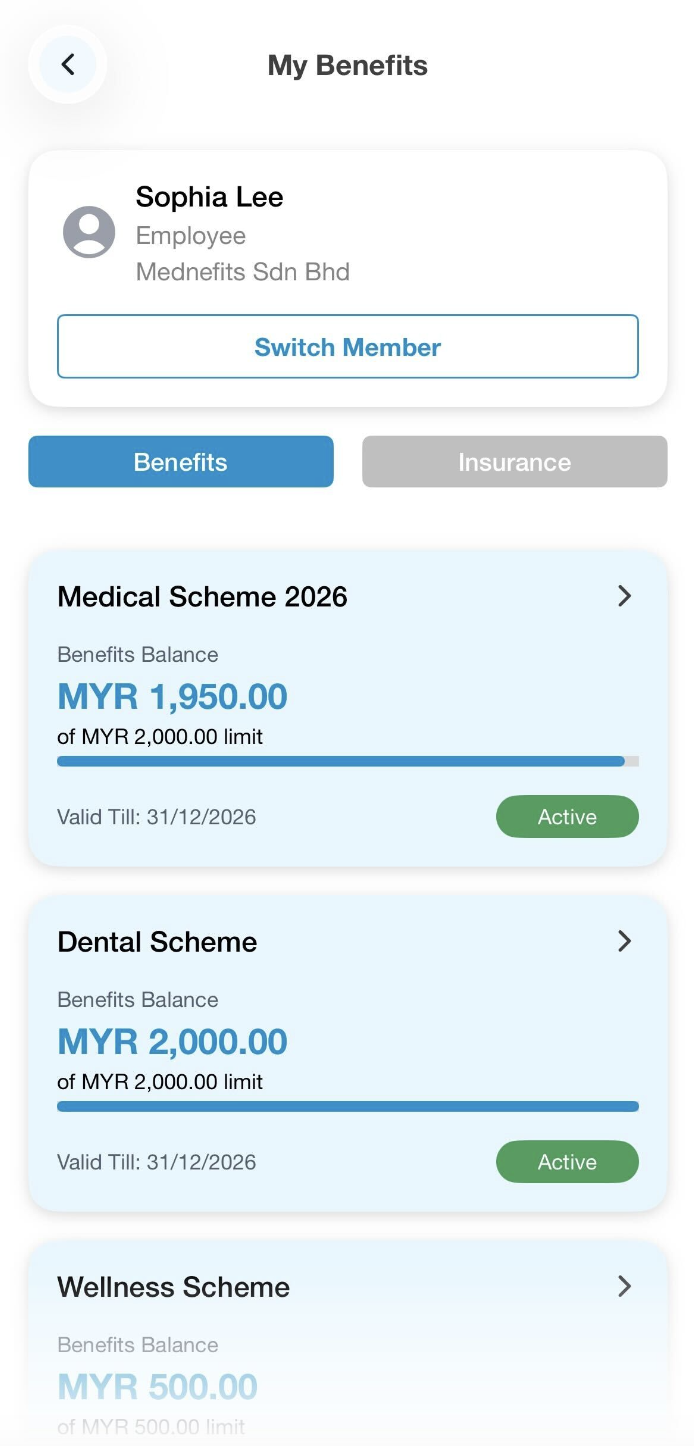
Your employer can set a Cap per Visit on your Mednefits account. You can view the details via your Mednefits app, simply go to View All Benefits and select any scheme under Benefits to see if you have a cap per visit.
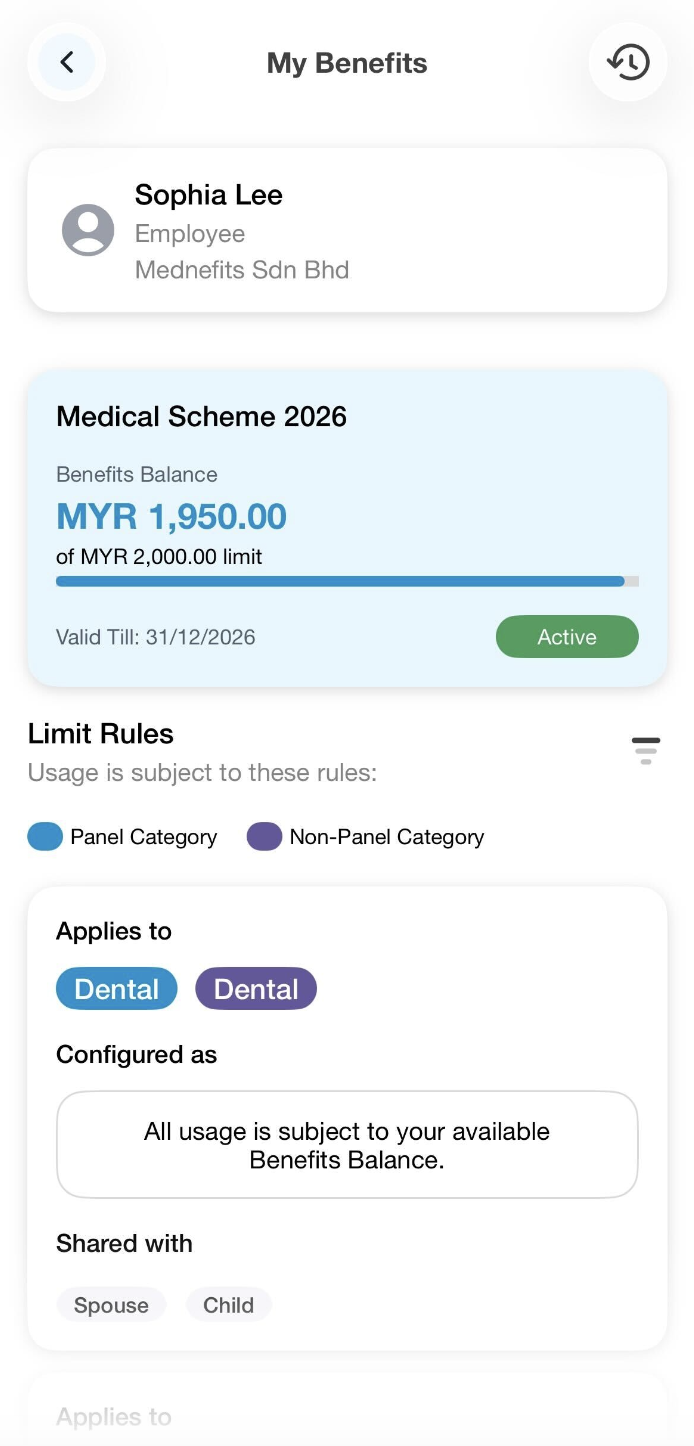
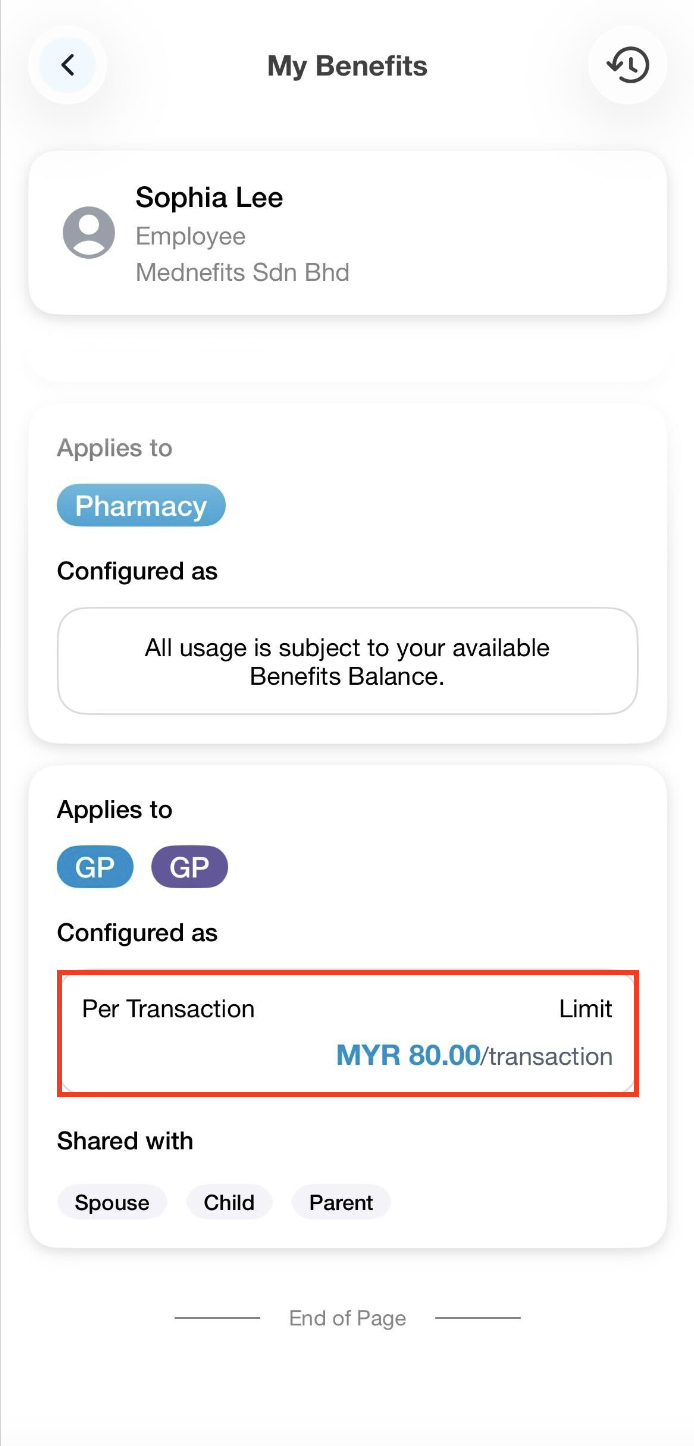
After you have selected the scheme, under Limit Rules, you may see if there is any cap per visit being applied by your HR for each category. Your Cap Per Visit will be shown as Per Transaction.
Using Mednefits at a panel clinic or provider when you have a cap per visit
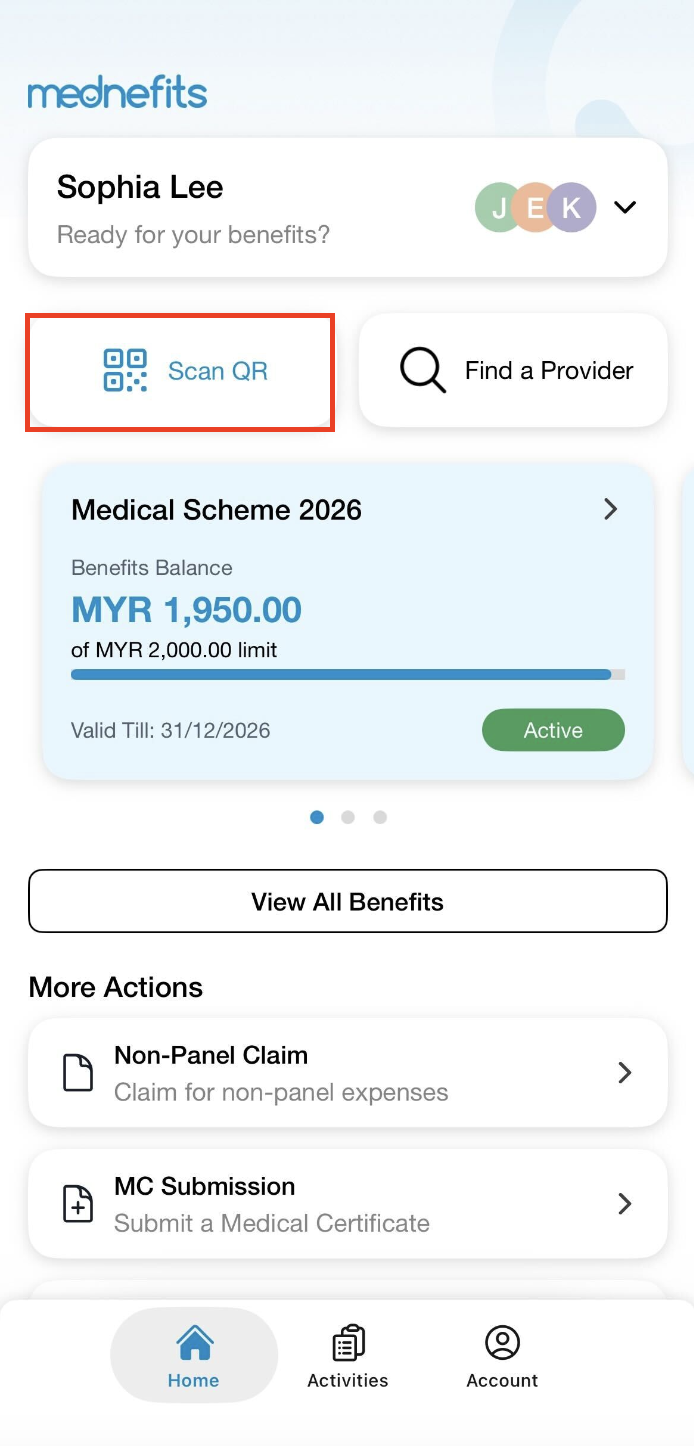
Step 1: Tap Scan QR to register your visit.
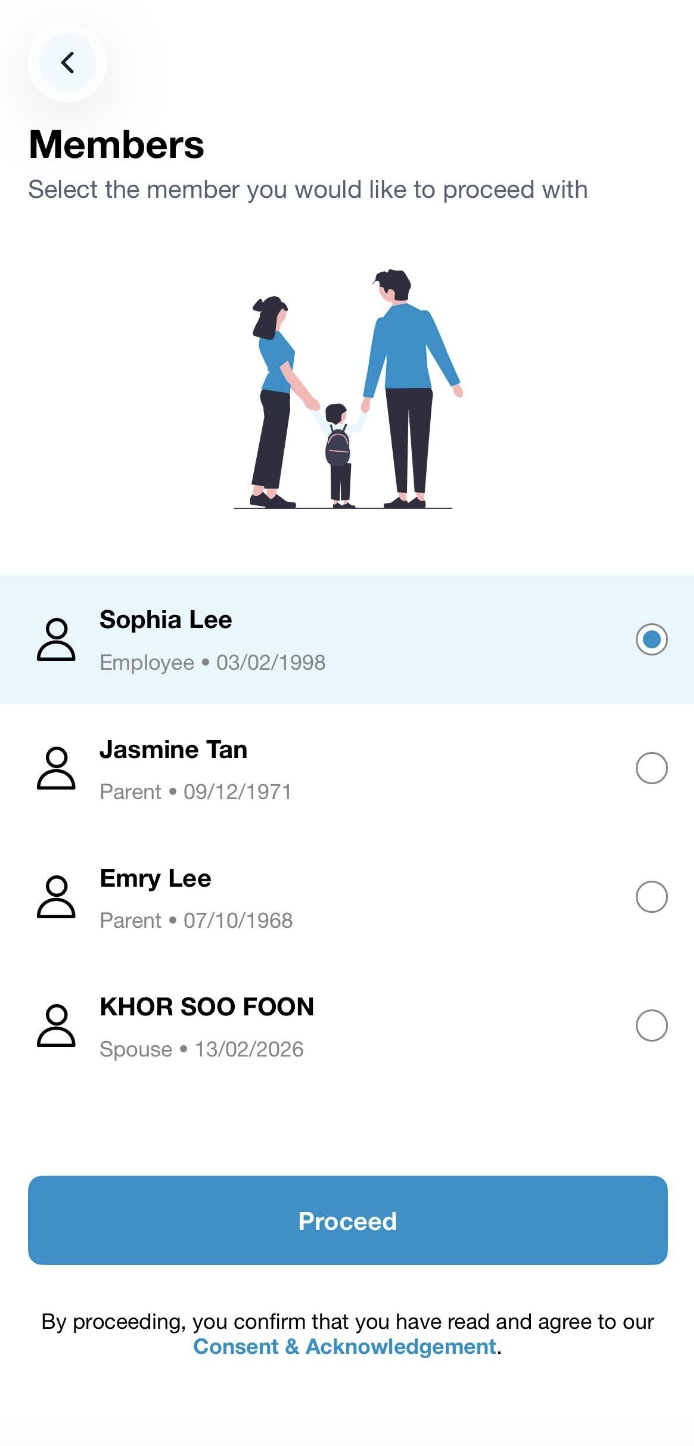
Step 2: On the member selection page (if applicable), select the member's name, and then click on Proceed.
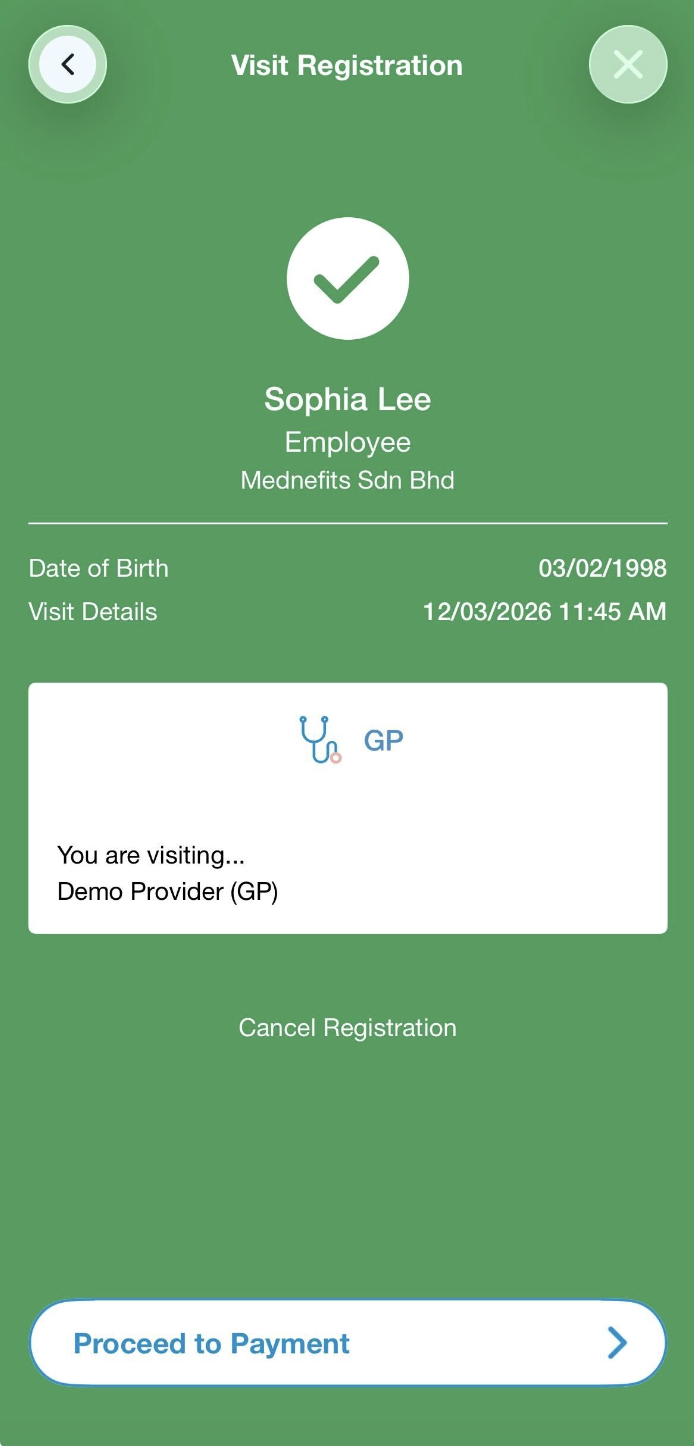
Step 3: Scan the QR code.

A green confirmation screen will appear upon successful registration.
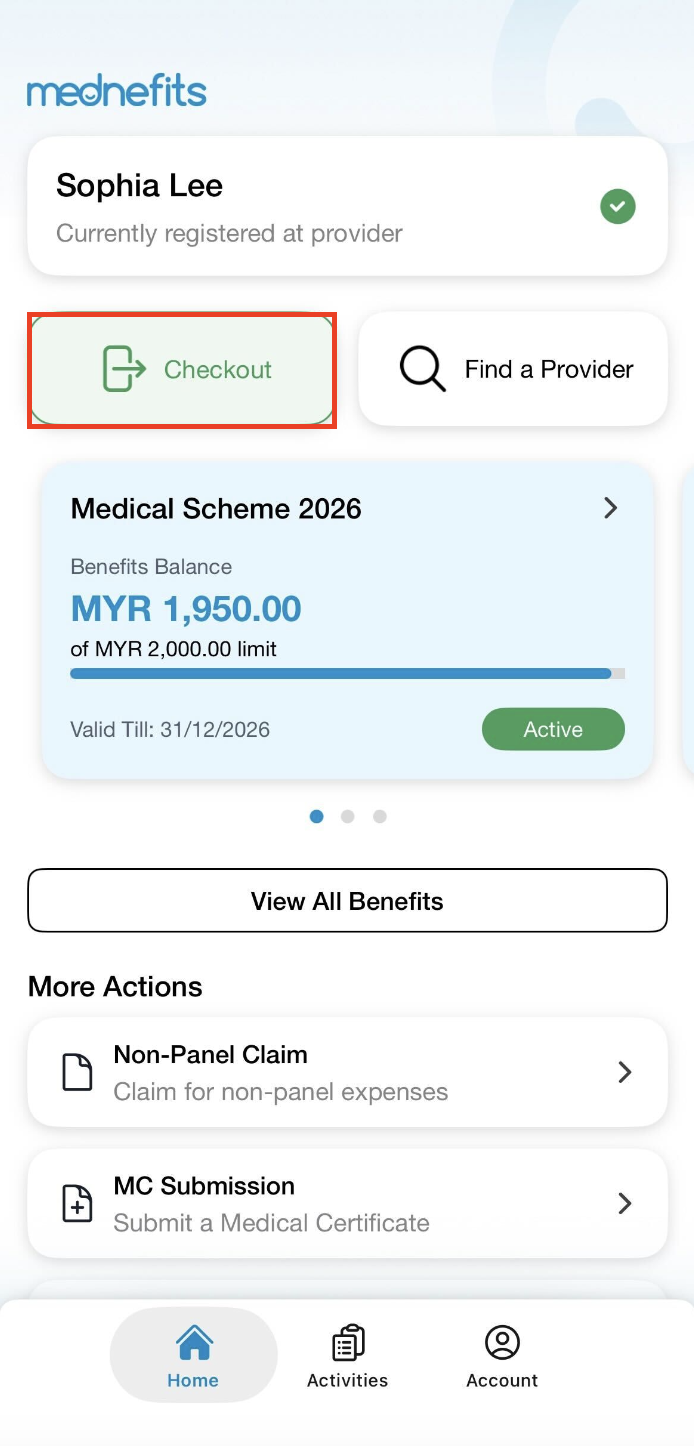
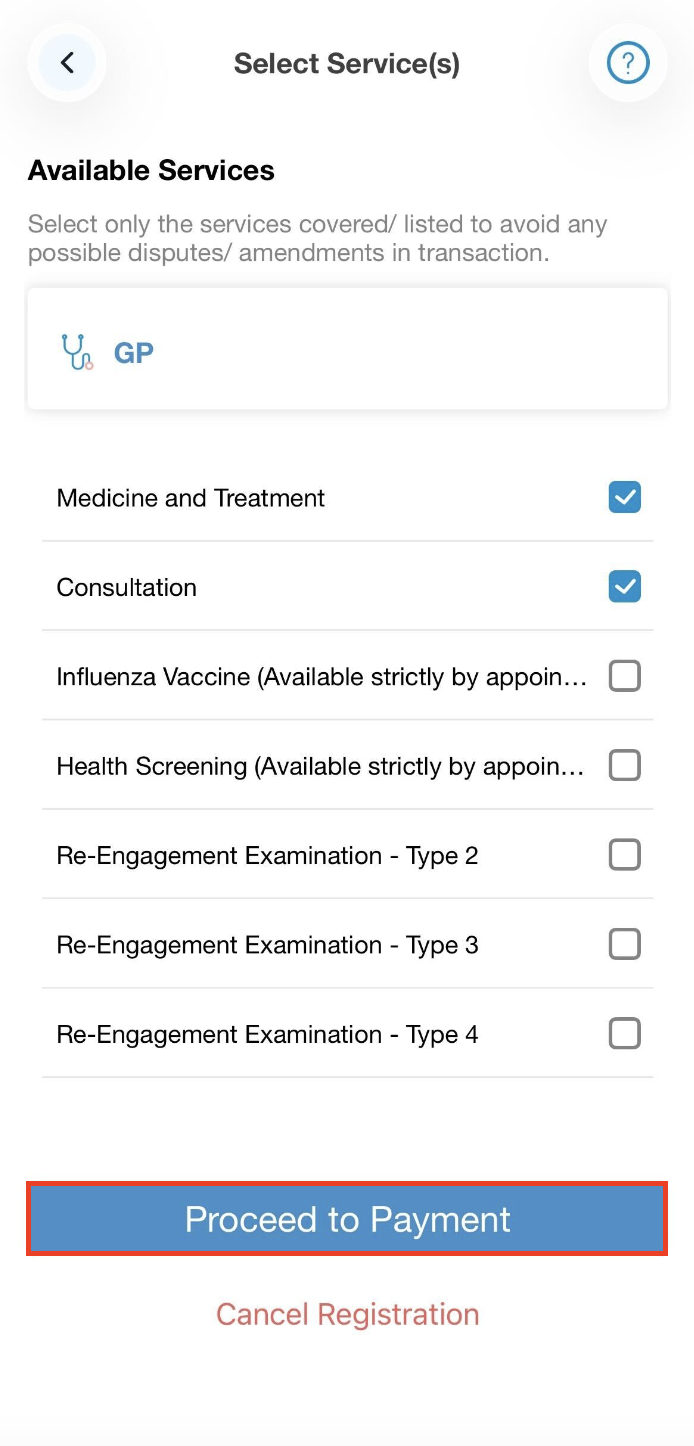
Step 4: The Checkout button will replace the Scan QR button to indicate that you have yet to checkout. When you are ready to checkout, tap the Checkout button, and on Select Service(s) page, select the services you have received before clicking on Proceed to Payment. (This page won't be displayed if the provider has only one service to offer)
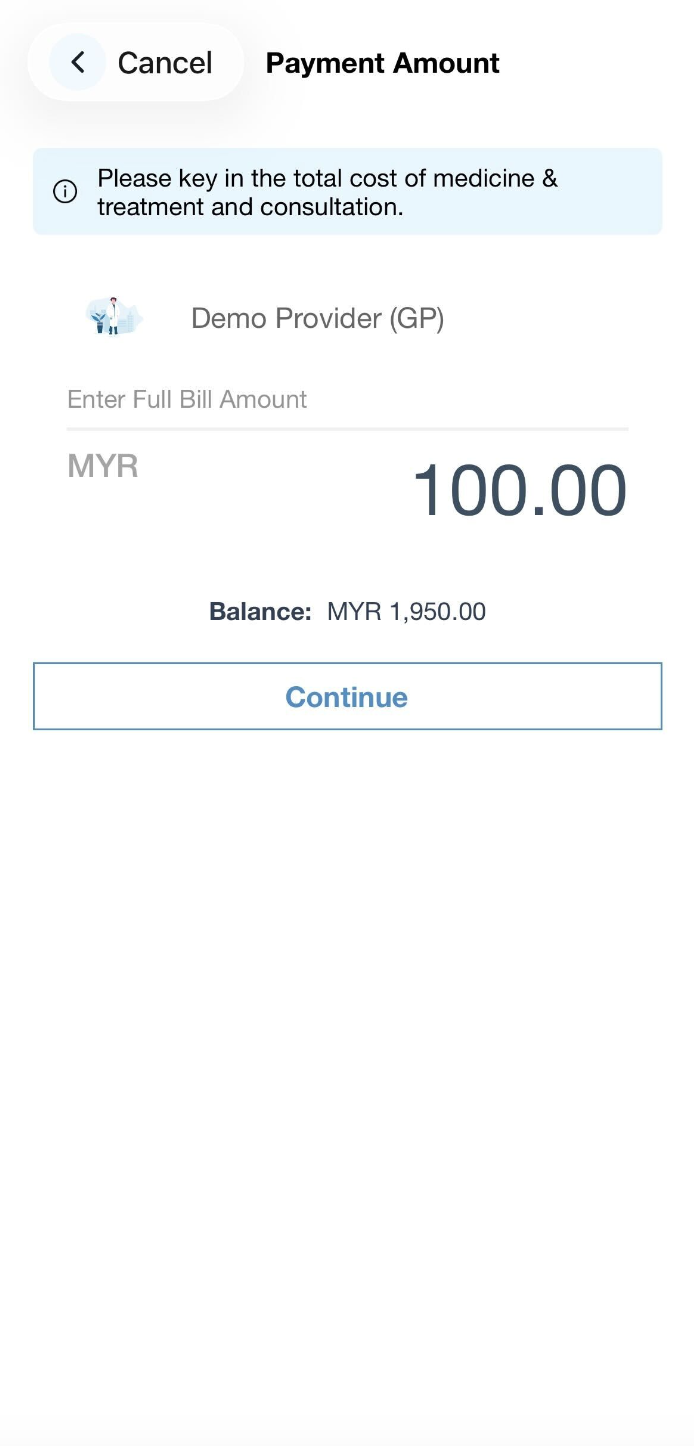
Step 5: On the Payment Amount page, enter the full bill size amount (inclusive of medicine & treatment and consultation fee) as informed by the clinic and press Continue.
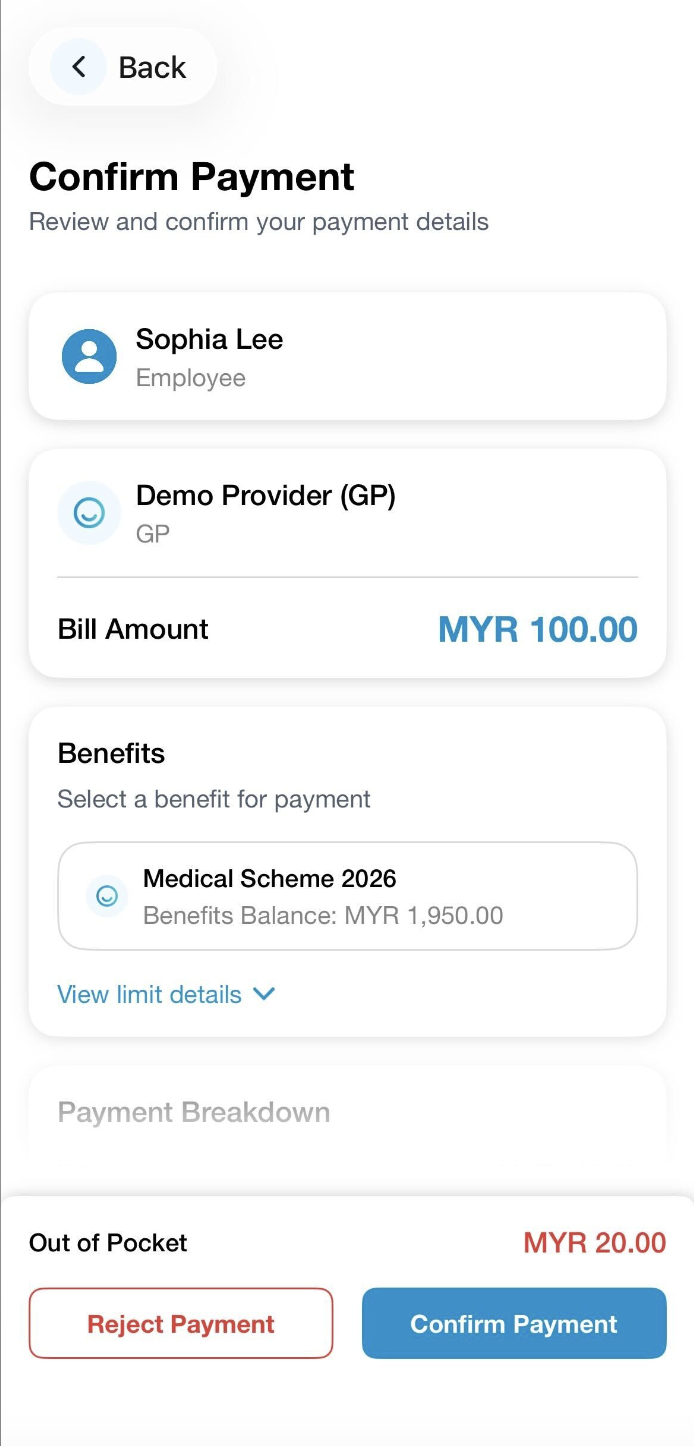
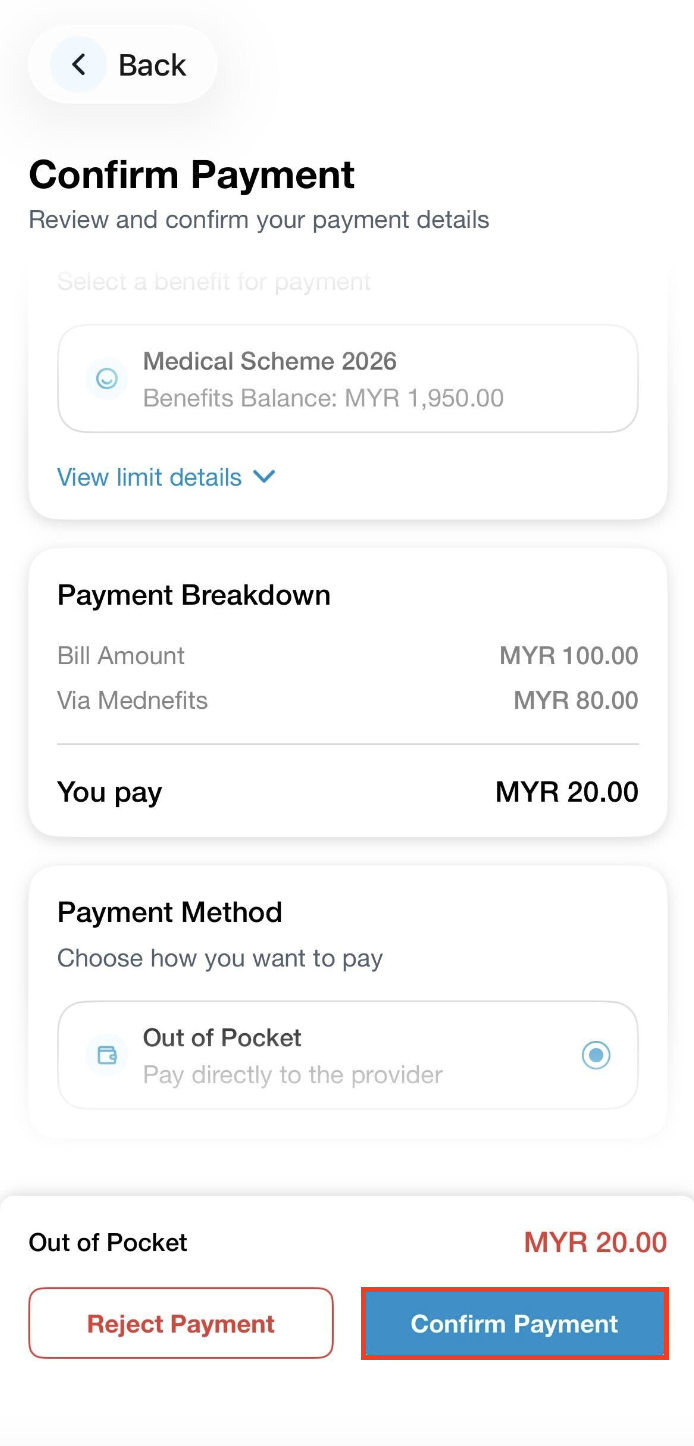
Step 6: On the Confirm Payment page, kindly review the transaction summary, which will be showing the following information:
- Bill amount: The cost for consultation, medicine, and treatment.
- Cap per Visit: The maximum amount that will be deducted from your benefits balance for this visit.
- Under View limit details and Payment Breakdown, if there is no cap per visit amount being shown on this page, meaning there is no cap per visit being applied by your HR for the chosen category.
- Via Mednefits: The amount deducted from your current balance for this visit.
- Out of Pocket: The amount you will have to pay to the clinic or provider by cash/NETS/credit card for this visit.
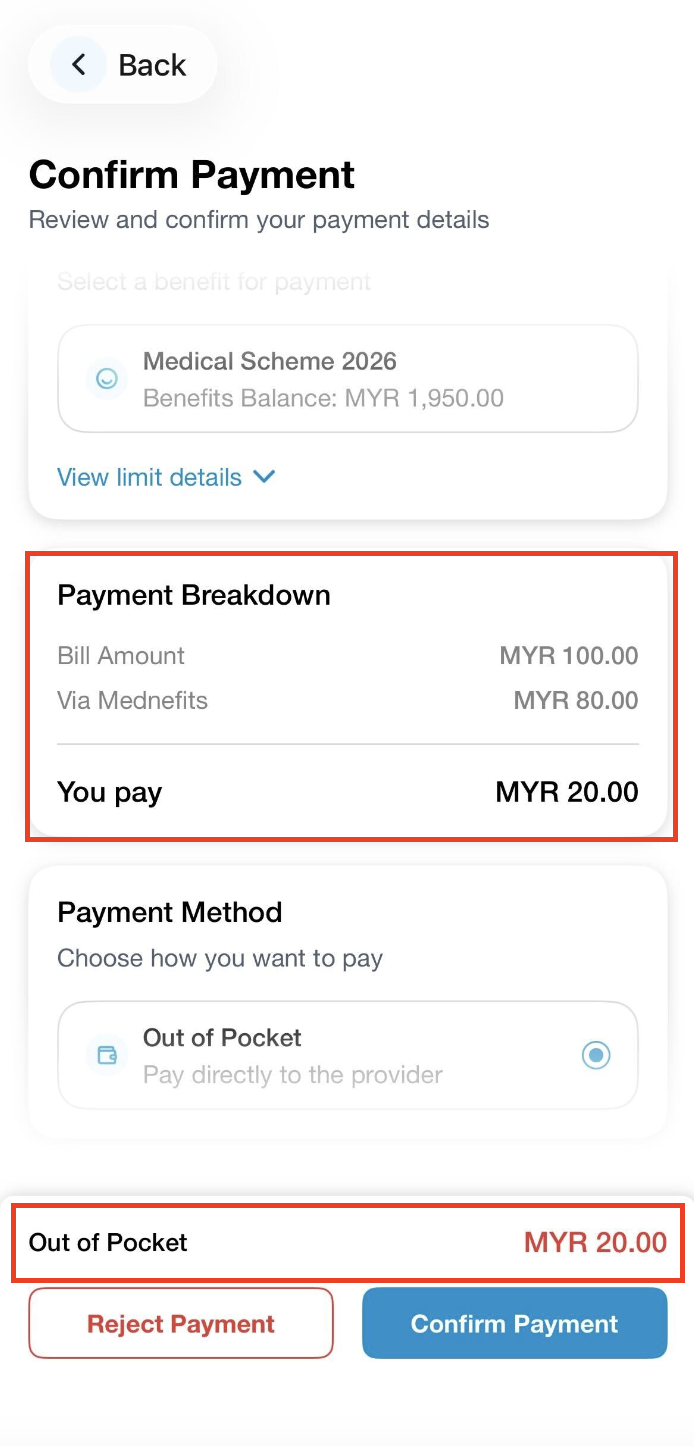
Step 7: After you are done reviewing your payment, click on Confirm Payment to complete the payment process. (Please ensure you enter the right total bill amount and for any Out of Pocket amount, please pay directly to the provider)
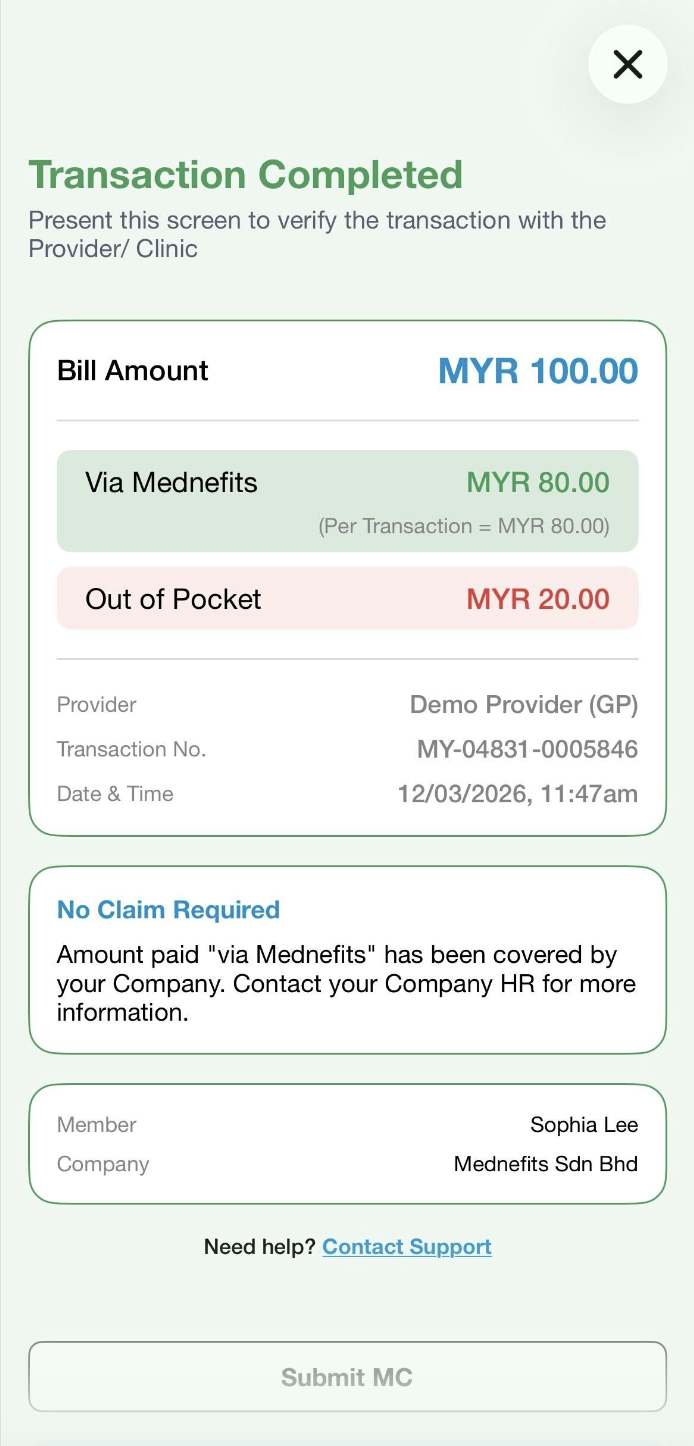
Step 8: On the Transaction Completed page, the figure under Via Mednefits is the amount that is deducted from your benefits for this transaction.
❗In a case when there is a figure under Out of Pocket indicated in red, please pay the amount directly to the provider.
Kindly click on this helpdesk article on how to submit non-panel claim (if applicable) if you have a Cap Per Visit applied.

