


If you would like a more secure way to sign in to your account without manually entering your password each time, you can set up a Passkey. Kindly follow the steps below to do so:
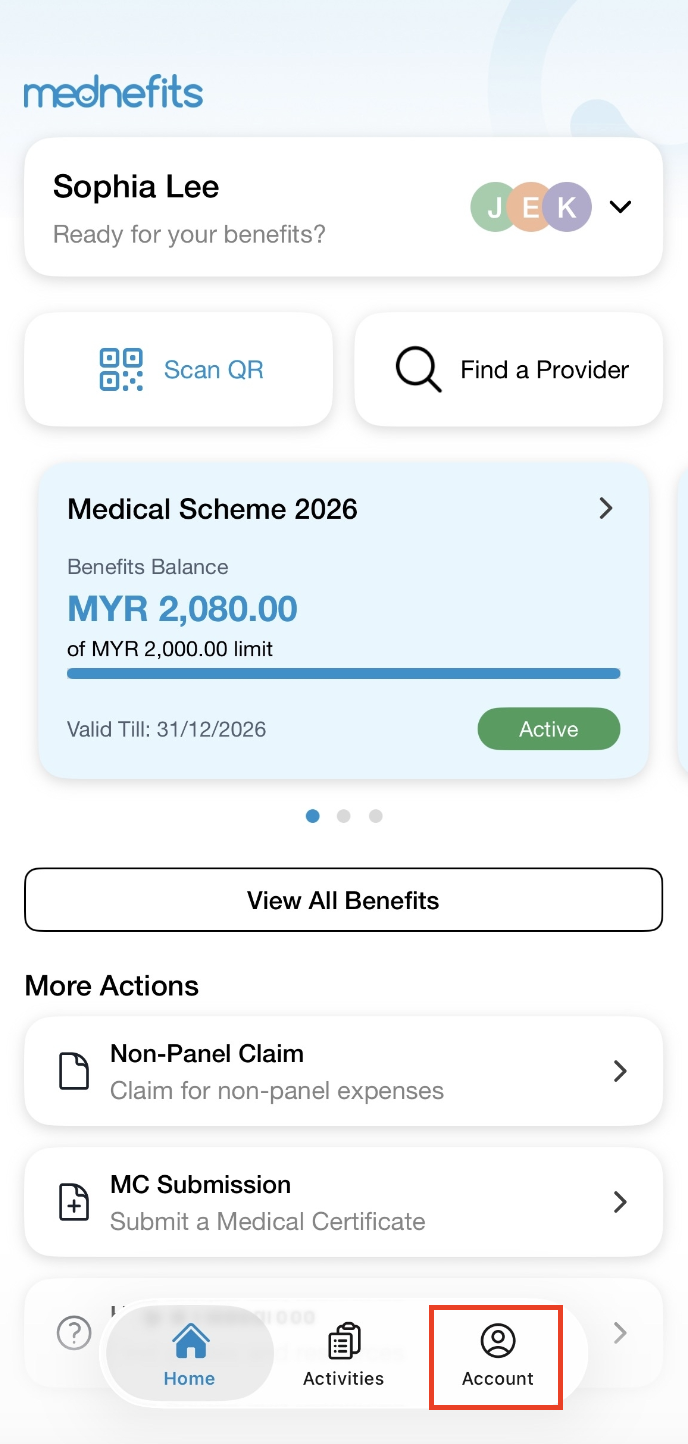
Step 1: On your homepage, click on Account from the bottom panel.
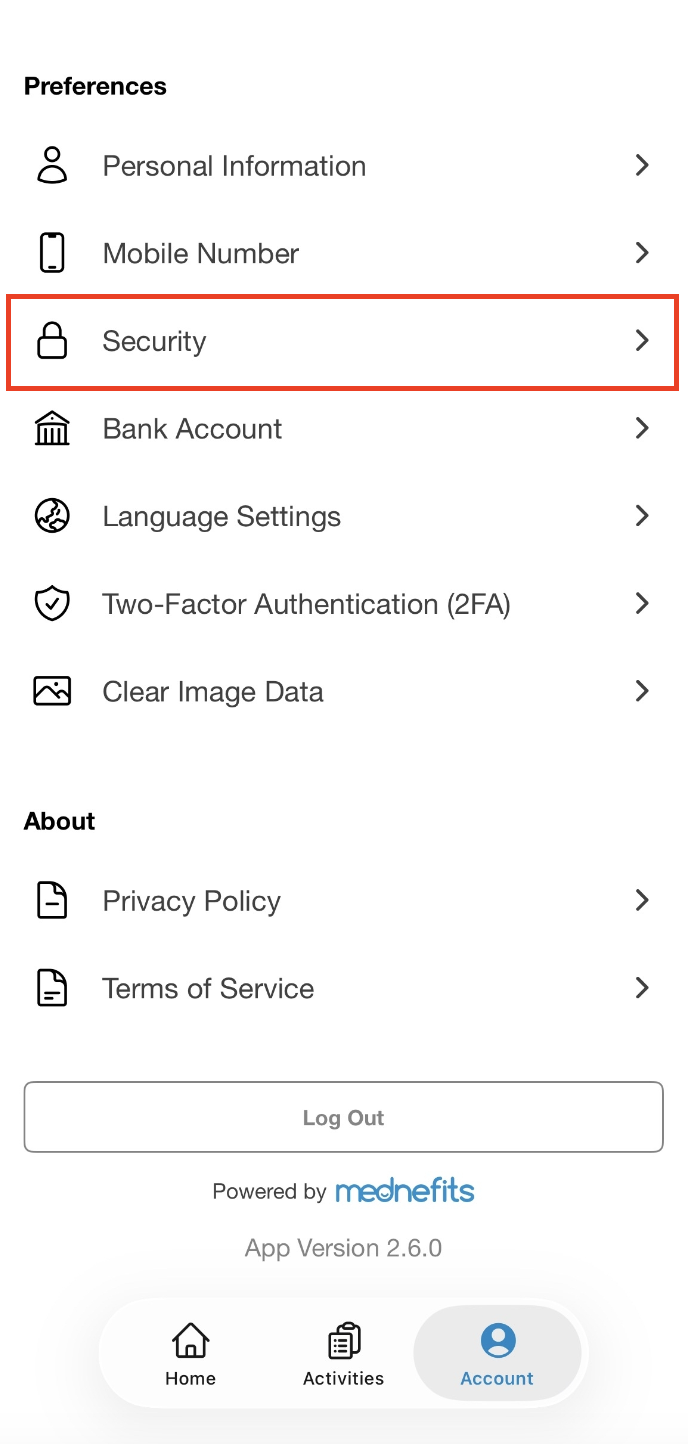
Step 2: Go to Security under Preferences.
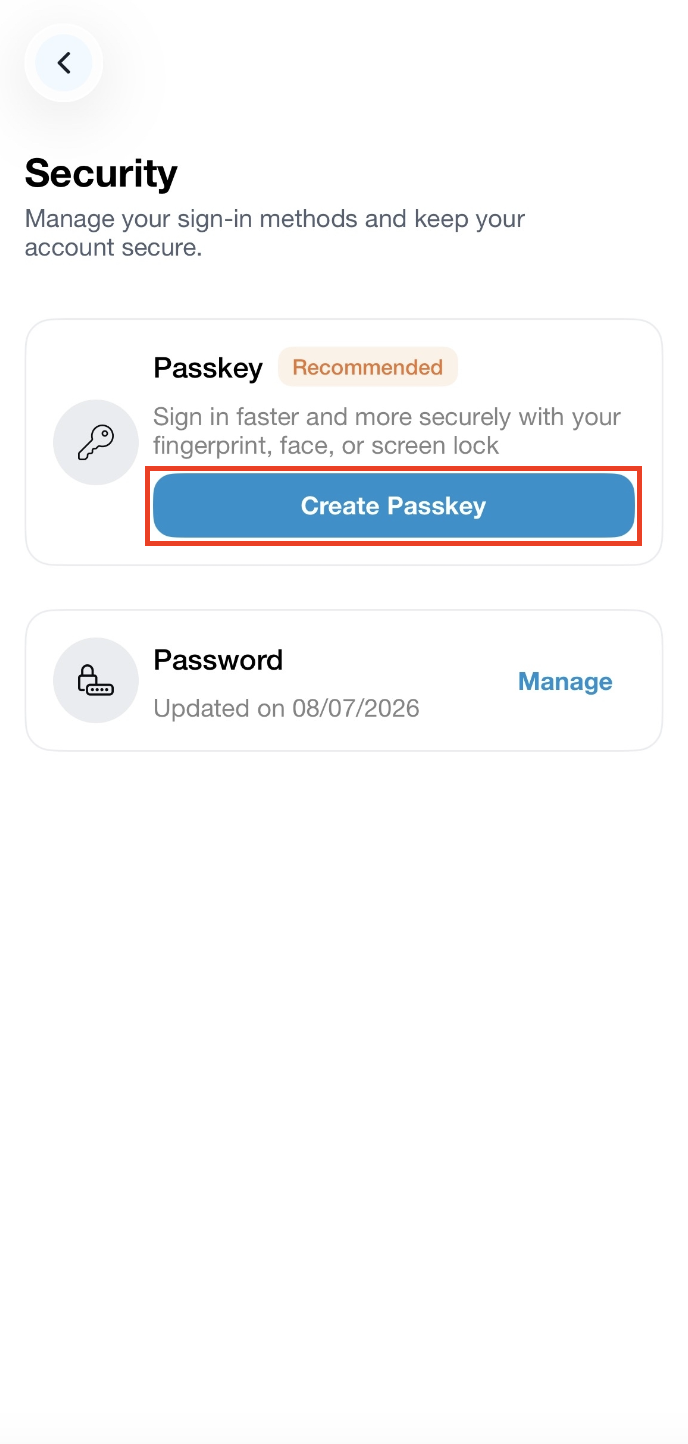
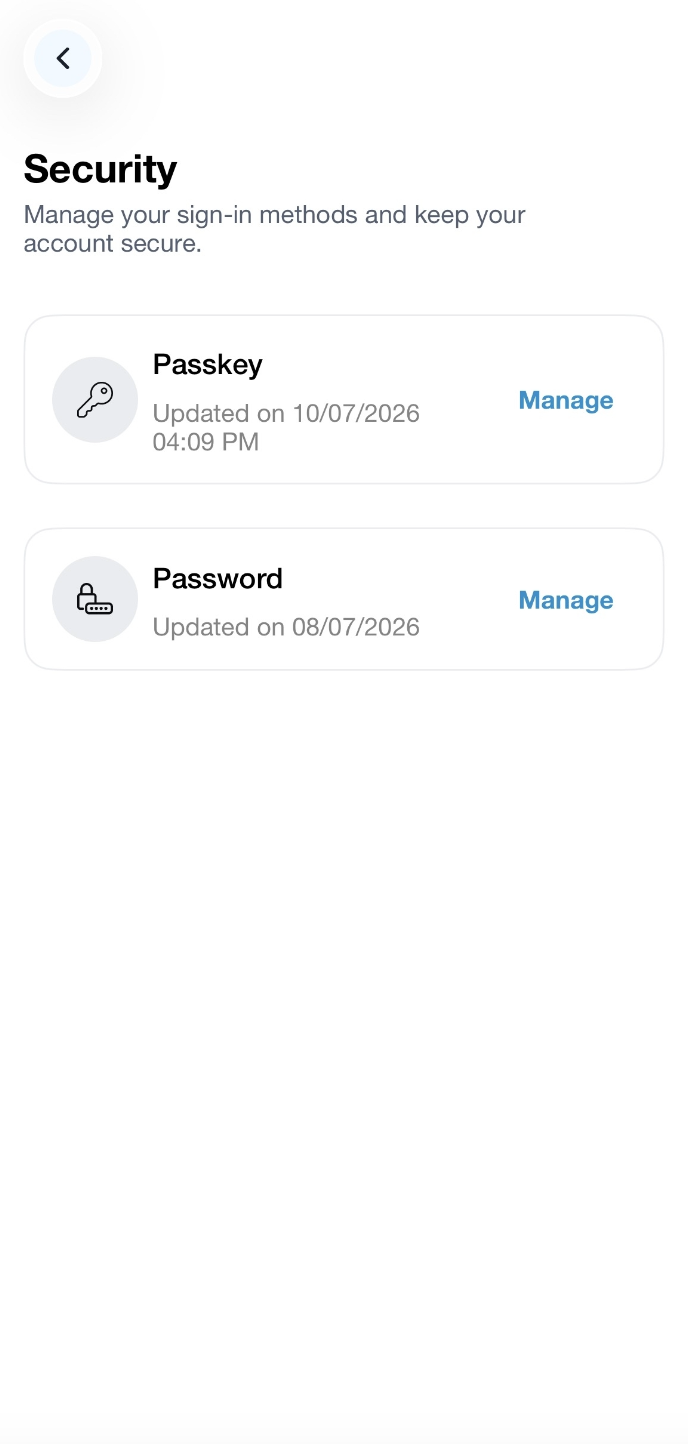
Step 3: Tap on Create Passkey. A pop-up screen will appear for confirmation to add a passkey.
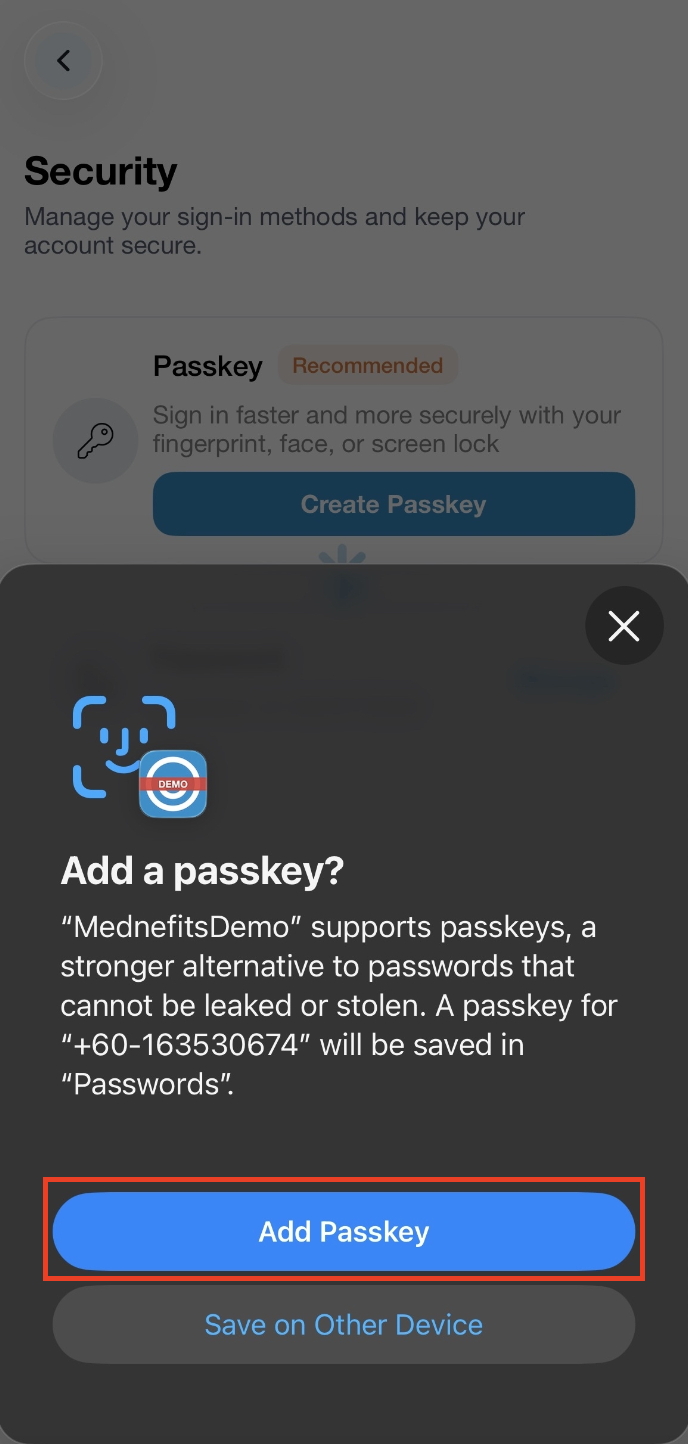
Once the Passkey has been created, the Manage option, along with the date and time it was created, will be displayed.
You are now ready to sign in using the Passkey.
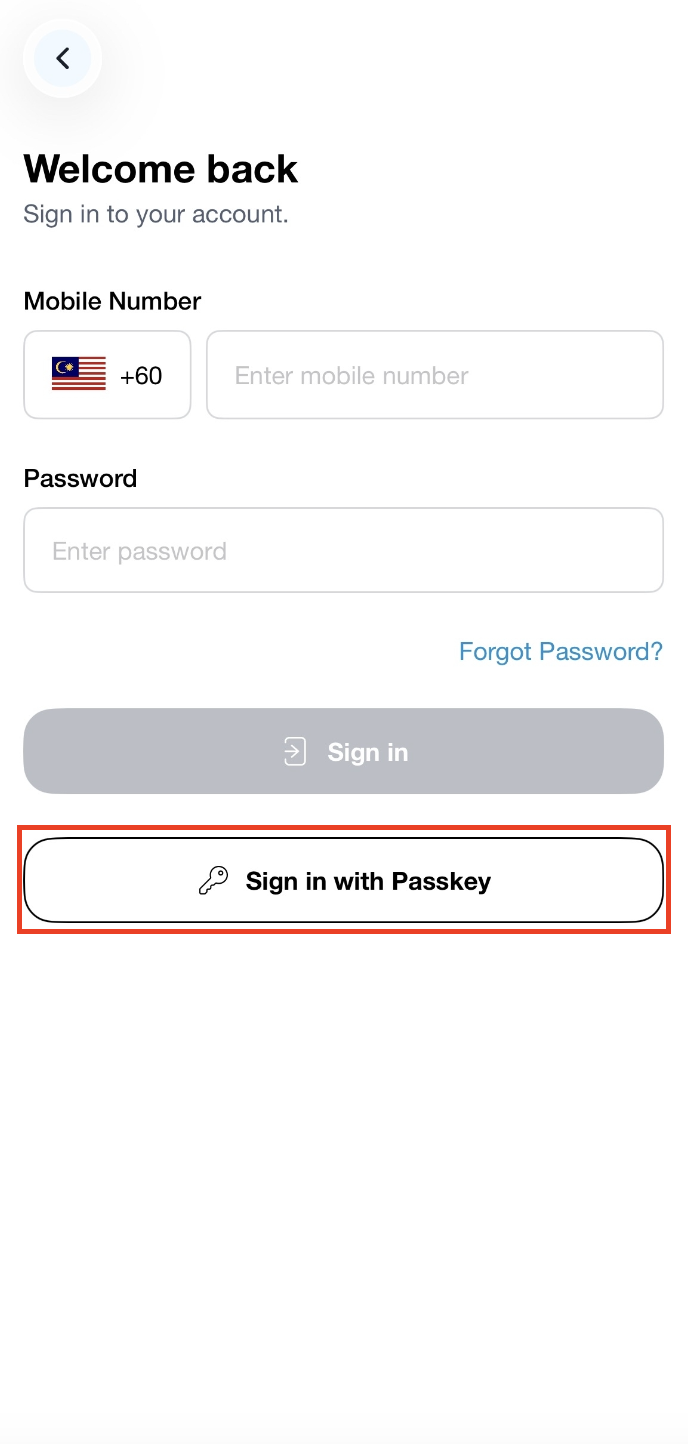
Step 1: Tap on Sign In, then click on Sign in with Passkey.

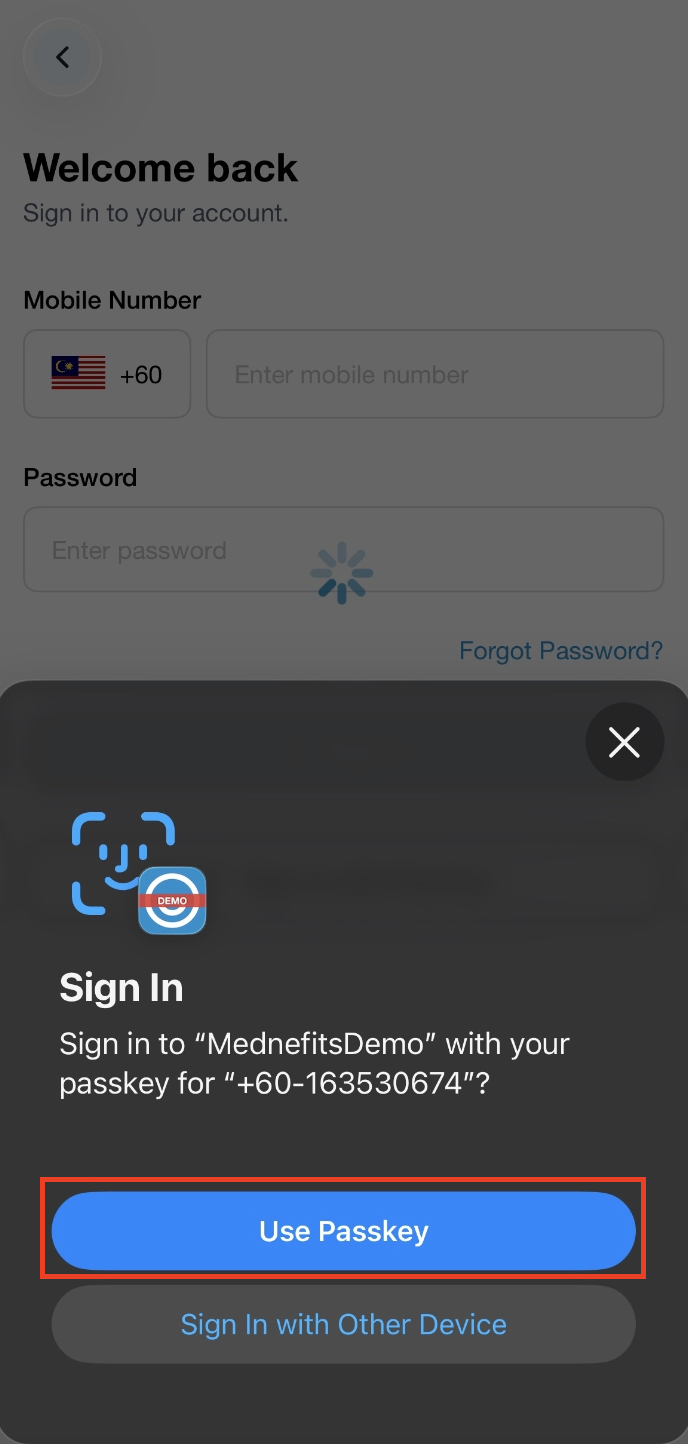
Step 2: Kindly ensure the number displayed is correct before clicking on Use Passkey.
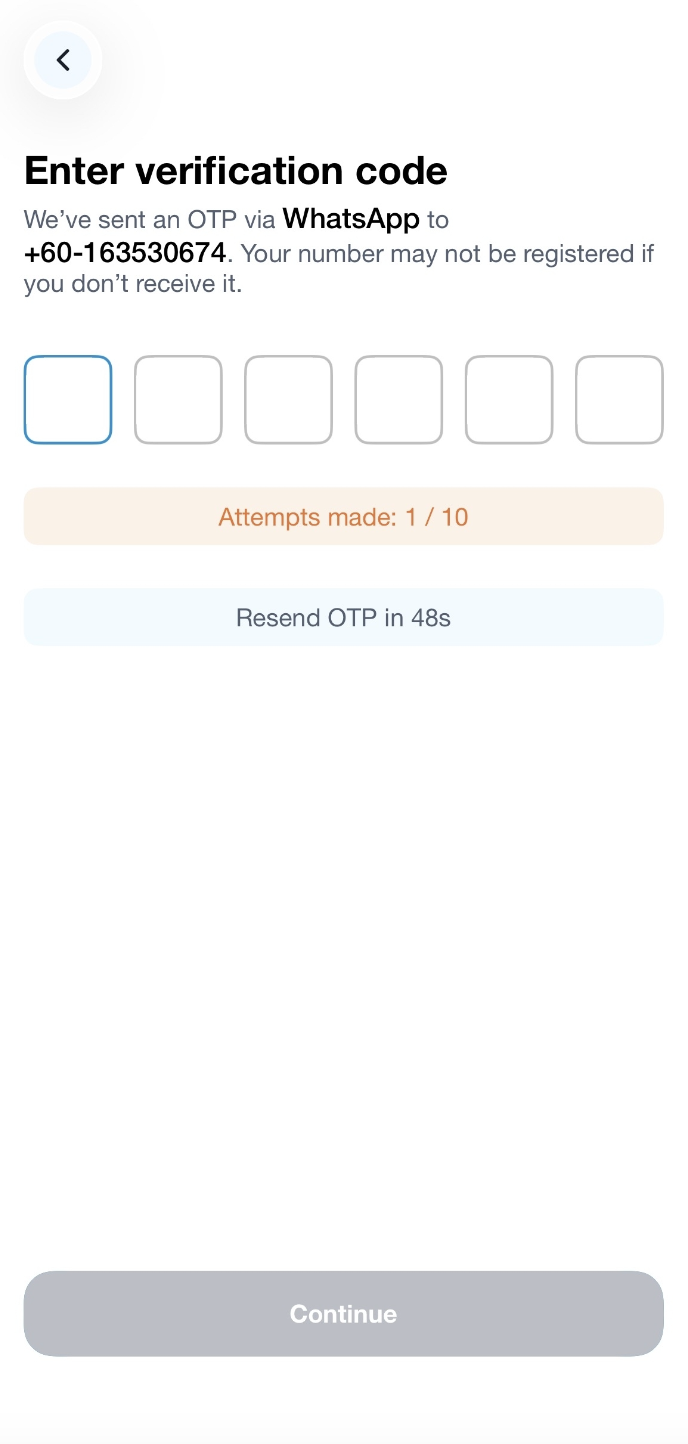
Step 3: You will be prompted to enter the OTP sent out to your registered mobile number via Whatsapp.
Once verified, you can now sign in using your Passkey.

