

How do I view my employee profile?

Sep 24, 2026
1333

You may view your registered information through the Mednefits app or portal, as enrolled by your company HR.
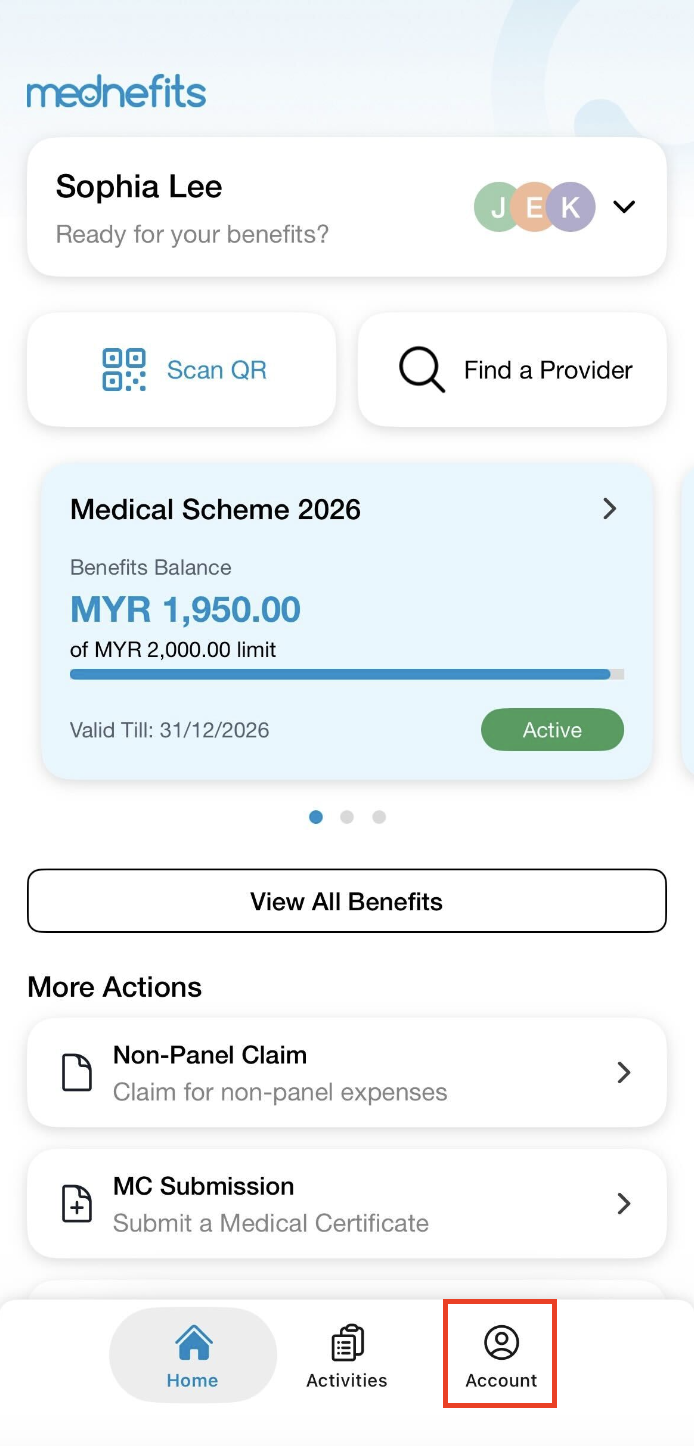
Step 1: On your homepage, click on Account from the bottom panel.
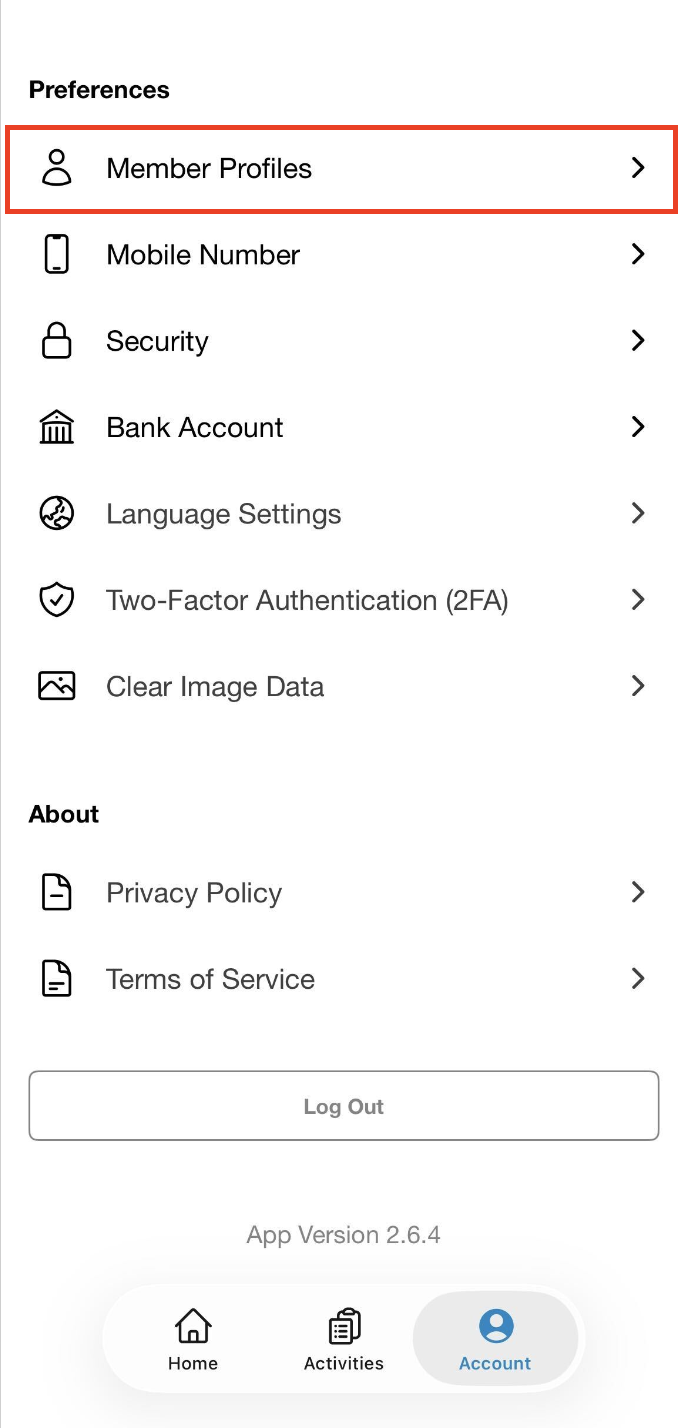
Step 2: Click on Member Profiles.
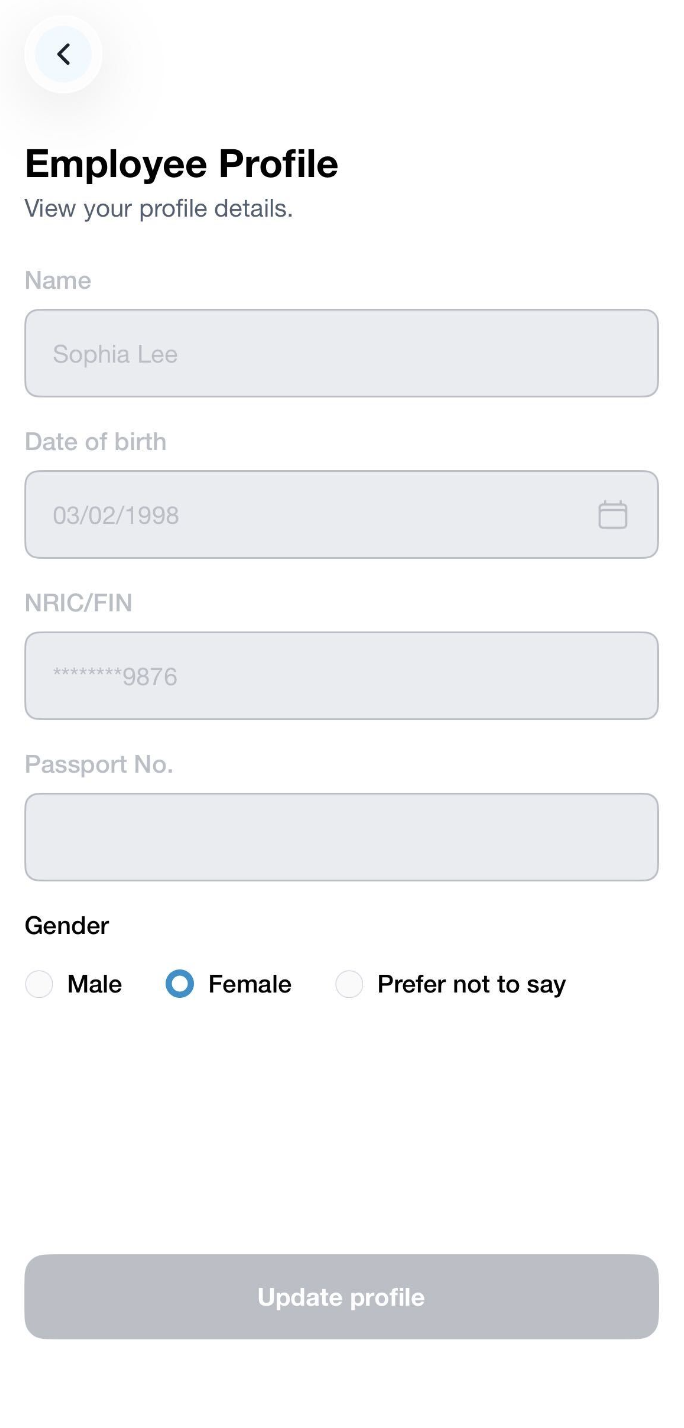
Step 3: On this page, you may view your profile details (Name, Date of Birth, NRIC/Passport No. and Gender).
Note: Only Gender is editable within the Mednefits app.
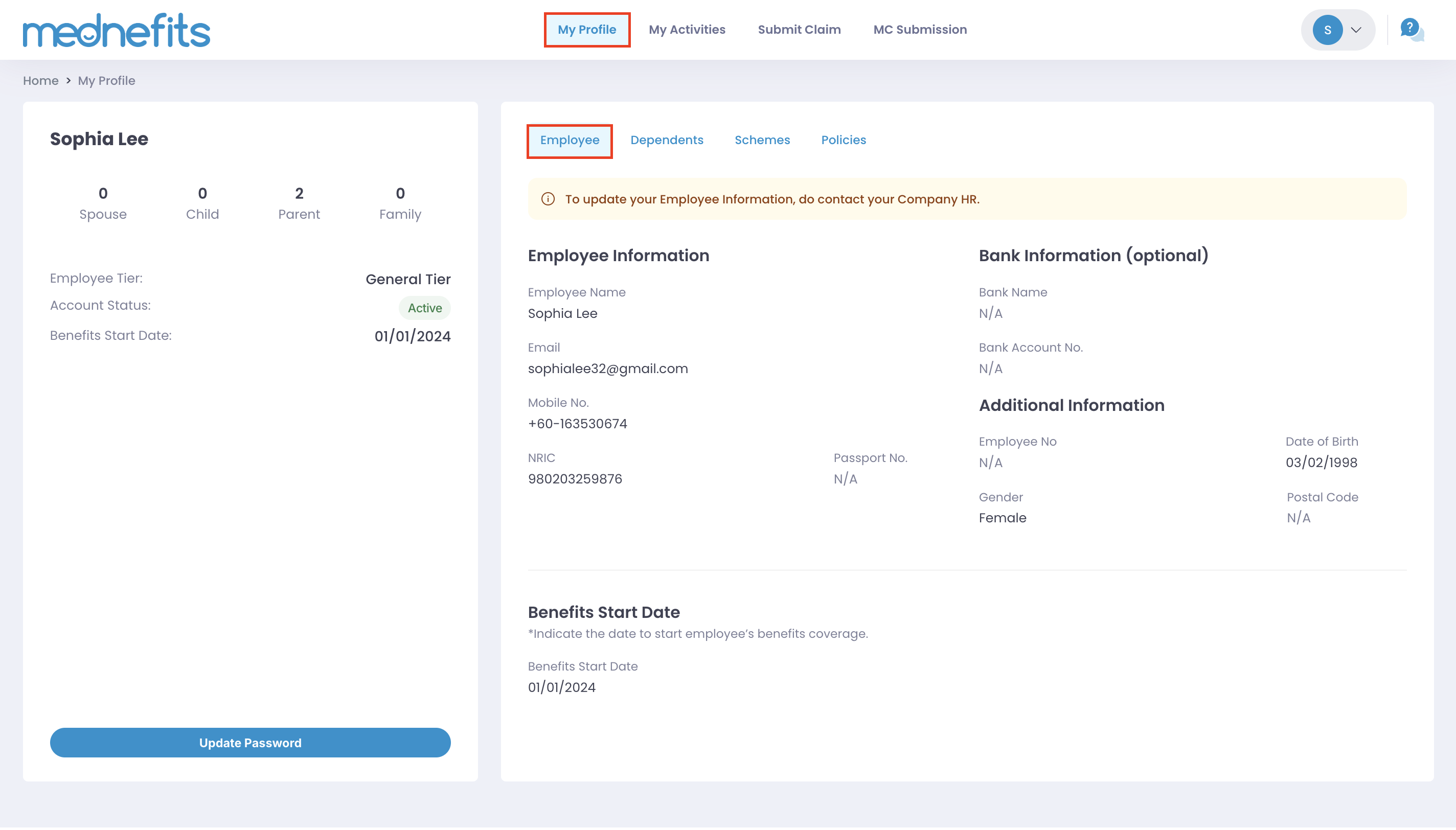
Step 1: Click on My Profile > Employee to view your registered personal information.
Note: All details cannot be amended directly from the Member portal.
If you would like to make any changes to your registered personal information, you may reach out to our Customer Support team via email at [email protected] or contact your company HR.

