If you wish to update your password, follow the steps below:
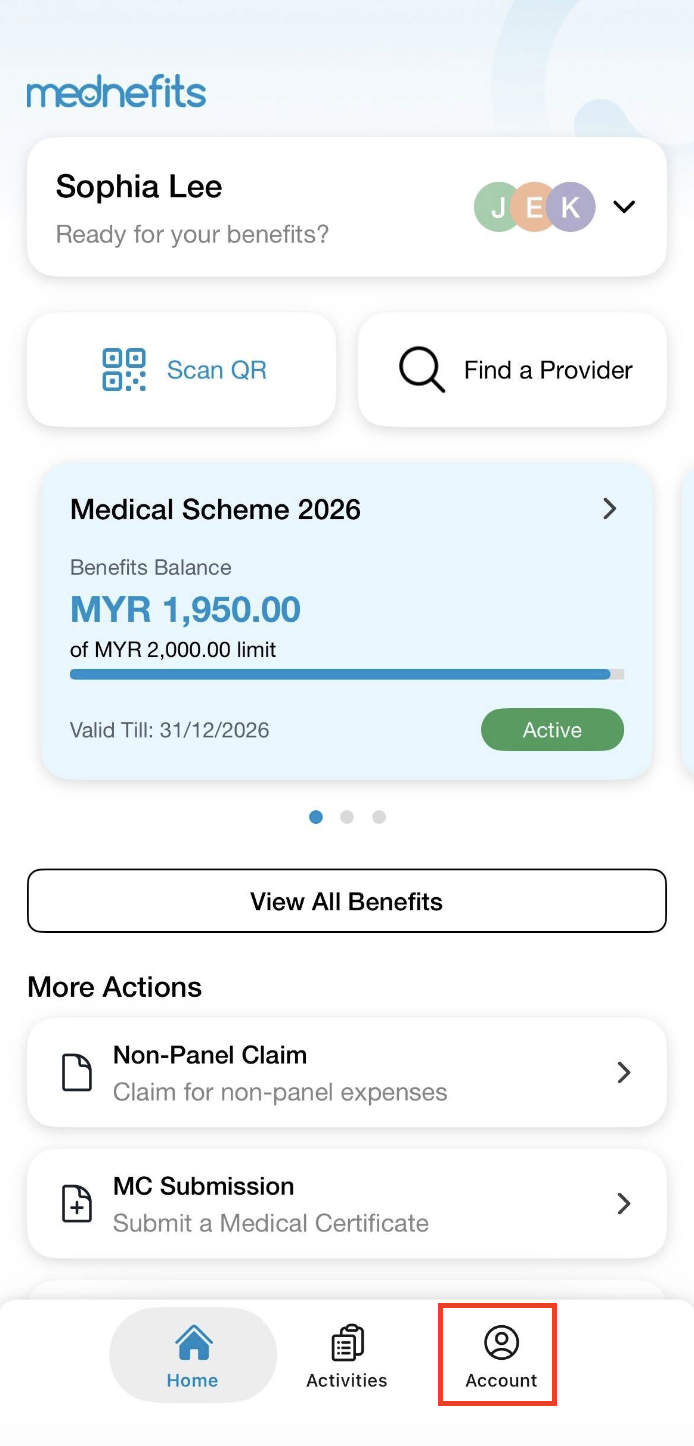
Step 1: On the Mednefits app homepage, tap on Account on the bottom panel.
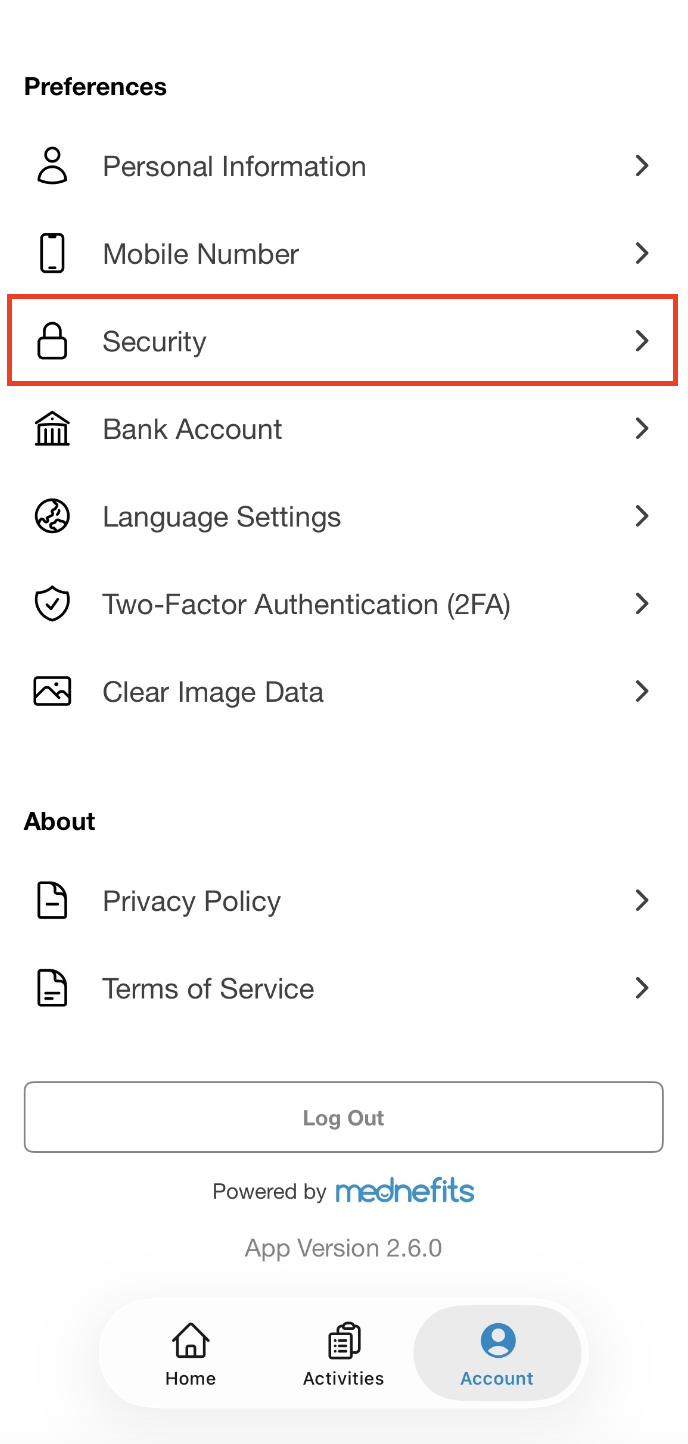
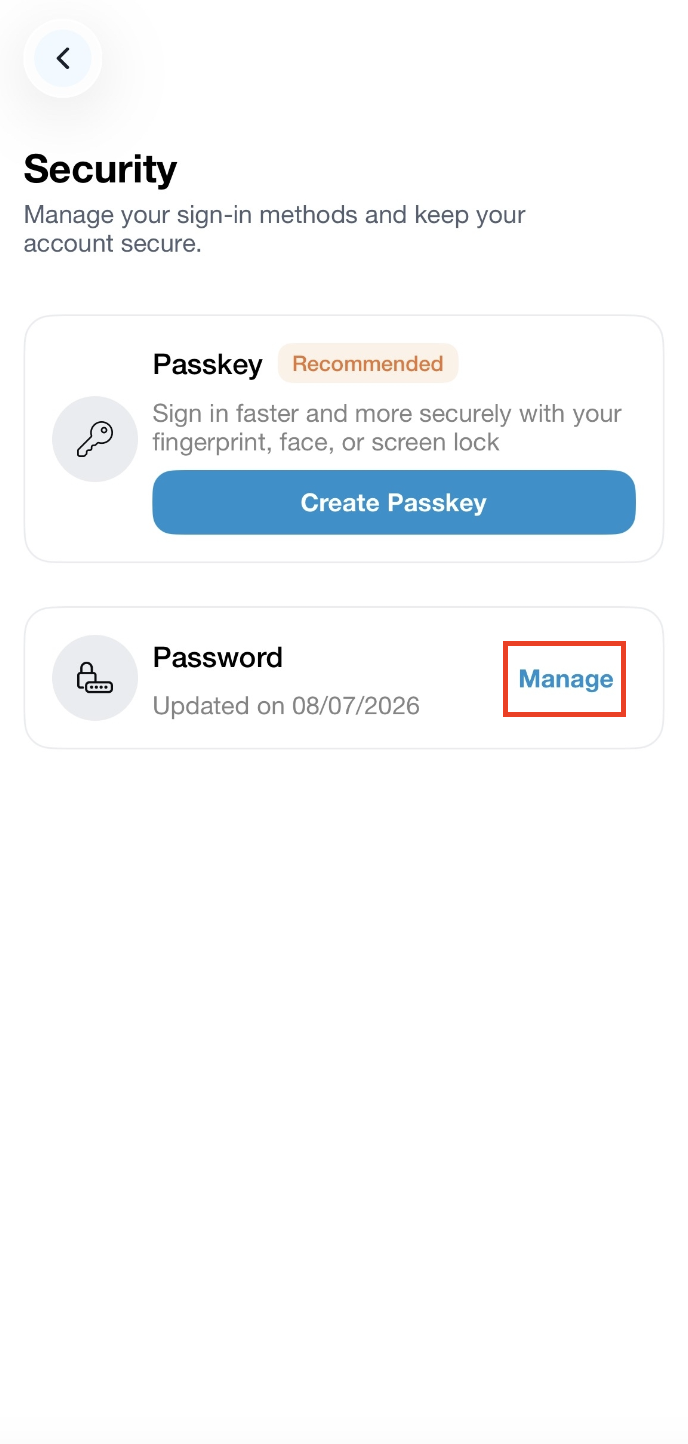
Step 2: Tap on Security, then click on Manage next to Password.
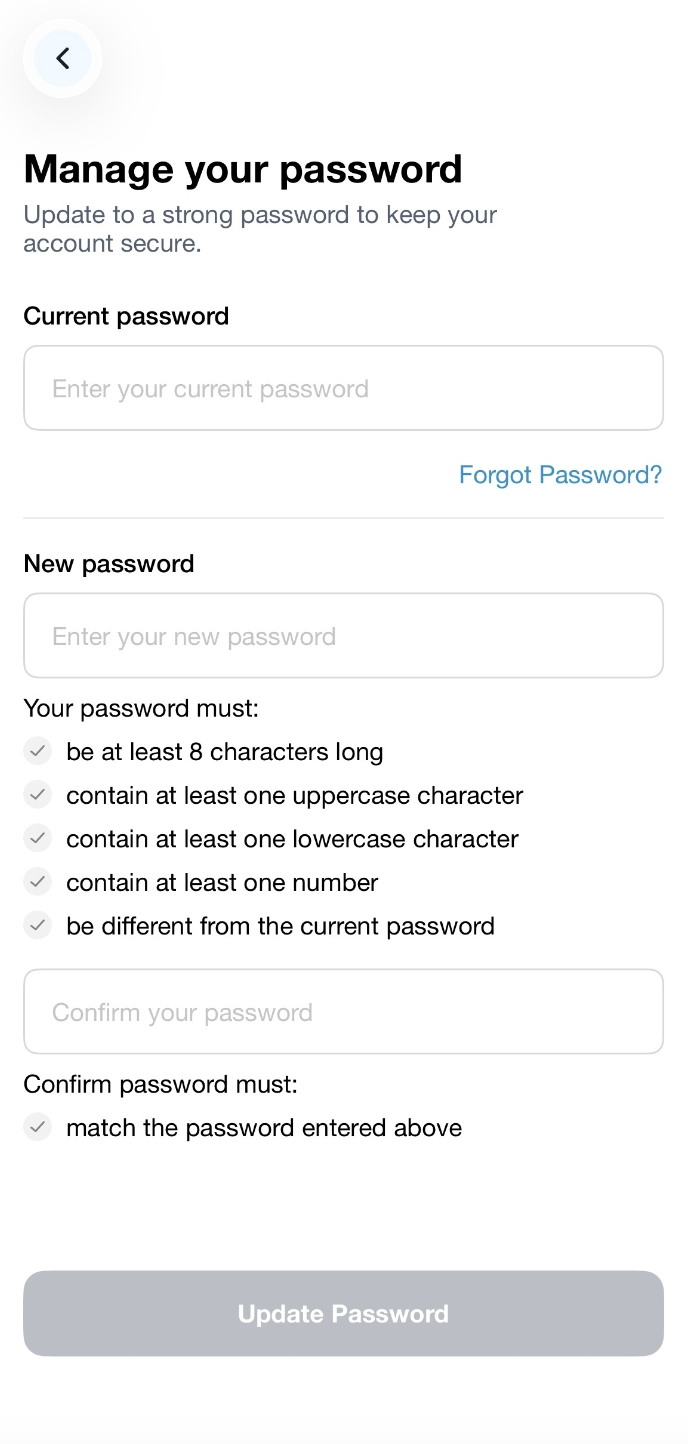
Step 3: Proceed to update your password by entering your current password, then enter your new password twice and click Update Password. Your new password must meet the criteria below for maximum security:
- be at least 8 characters long
- contain at least one uppercase character
- contain at least one lowercase character
- contain at least one number
- be different from the current password
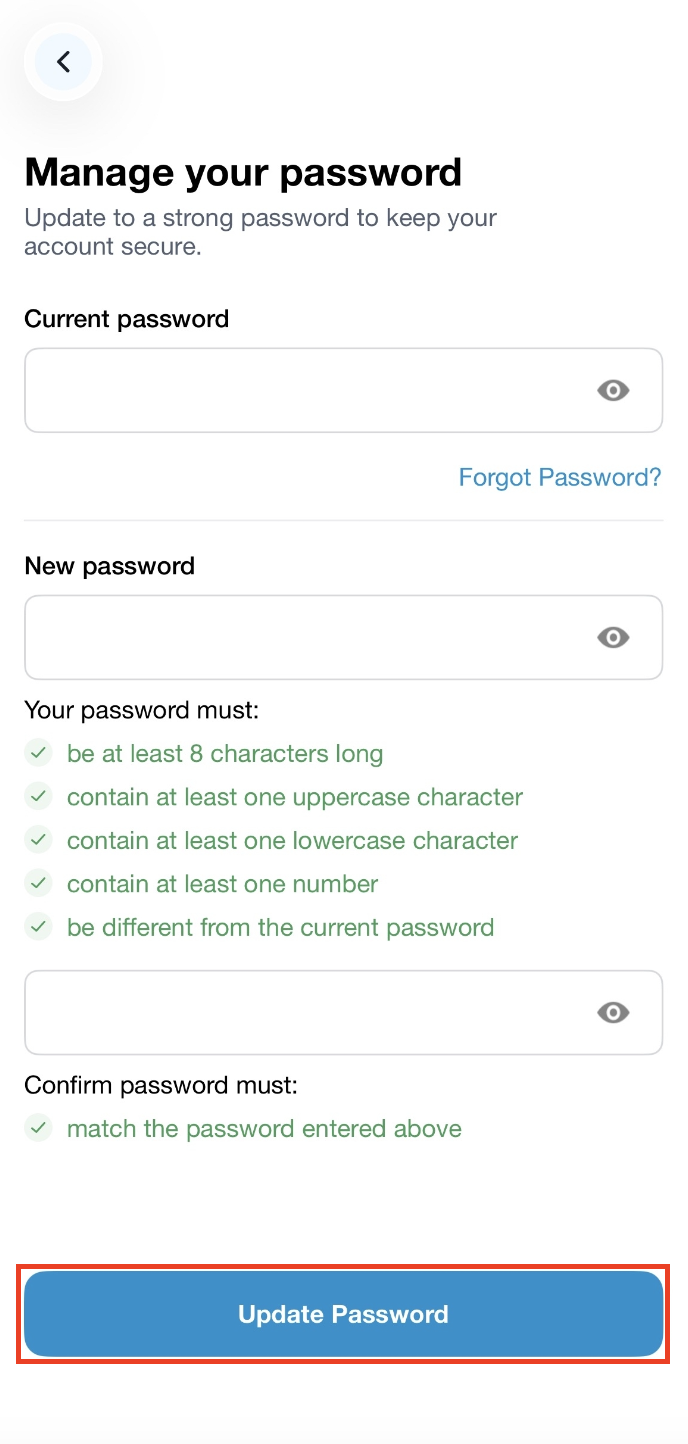
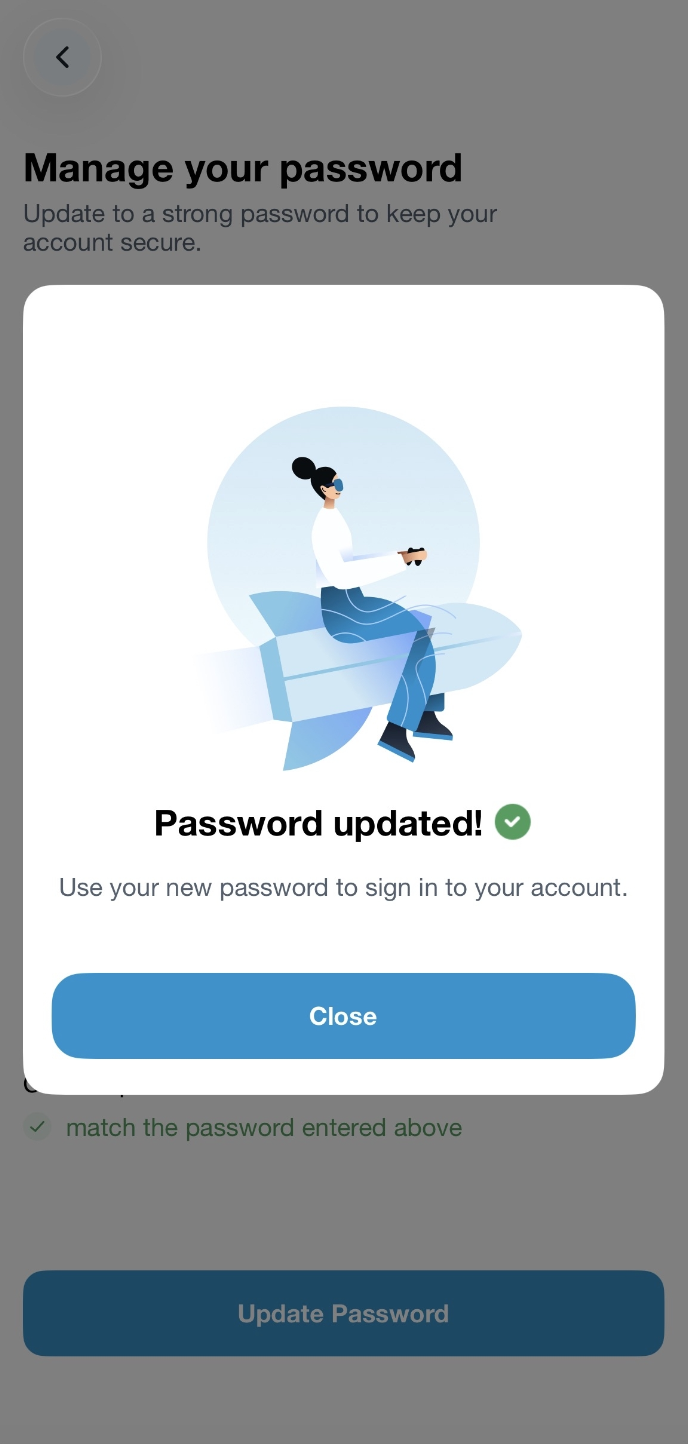
A message of "Password updated!" will pop out to indicate you have successfully updated your password!
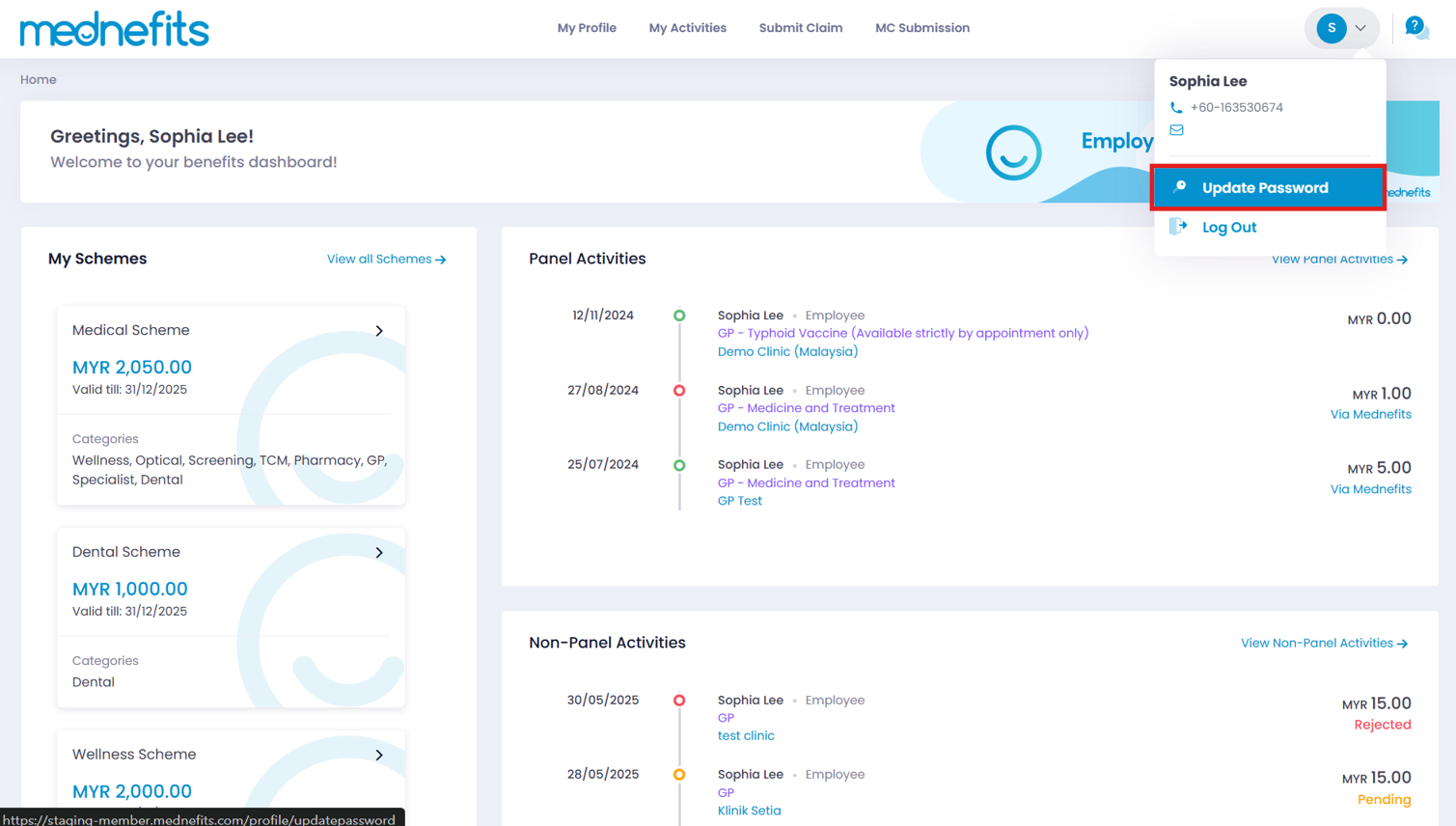
Step 1: Click on My Profile on your Mednefits Dashboard and select Update Password from the bottom left corner.

Step 2: Proceed to update your password by entering your current password, then enter your new password twice. Your new password must meet the criteria below for maximum security:
- is at least 8 characters long
- has at least one uppercase character
- has at least one lowercase character
- has at least one number
Then click on the Update password to confirm the new password.

A green banner with the message of "Success! Your password has been reset" indicates that your password has been updated. You may log in using your newly updated password.

Alternatively, you may also update your password by navigating to the right-hand drop-down menu and click on the Update Password.