


 1582
1582
If your employees visited a Mednefits panel provider in the preceding month, you’ll receive a spending invoice from Mednefits Finance on the first day of the following month. The invoice email will look like this:

Naturally, you might want to check which employees went to which clinics on which dates, and how much each visit cost. Our Finance team will attach the breakdown of each invoice to the email, and you can simply open the attachment to see the list of transactions that make up each invoice.
How to View and Download Invoice
We will provide a step-by-step guide on how to view and download your invoices. You can access them by navigating to Billing > Invoices.
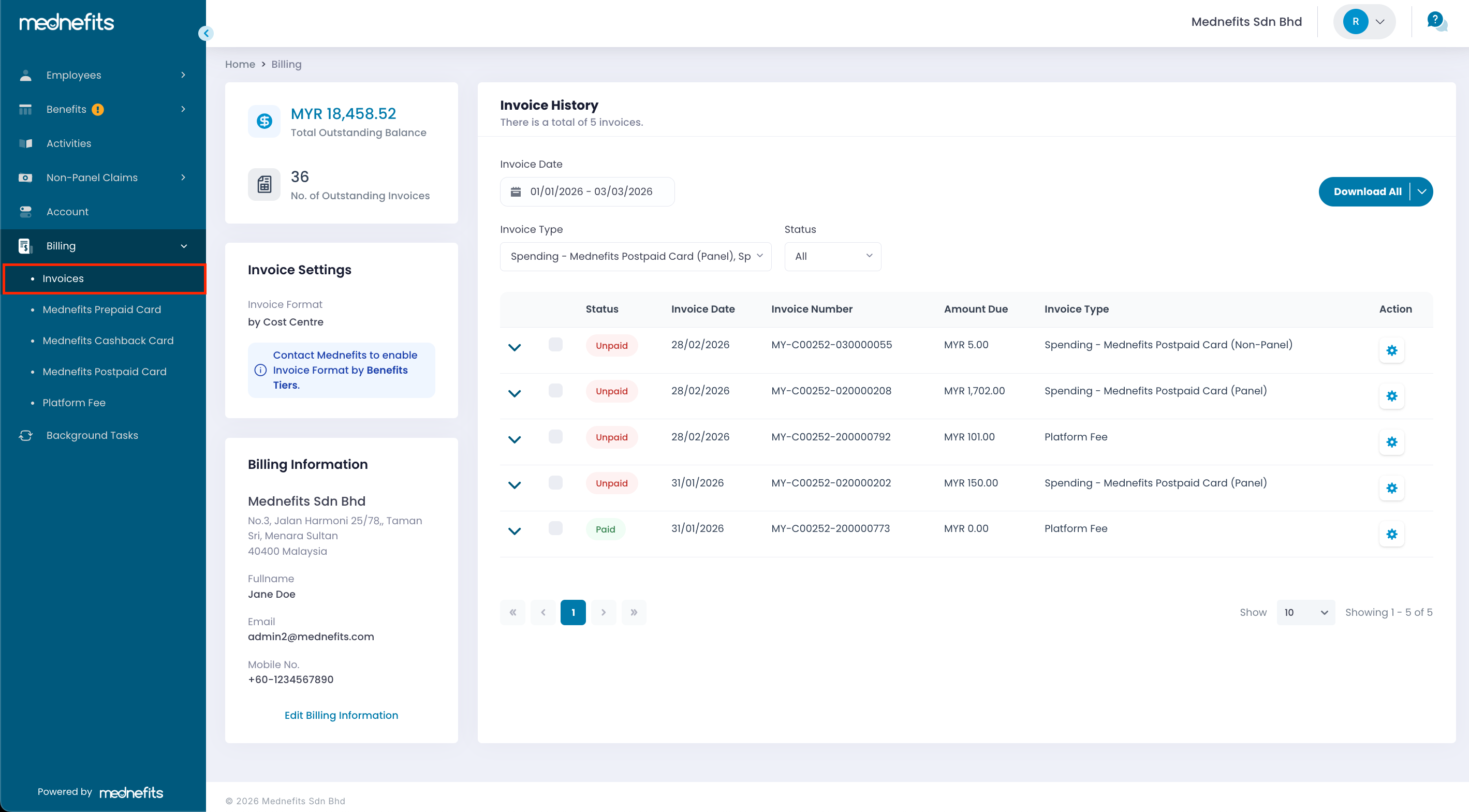
To see the full details of your invoice, click on the View Invoice.

Once you have clicked on View Invoice, the full invoice will be displayed on your screen. To download a copy for your records, click the Download Invoice button located on the right side of the page.

You can also find the transaction breakdown in your Company HR portal by simply navigating to the Billing > Invoices > Download Transaction Breakdown. You can choose to download it in PDF or Excel format.

Additionally, may view the payment date and amount once the invoice status is updated to Paid. Simply click the arrow on the left to expand the row and view the payment details.


