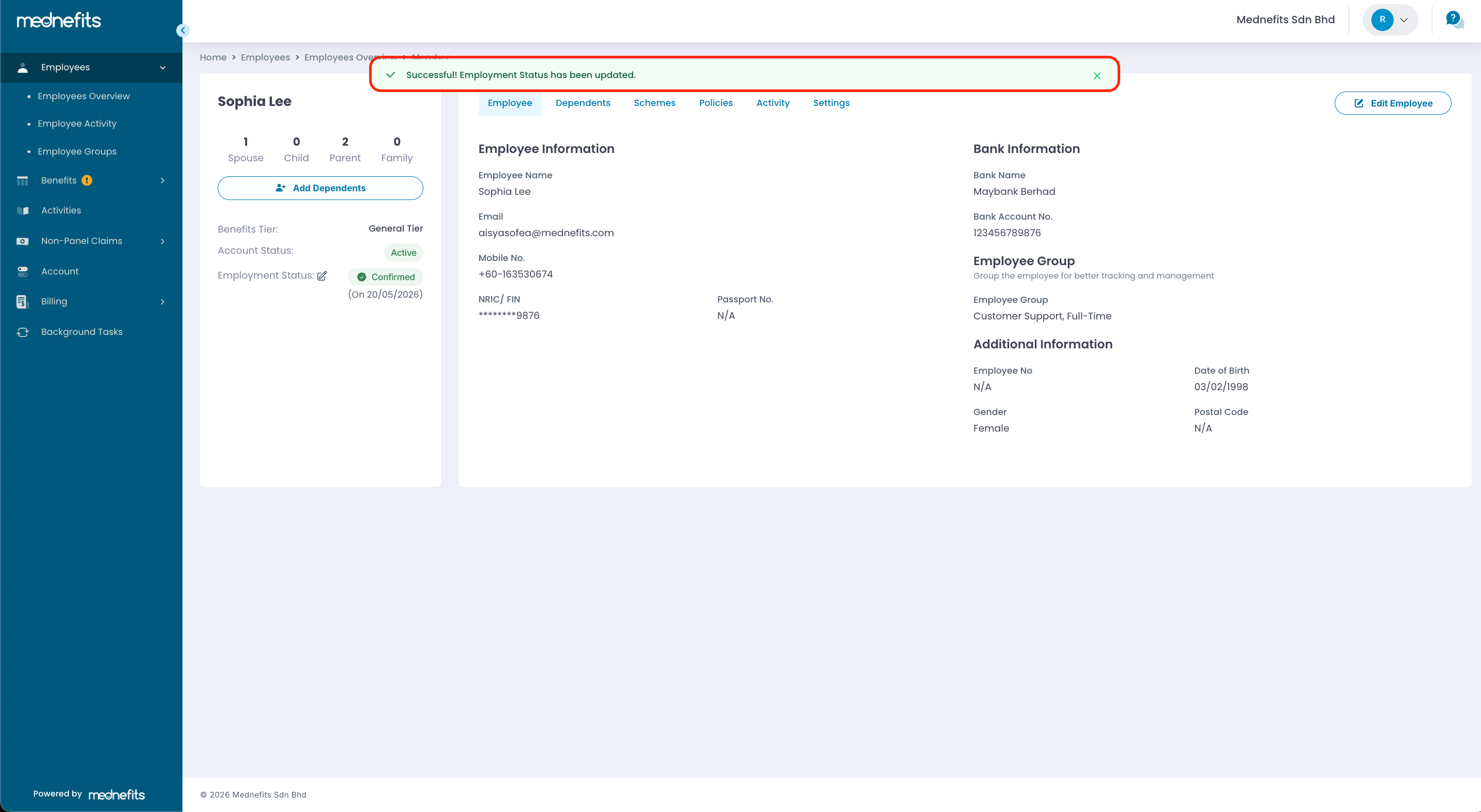
A new Probation and Confirmation Status feature is now available in the HR Portal to help HR teams manage and monitor employees’ employment status more efficiently. This enhancement is designed to support a smoother and more organized employee management process.
❗The settings for probationary employees are currently applicable only to selected companies.
- Steps to amend employee's confirmed date (change the confirmation date)
- Steps to update employee's status to confirmed
Steps to amend employee's confirmed date (change the confirmation date)
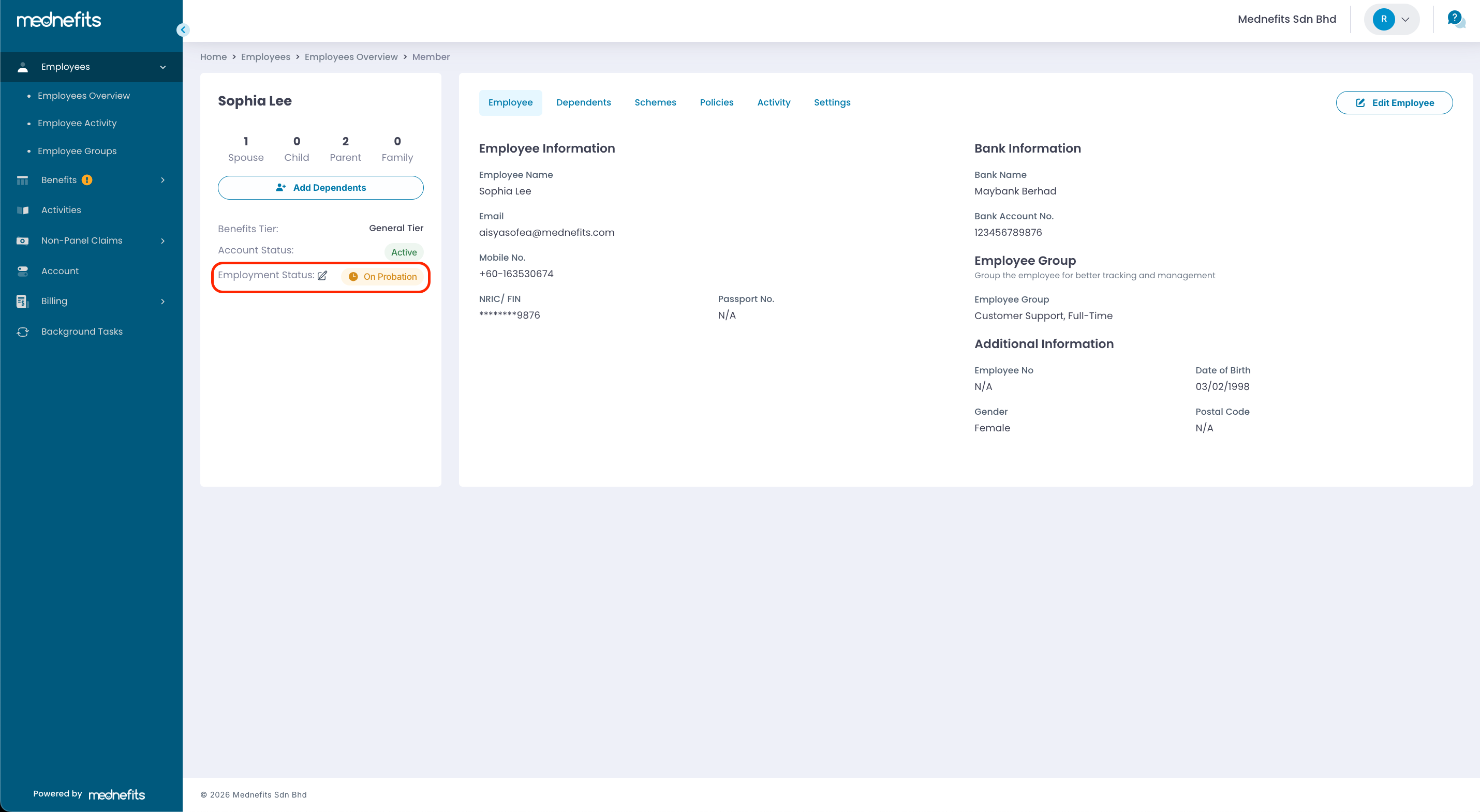
Step 1: Navigate to Employees > Employees Overview > Member and search for the employee’s name. Then, click on Employment Status.
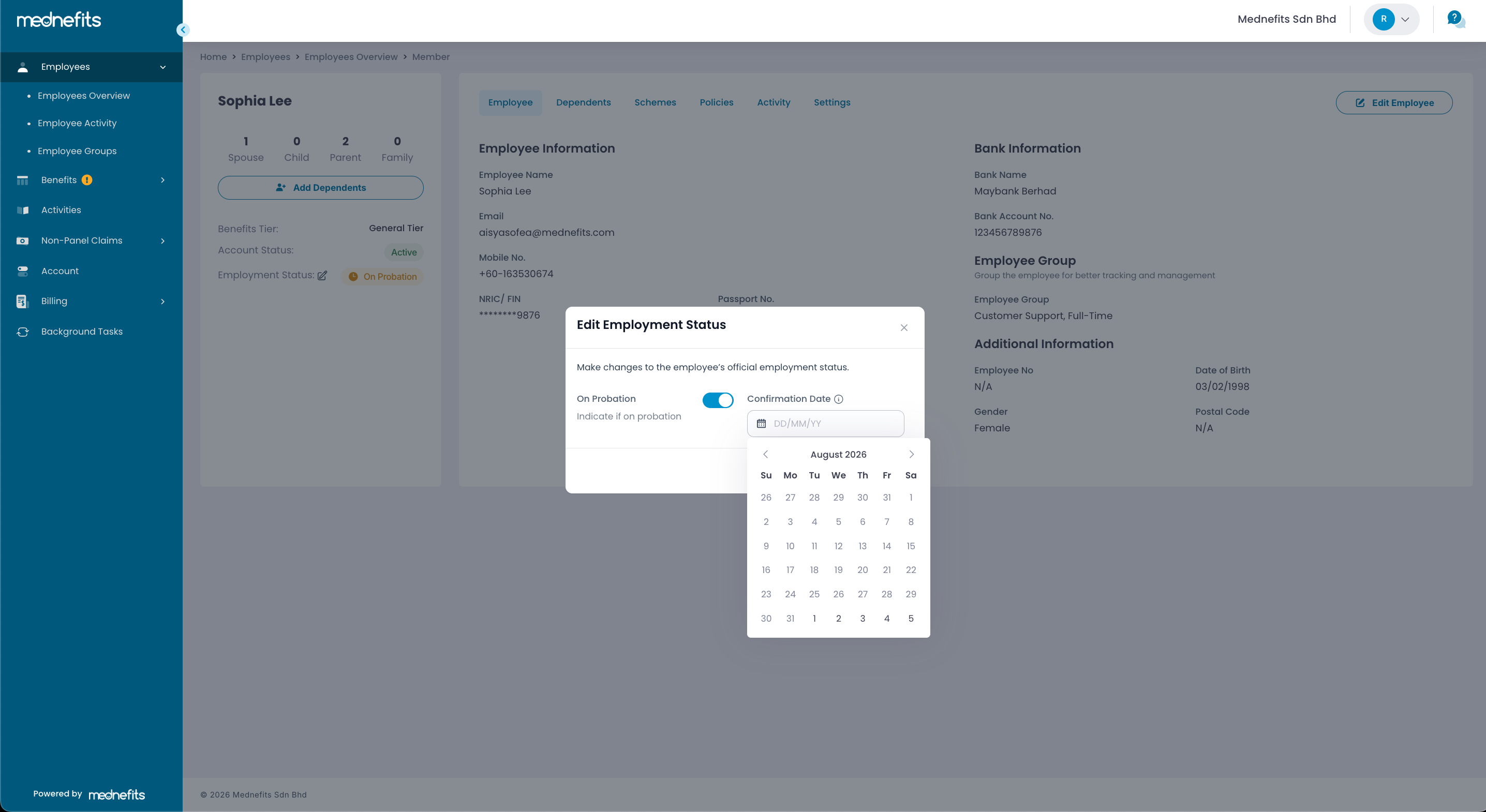
Step 2: Click the calendar icon under Confirmation Date to adjust the dates.
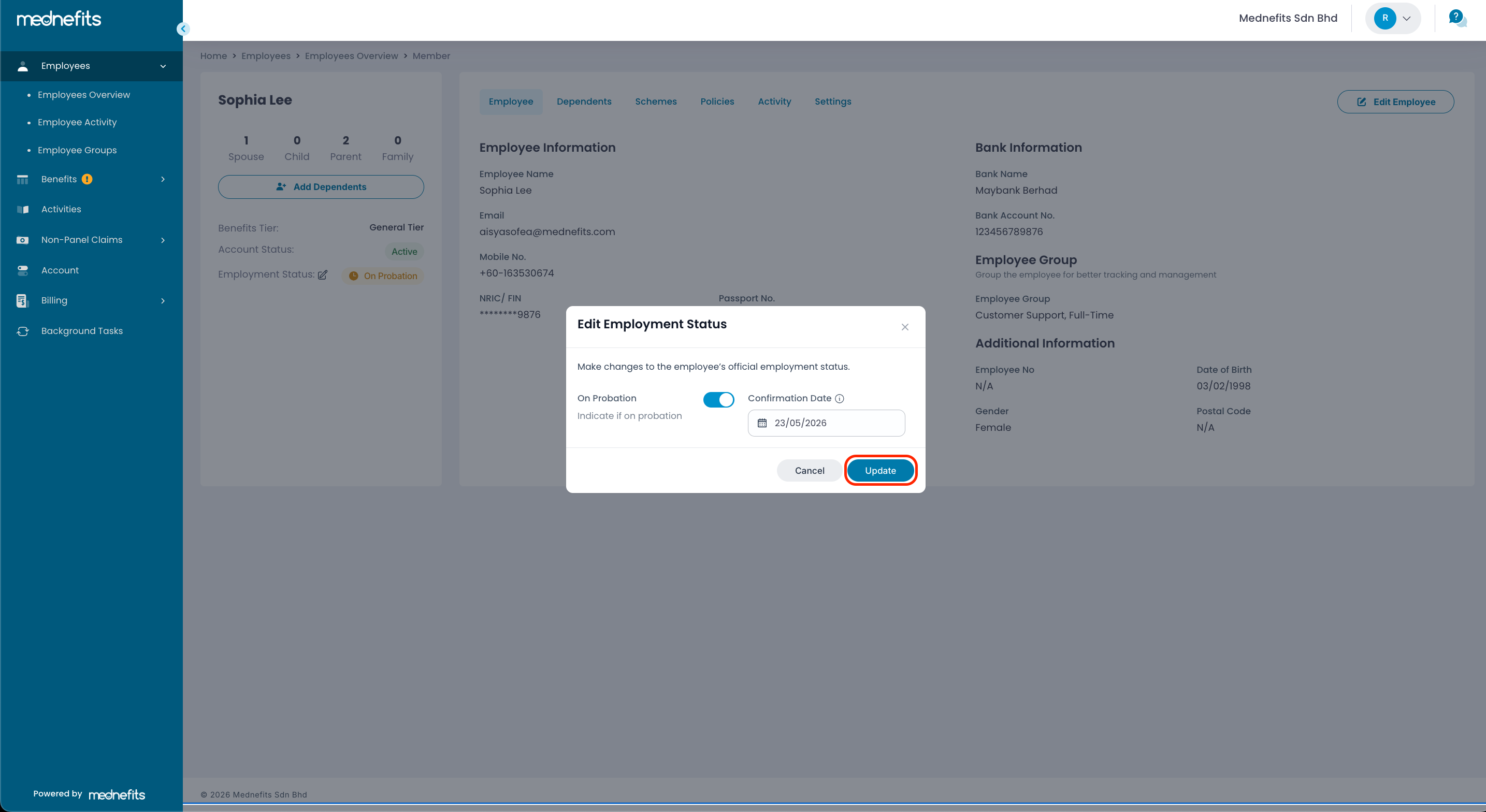
Step 3: Click on Update to confirm the adjustment.
Steps to update employee's status to confirmed
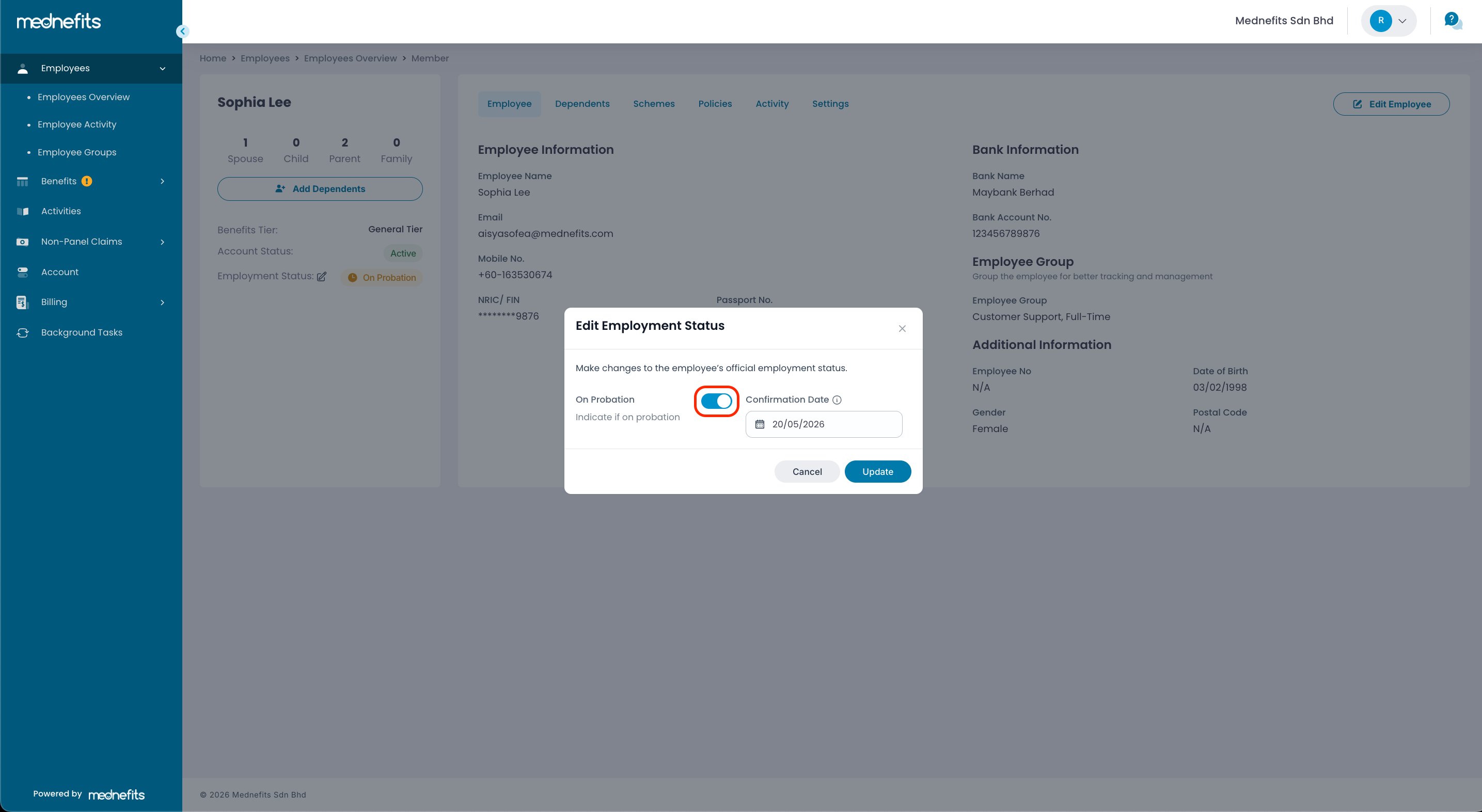
Step 1: Click on Employment Status. Then, toggle off the On Probation button.
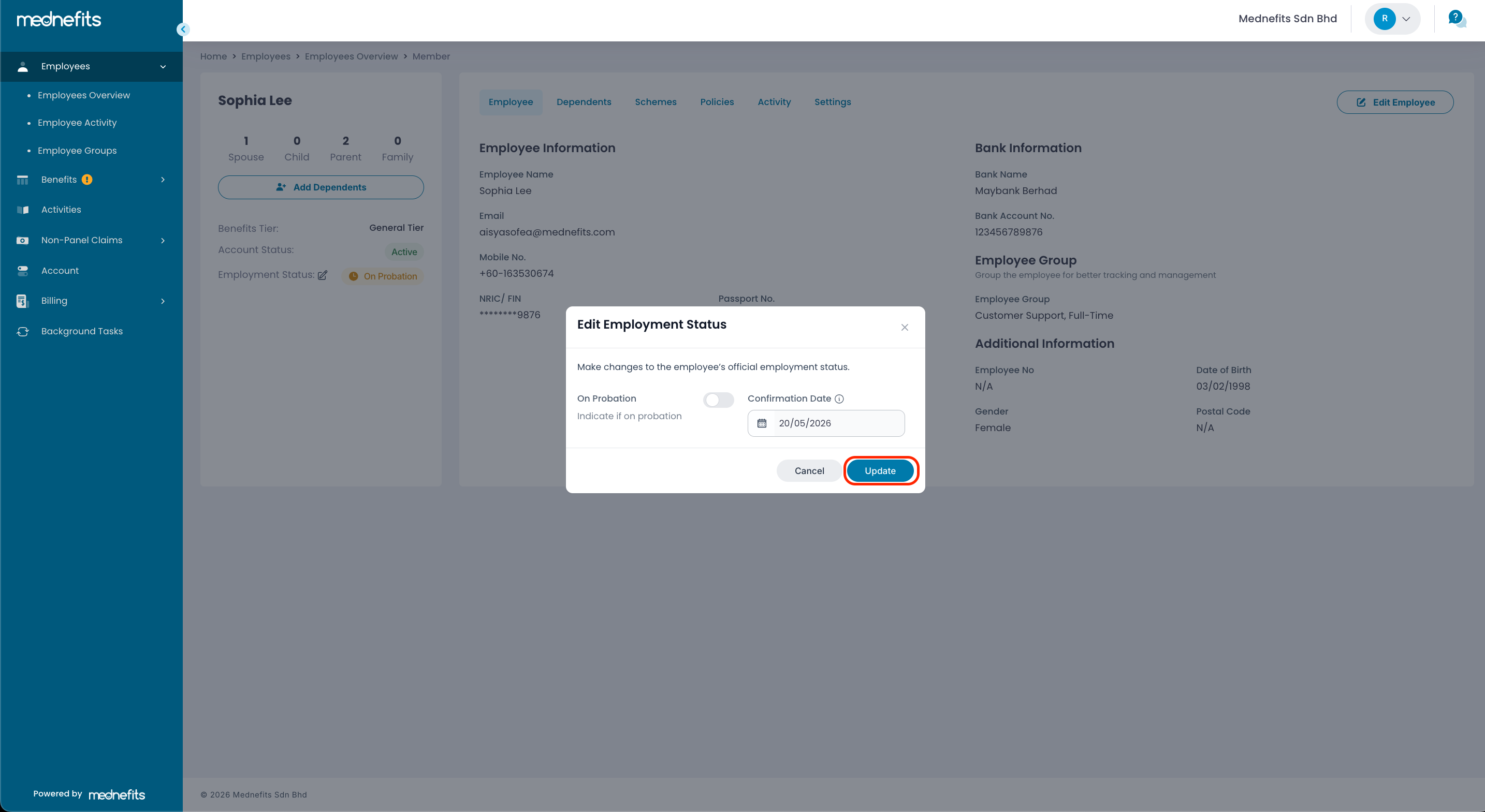
Step 2: Click Update to proceed with the changes made.
Once updated, a prompt message will appear confirming that the employee’s status has been successfully updated, along with the updated confirmation date.