


Some companies may require you to complete a verification process before proceeding with registration at a panel provider.
How should you proceed with your visit?
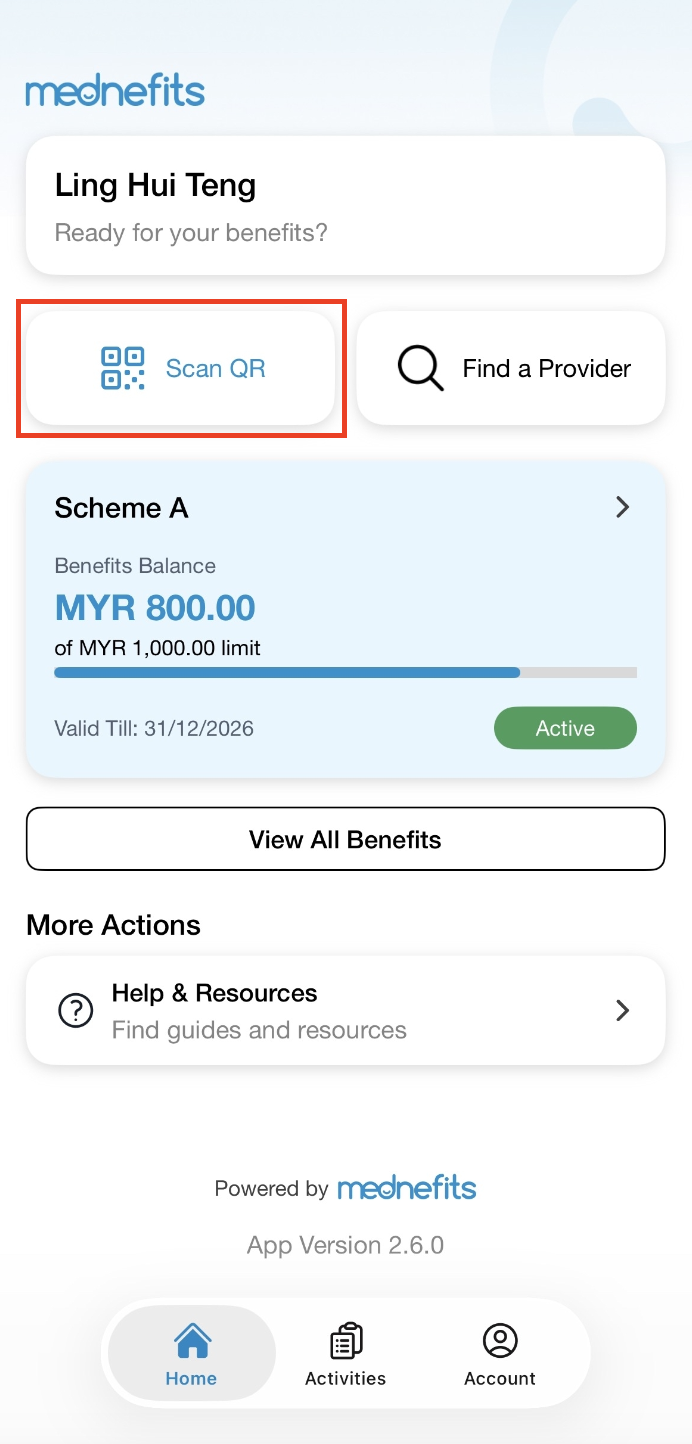
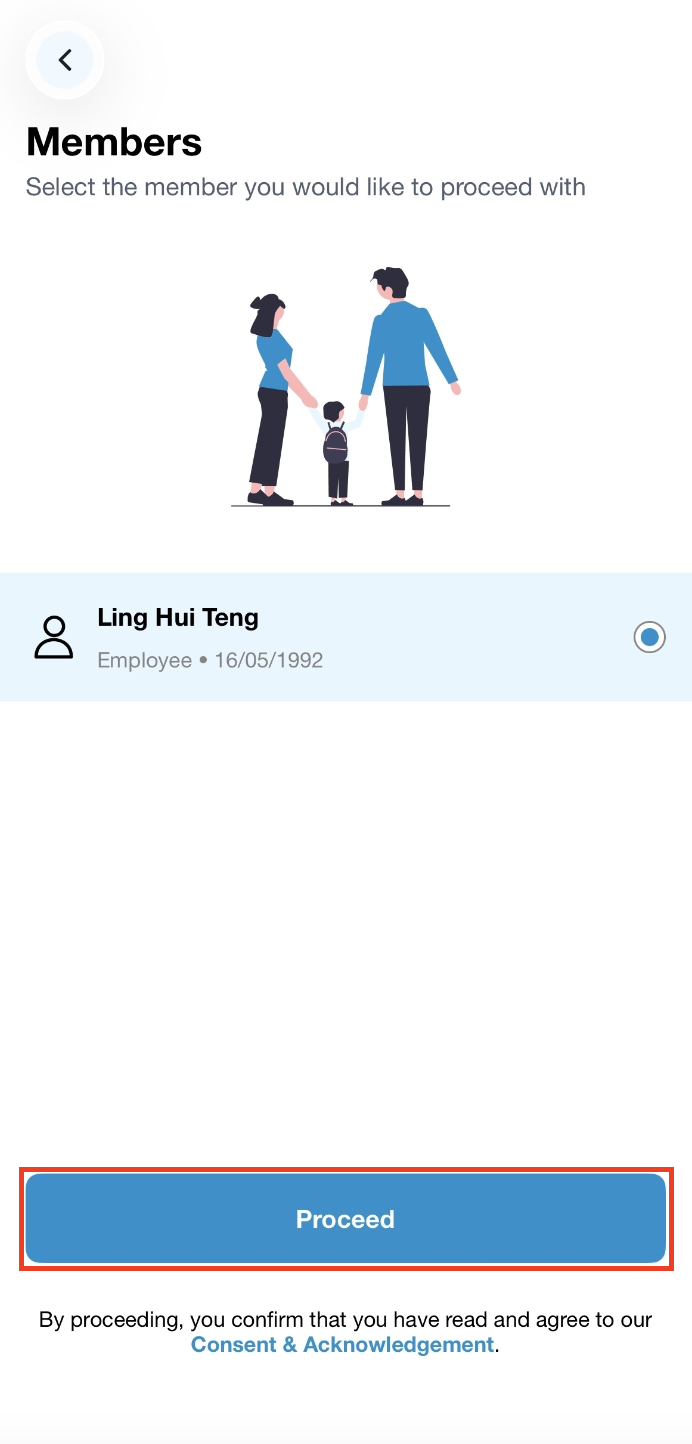
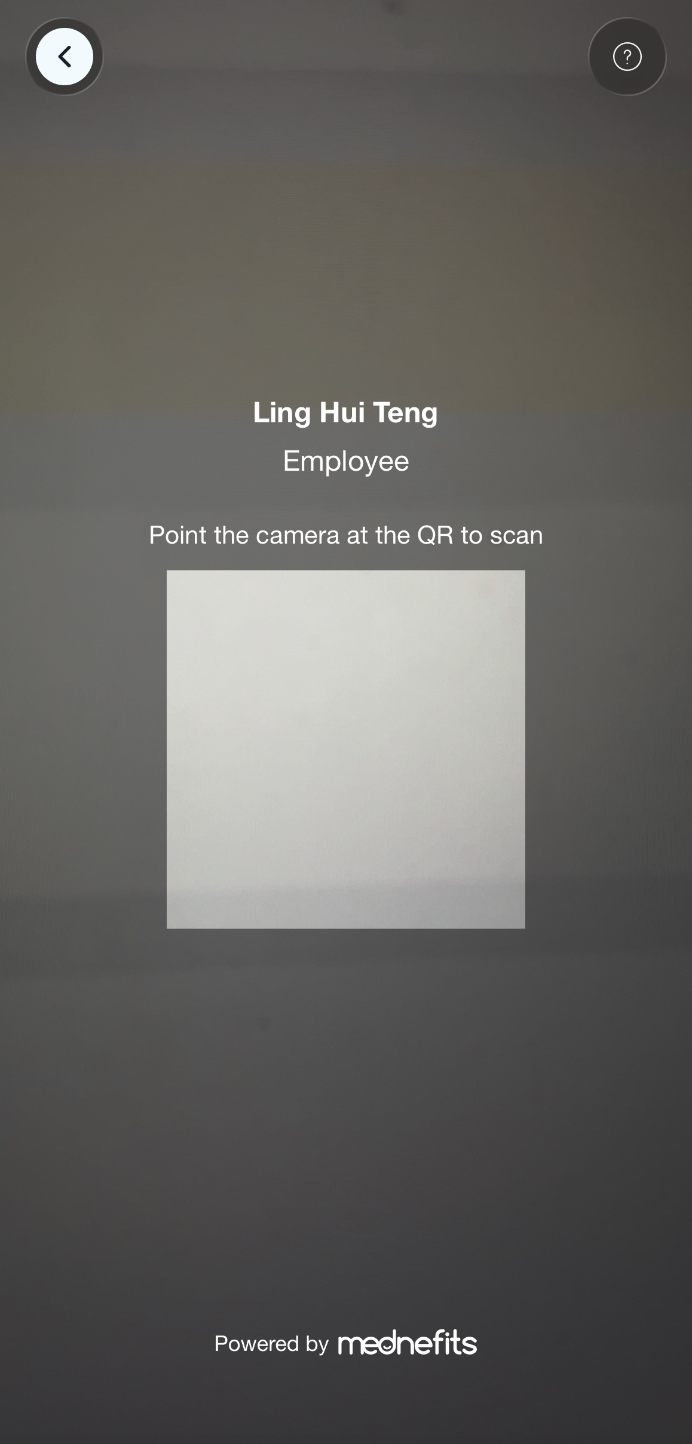
Step 1: On your homepage, tap on Scan QR. Then, select the members (if available) and scan the QR code provided by the panel provider.
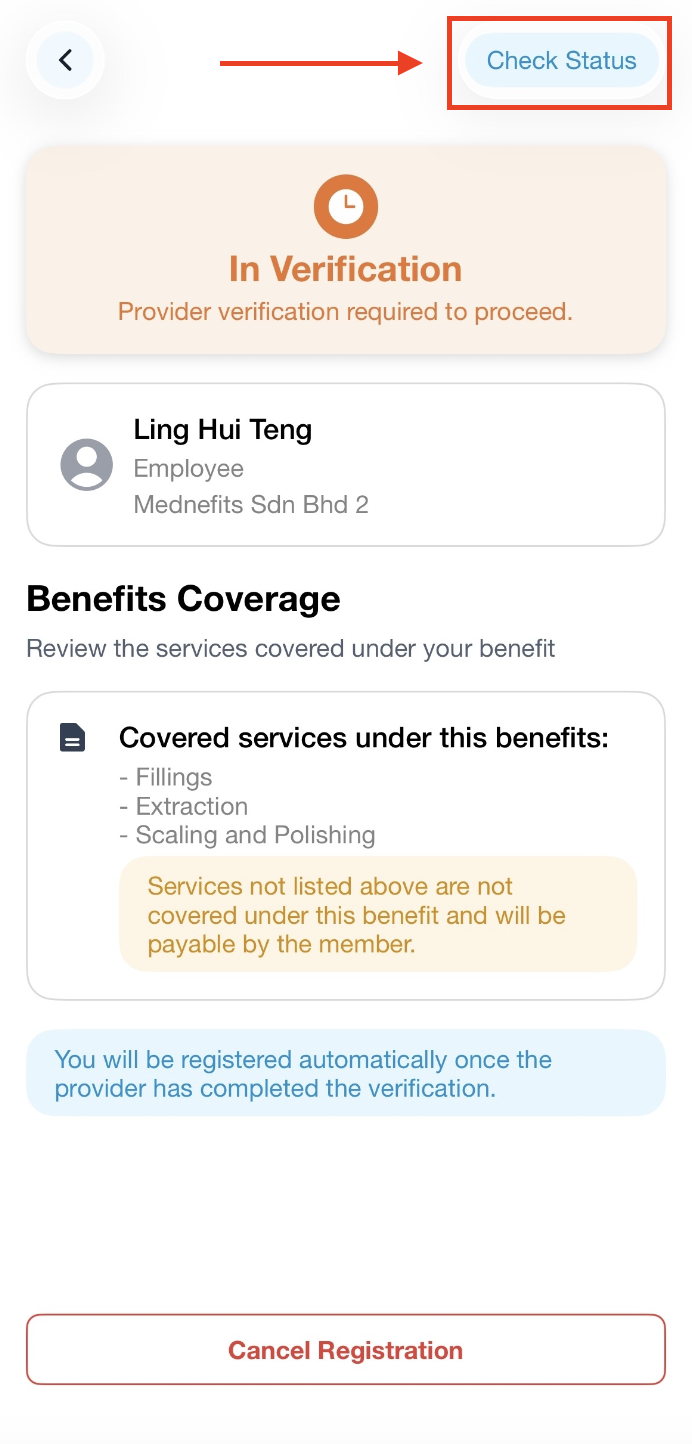
Step 2: You will be directed to the In Verification page (if applicable). Kindly take note of the listed services, as they indicate the services covered under your benefits. Then, kindly wait for the provider to verify your visit.
- Benefits Coverage: Any services rendered that are not covered under the listed benefits may result in your visit being rejected or require you to make an Out of Pocket payment.
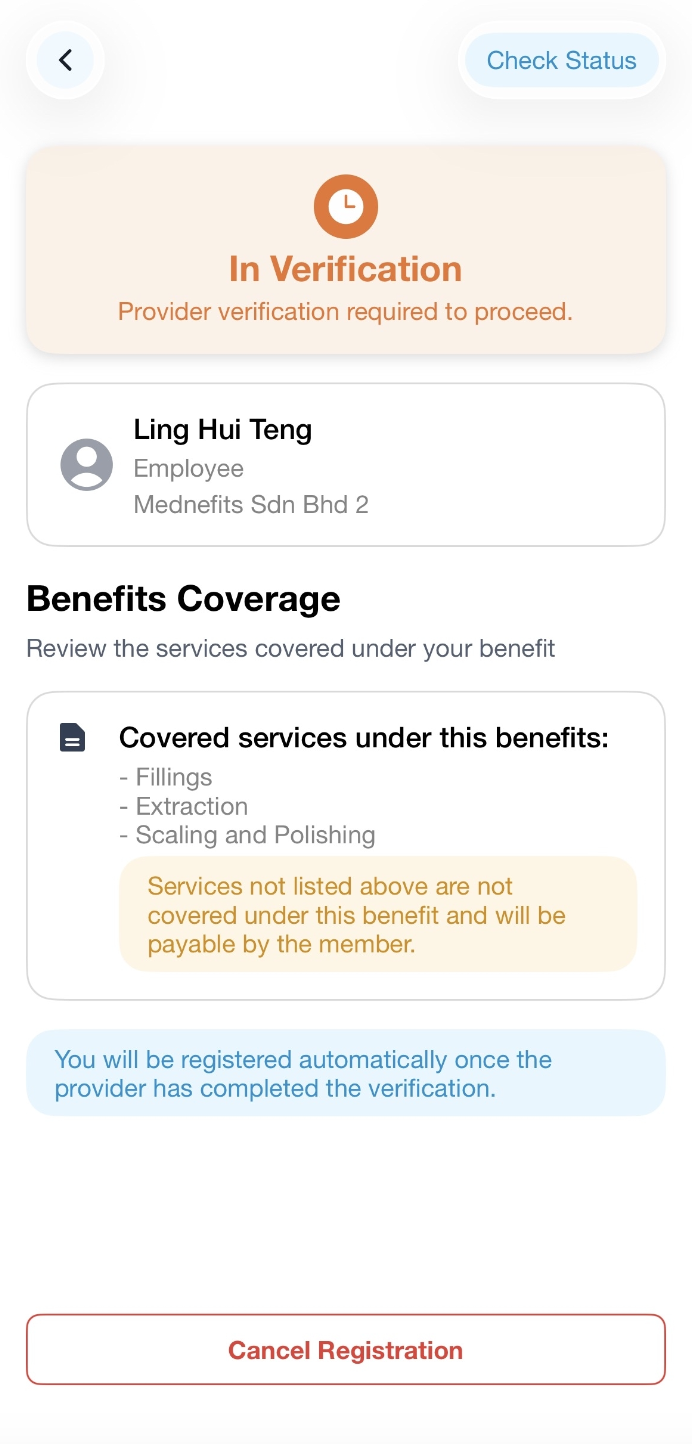
Step 3: Once the provider has verified the services rendered, click on Check Status in the top-right corner.
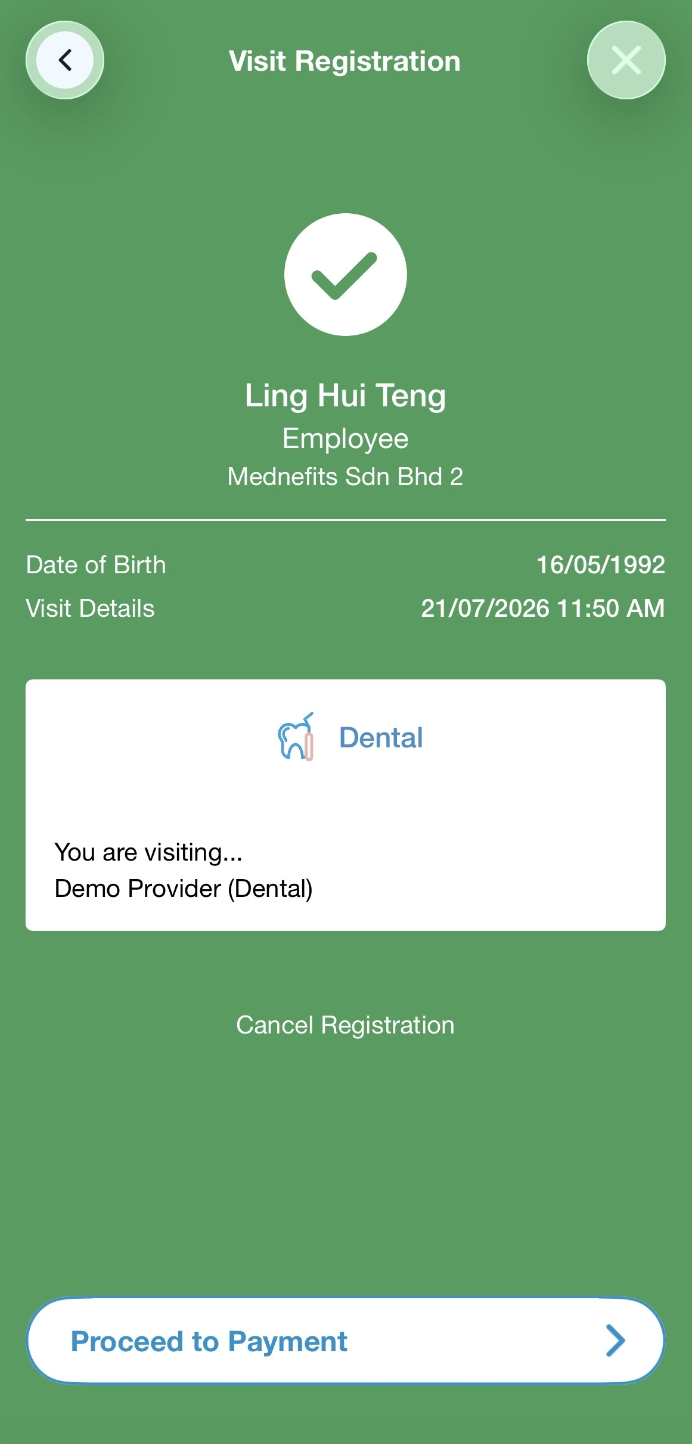
Then, a green confirmation screen will appear to indicate that you have successfully registered.
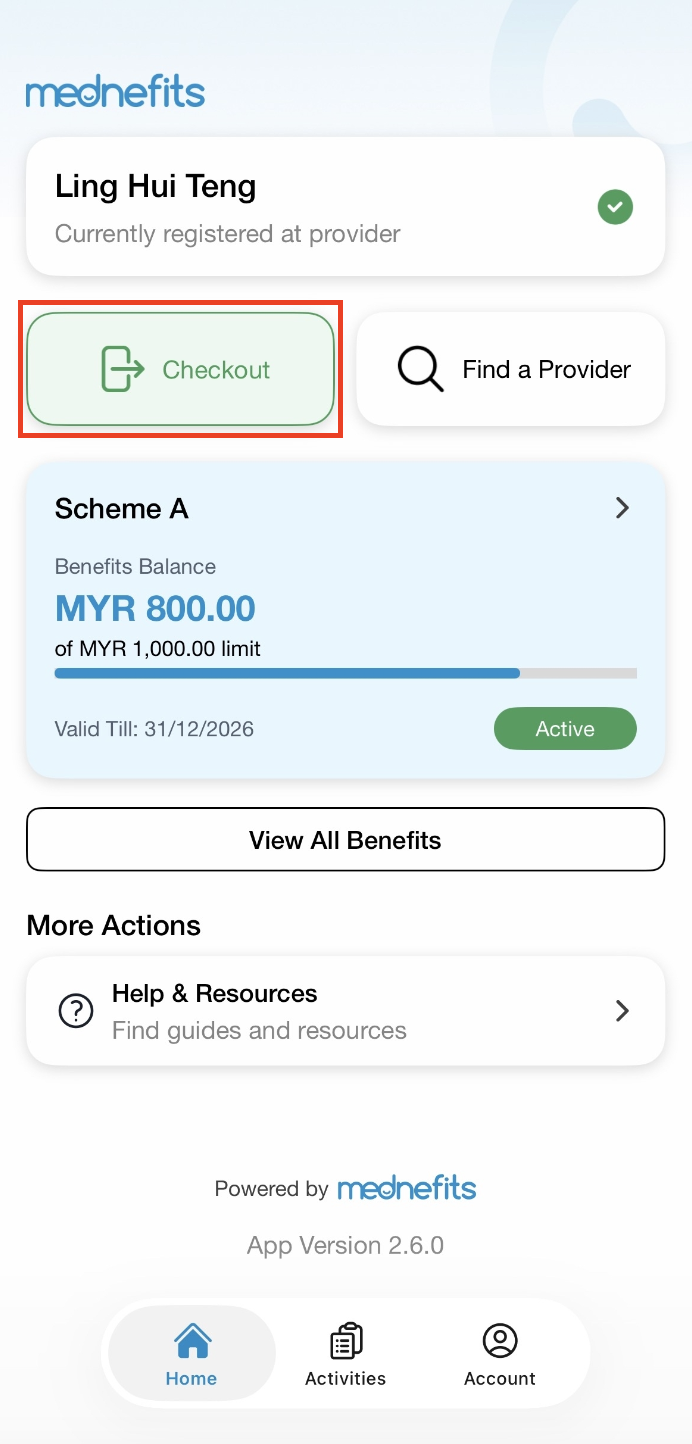
Step 4: After you are done with the consultation and treatment, tap on the Checkout button, select the services (if any) and enter the total bill amount to pay. (Select Service(s) page won't be displayed if provider has only one service to offer)
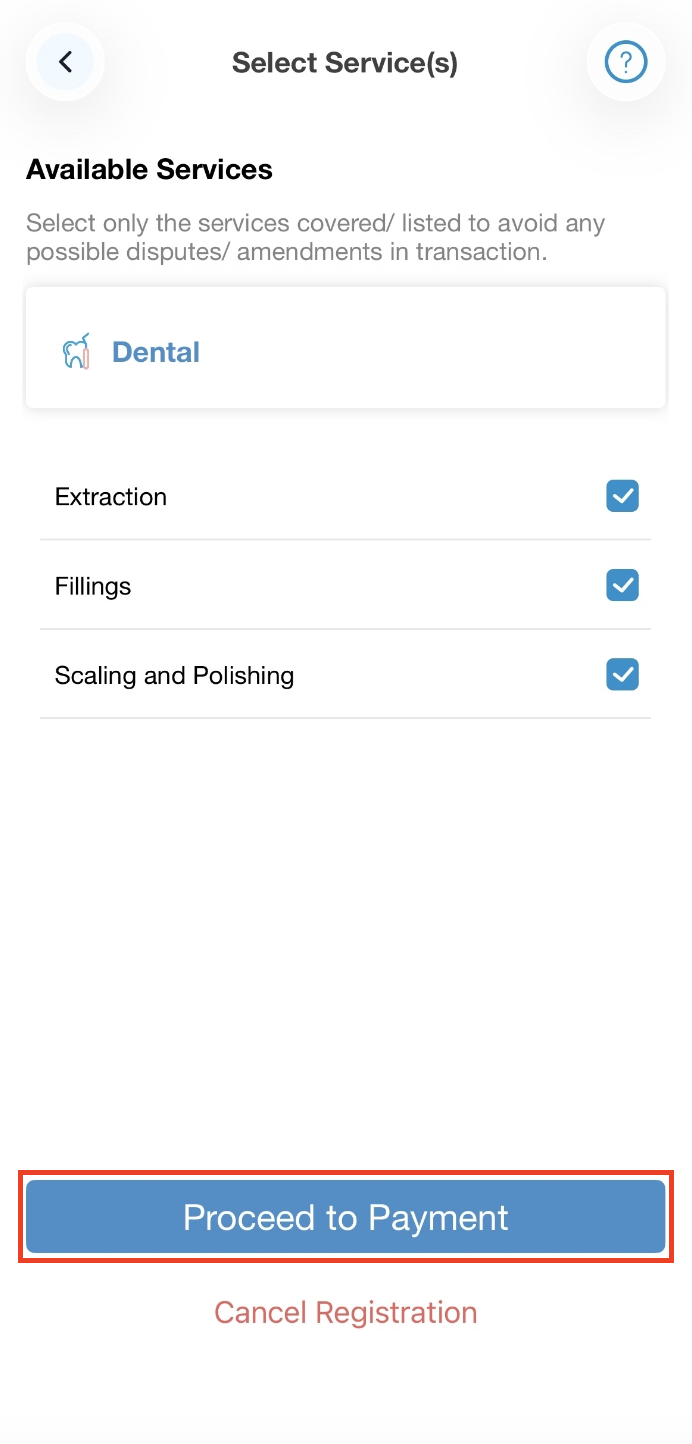
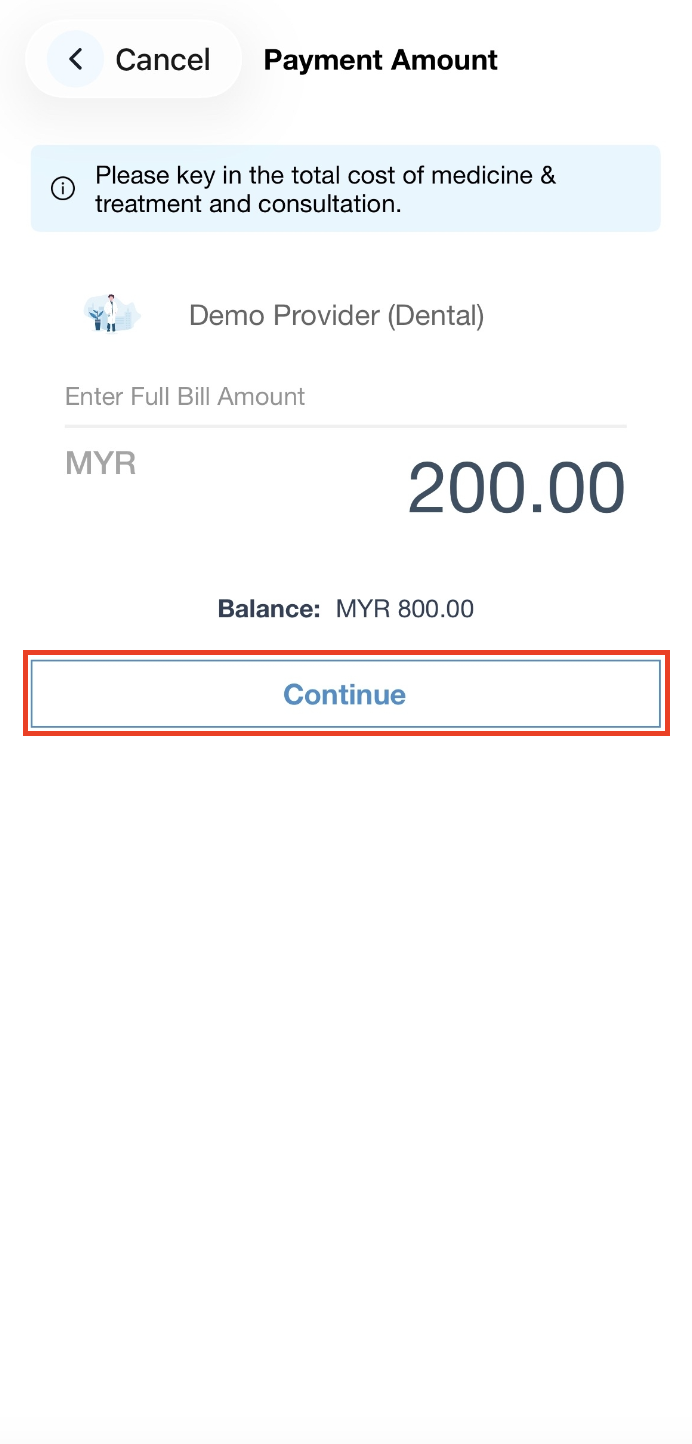
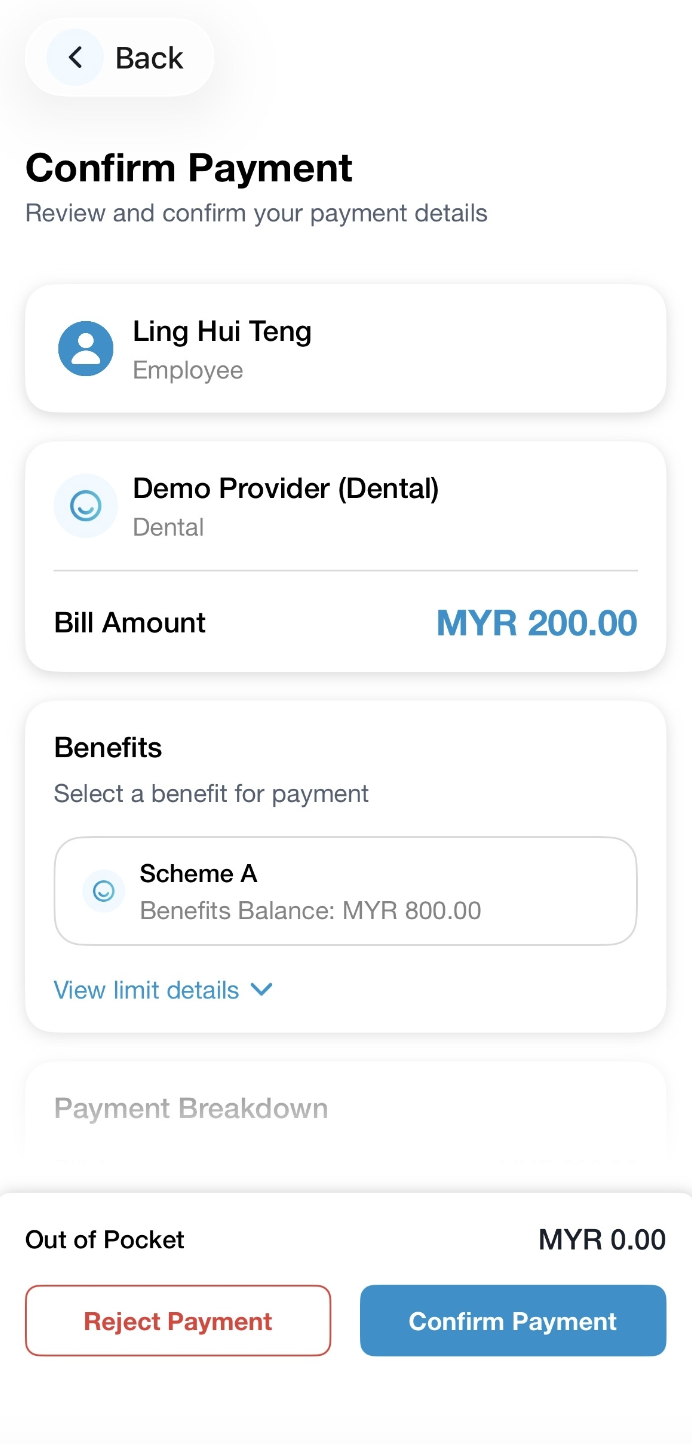
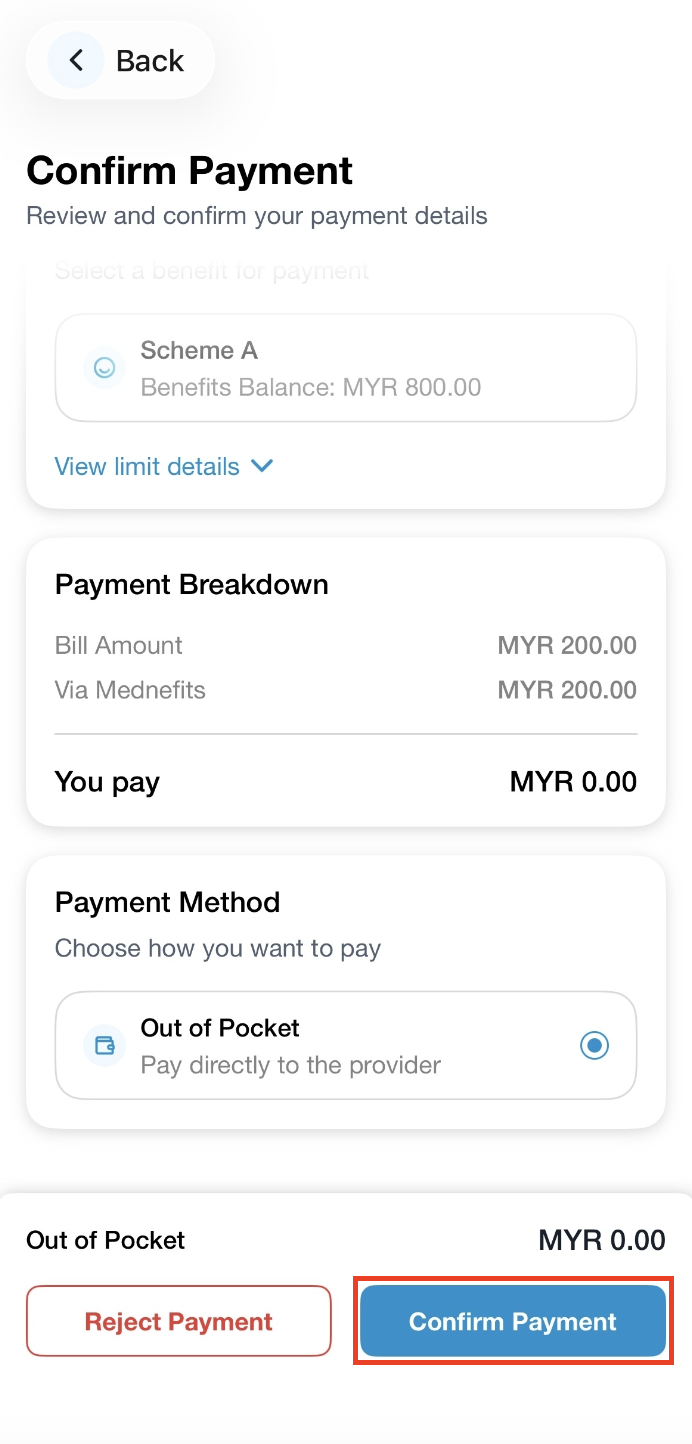
Step 5: In this Confirm Payment page, you are able to view if Out of Pocket is applicable. After you have reviewed your payment details, click on Confirm Payment to complete the checkout process.
- Bill amount: The cost for consultation, medicine, and treatment.
- Via Mednefits: The amount deducted from your current balance for this visit.
- Out of Pocket: The amount you will have to pay the clinic or provider by self-payment via cash/NETS/credit card for the visit.
Step 6: You will then see a green screen to indicate payment is successful. The transaction overview will be viewable via this Transaction Completed page.
Note: Out of Pocket will be shown in red if required and you need to make payment directly to the provider.
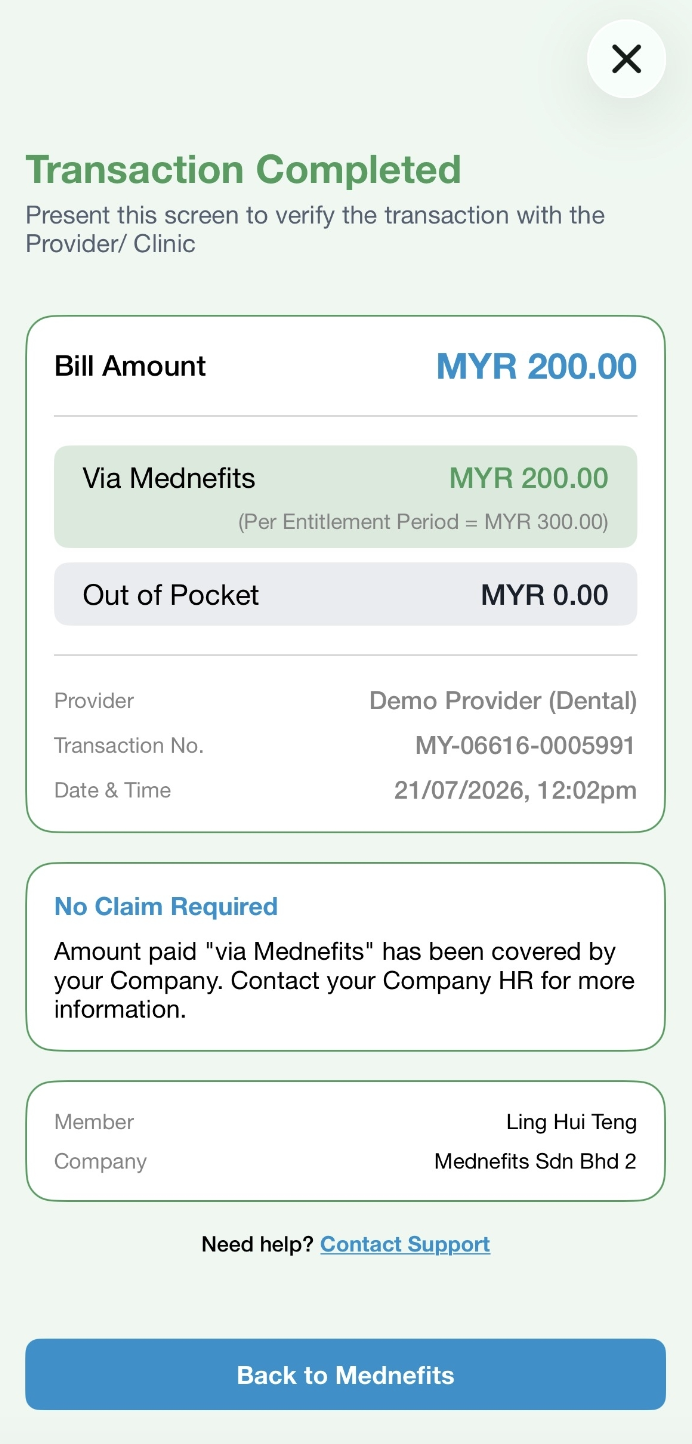
You have successfully completed a panel transaction.

