3
3
🆕 We are introducing a new feature that allows HR admin with “Approve Claim” permission to submit Non-Panel Claims on behalf of members. This enhancement is aimed at improving efficiency in the claims process by enabling HR teams to manage and submit claims more seamlessly on behalf of members when needed.
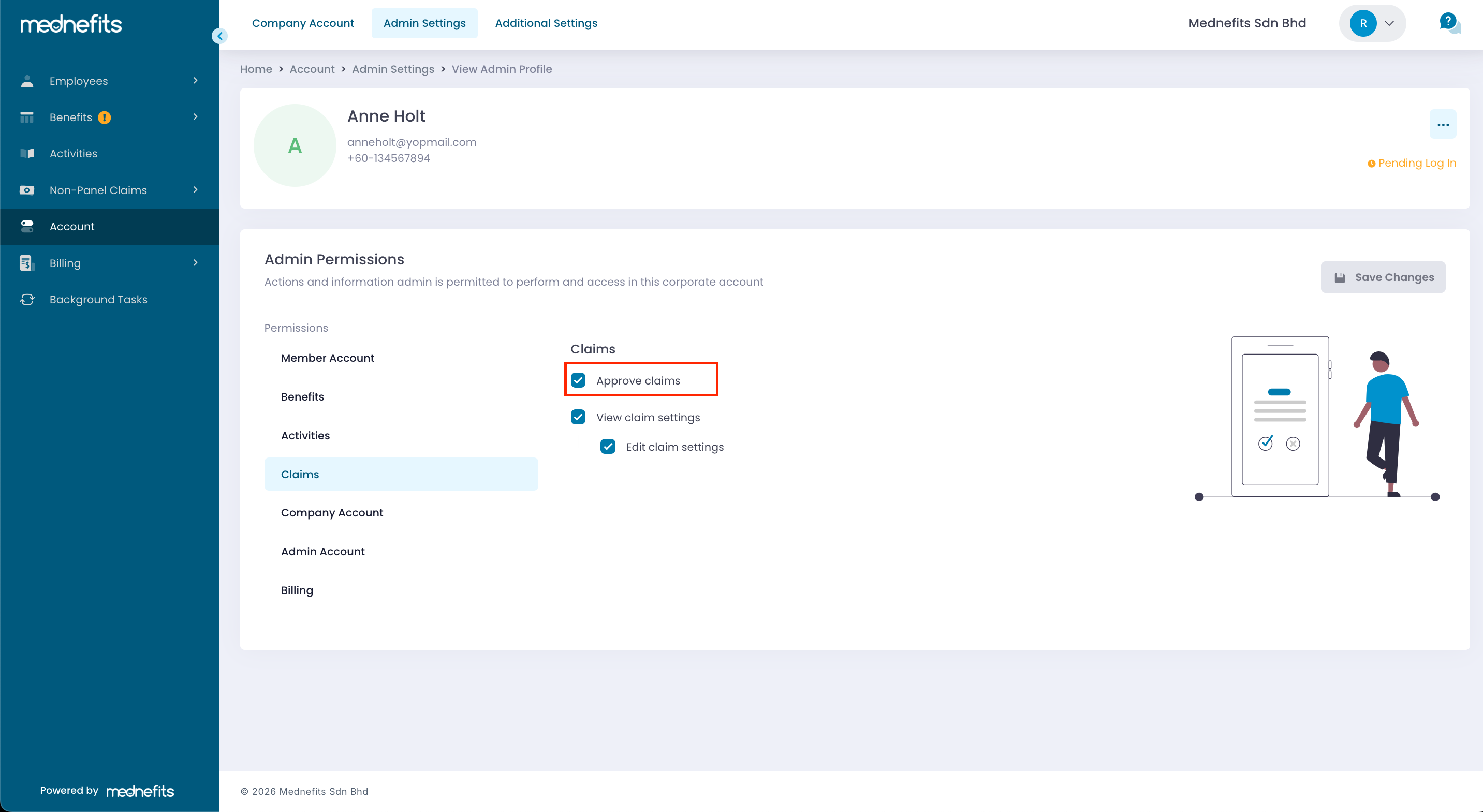
HR with Approve Claims Permission
Step 1: To activate this feature, you may navigate to Account > Additional Settings > Toggle on the "Claim submission for Company Admins" > Save Update
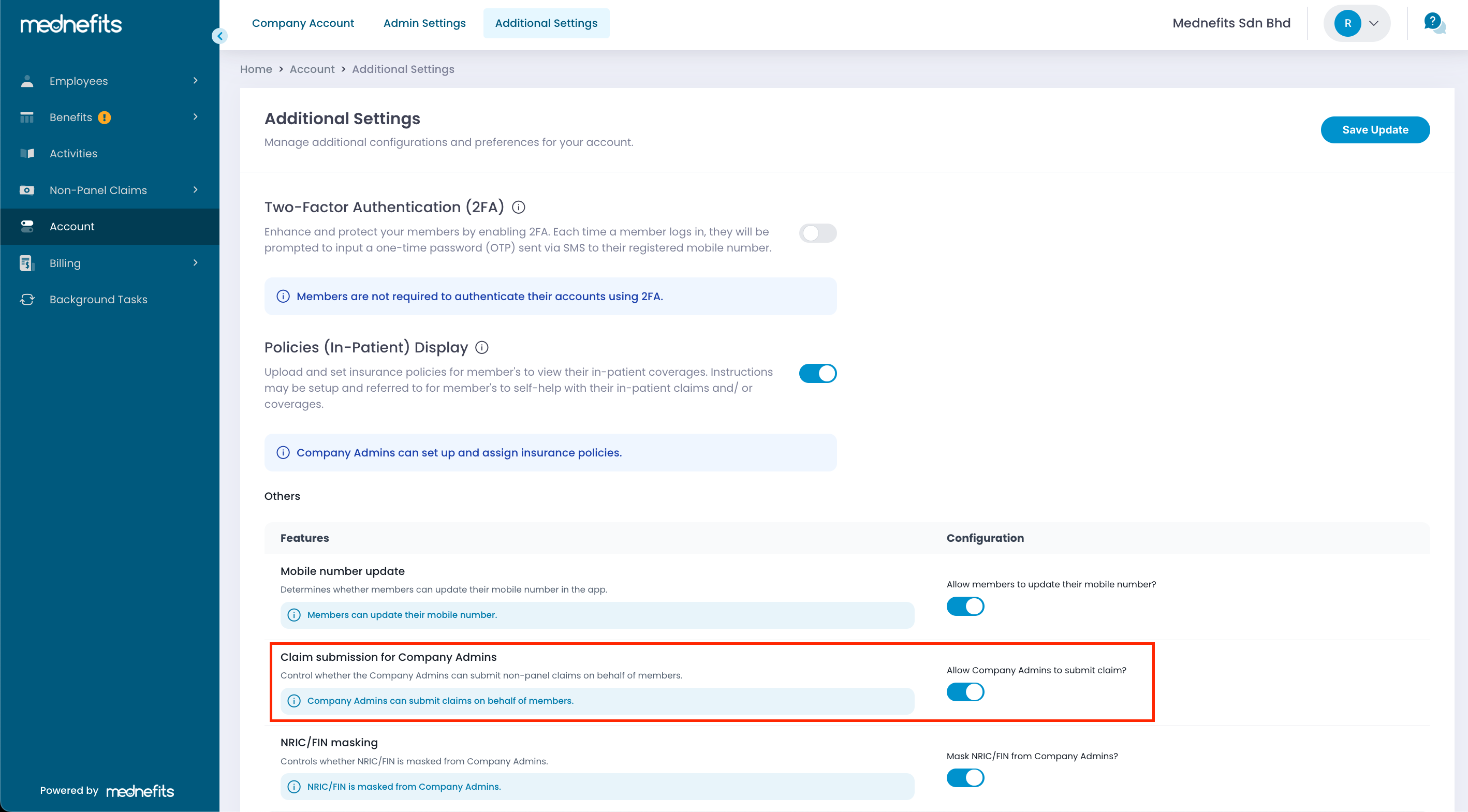
Step 2: After the settings have been updated, proceed to Non-Panel Claims > Overview > Submit Claim.
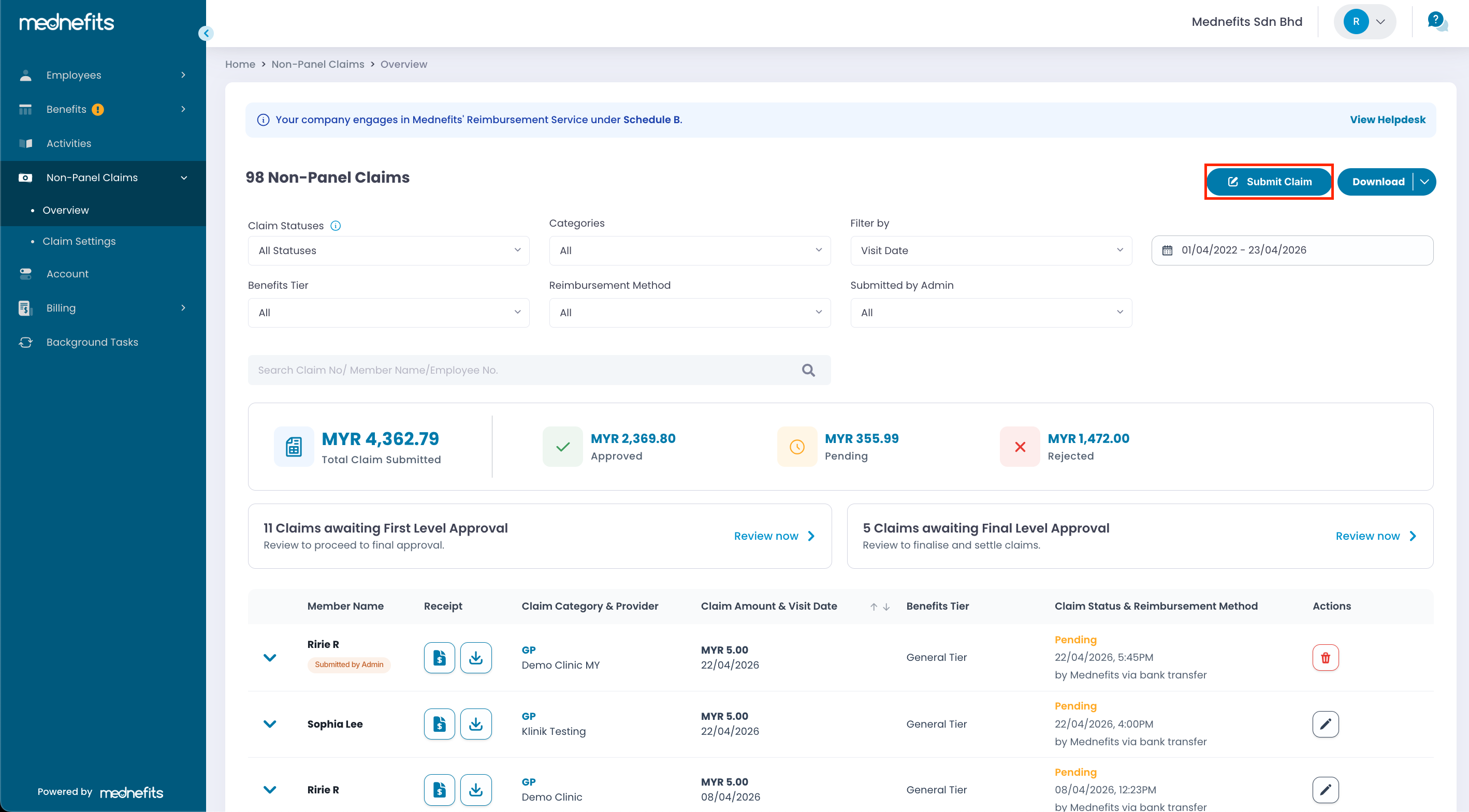
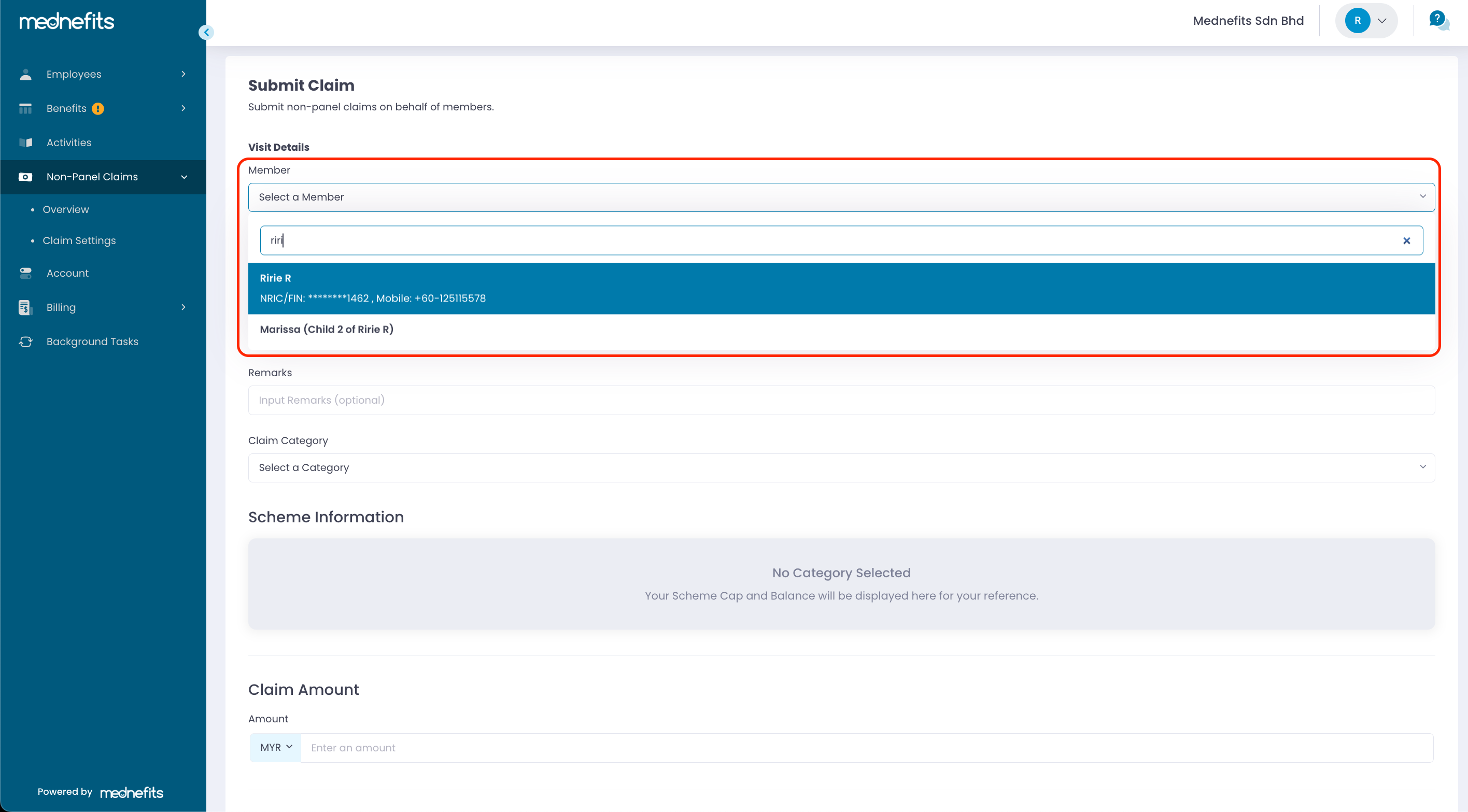
Step 3: Select the member’s name for whom you wish to submit the claim.
- You may also submit a claim on behalf of the member’s dependent by searching for their name and selecting the correct dependent from the list.
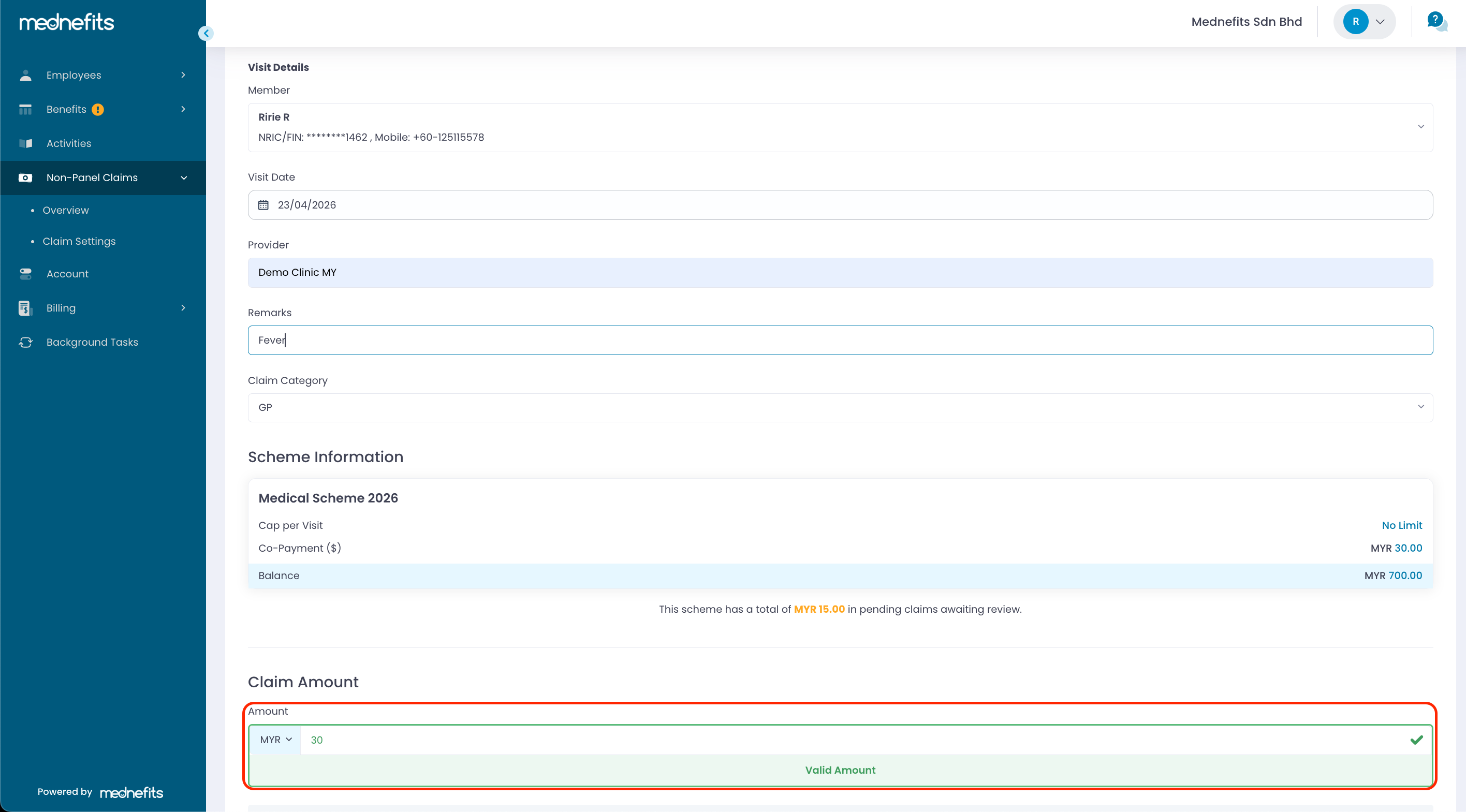
Continue to fill up the Visit Details:
- Visit Date: The visit date of the member or dependent, as indicated on the receipt. (Please note that you are only able to select the date within the member's Benefits Period)
- Provider's Name: Enter the name of the clinic, hospital, or healthcare provider visited by the member.
- Remarks (optional): Provide any additional information related to the claim.
- Claim Category: You may choose from the following based on member's benefits scheme if a Non-Panel claim is applicable.
- Dental
- GP
- TCM
- Optical
- Health Screening
- Specialist
- Wellness
- Pap Smear
After you have chosen the category, you are able to see the member's balance and if there is any cap per visit applicable under the selected scheme. Please note that you can only submit a claim within the member's cap per visit amount.
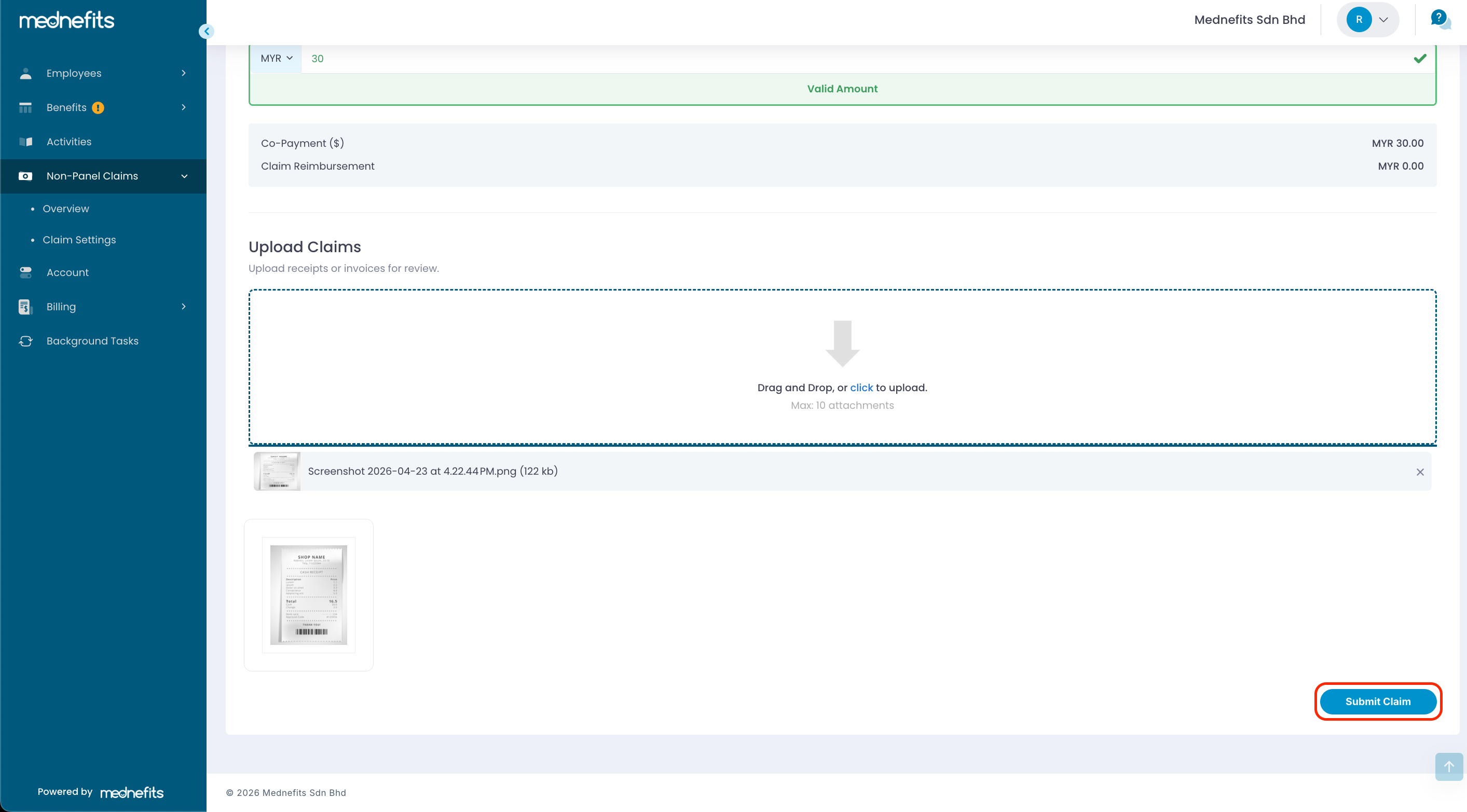
- Upload Claim: You may upload the receipt by Drag and Drop or Click to upload. Select Upload to proceed.
- You can attach up to a maximum of 10 images.
Step 5: Click 'Submit Claim'.
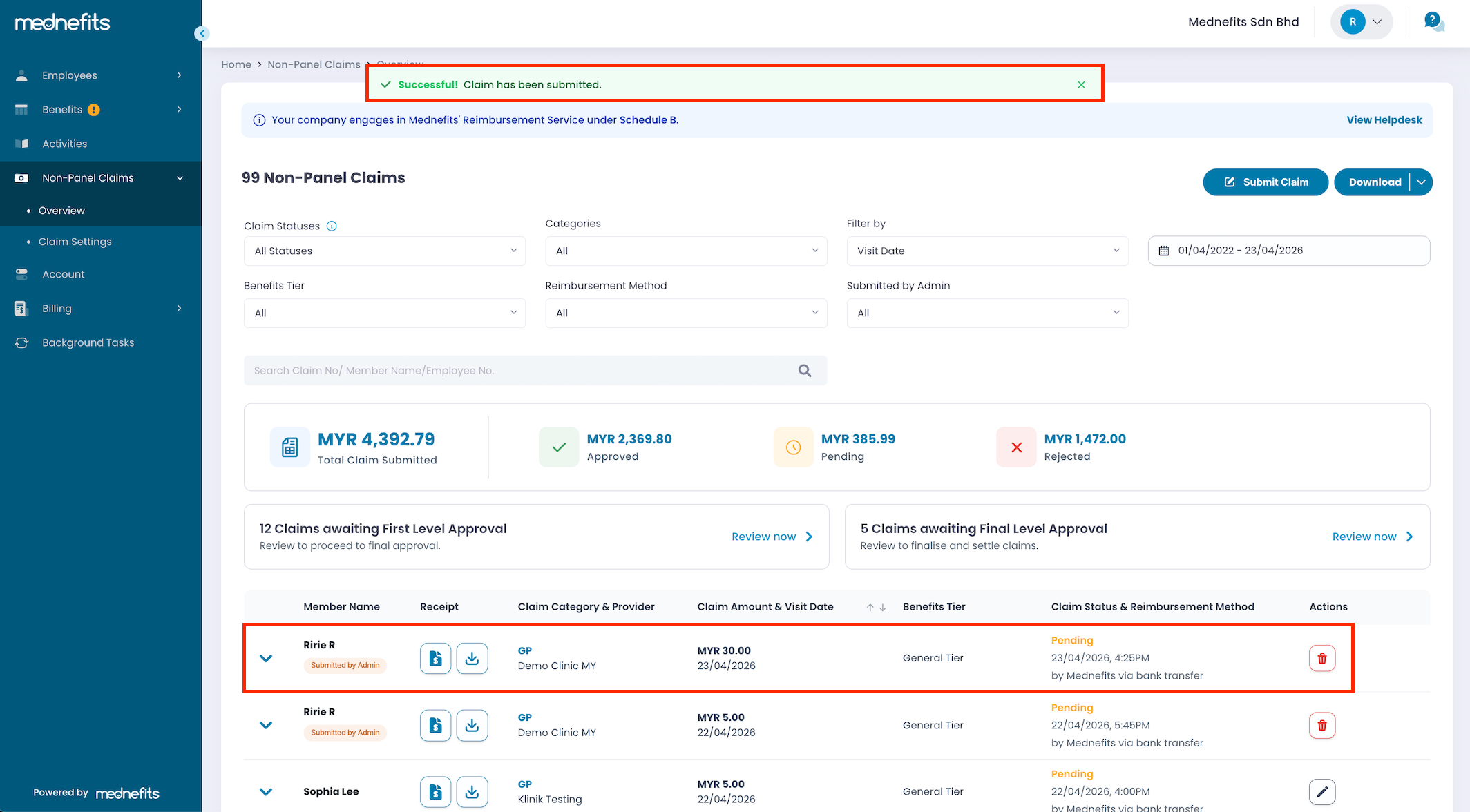
Once the claim has been submitted, you may view it on the Overview page. Claims submitted by HR will be labelled as “Submitted by Admin”.