


Some companies may require you to complete a verification before proceeding with registration at a panel provider. During this process, you may also notice a co-payment being displayed.
How should you proceed with your visit?
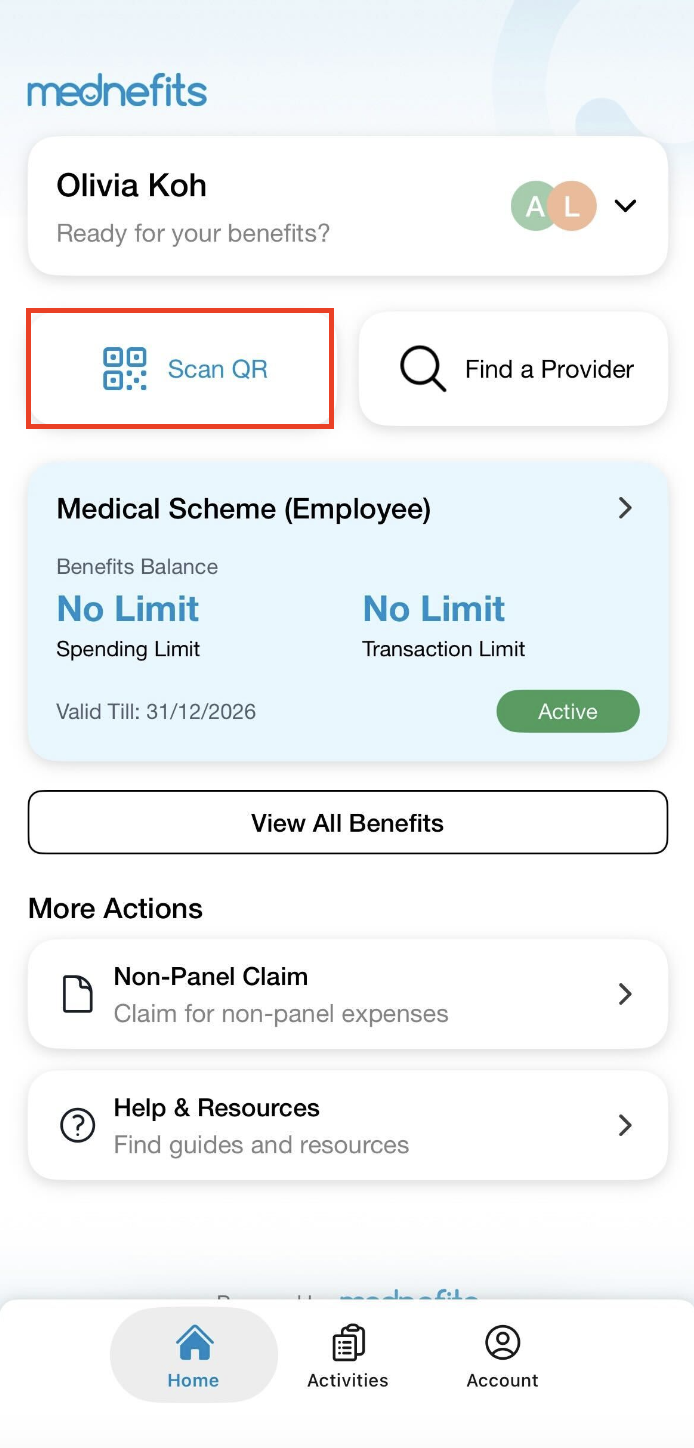
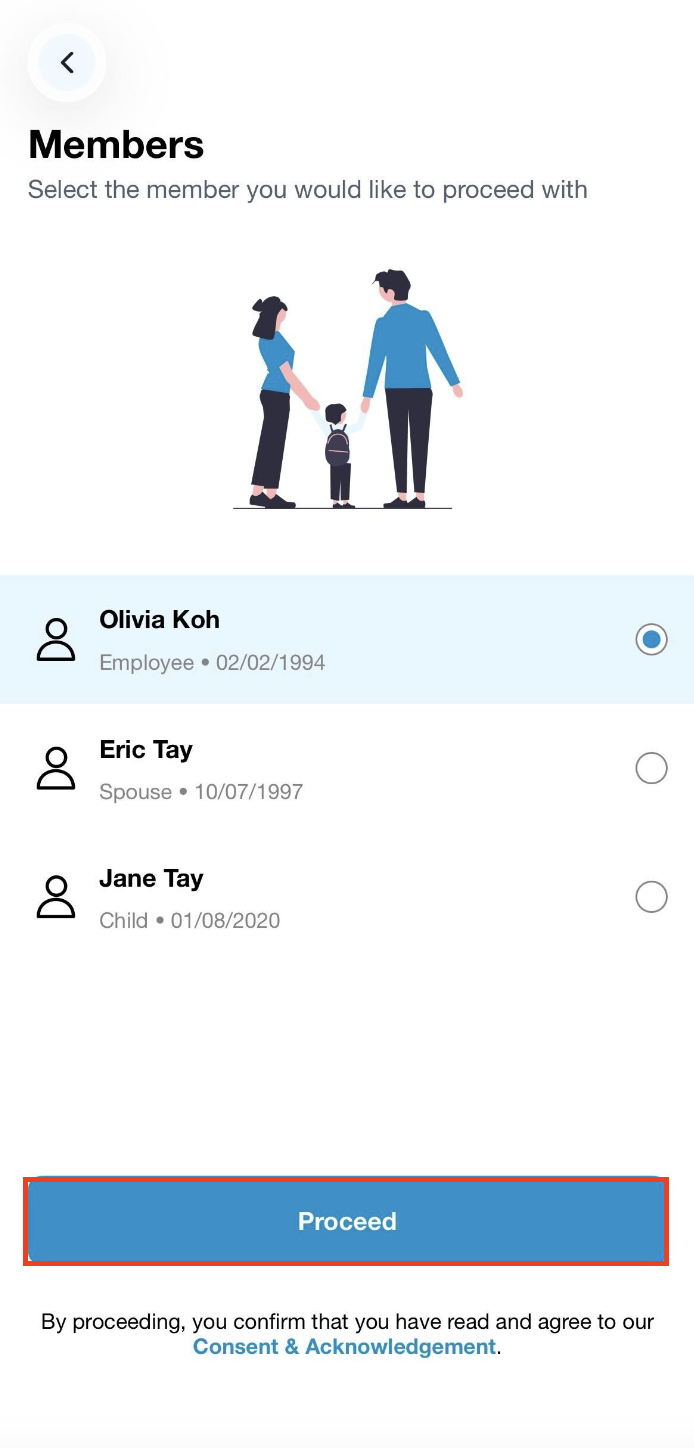
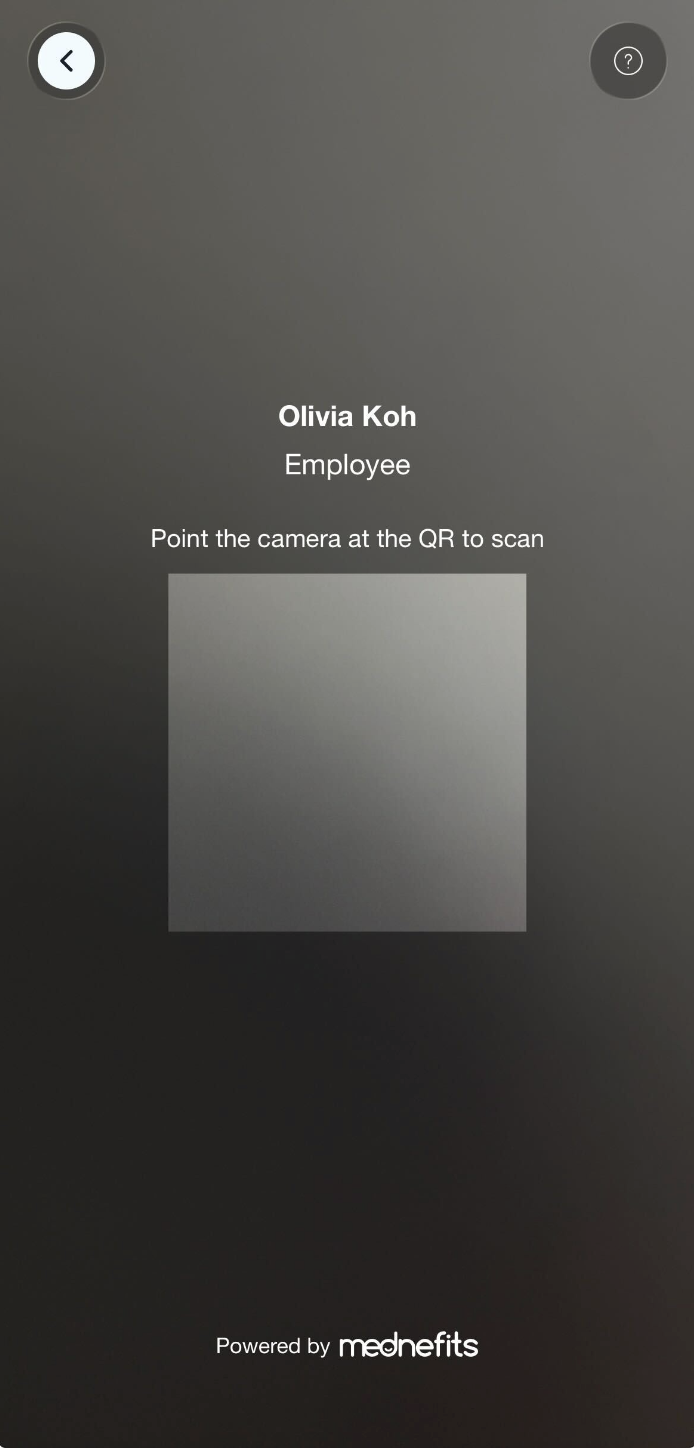
Step 1: On your homepage, tap on Scan QR. Then, select the members (if available) and scanned the QR code provided by the panel provider.
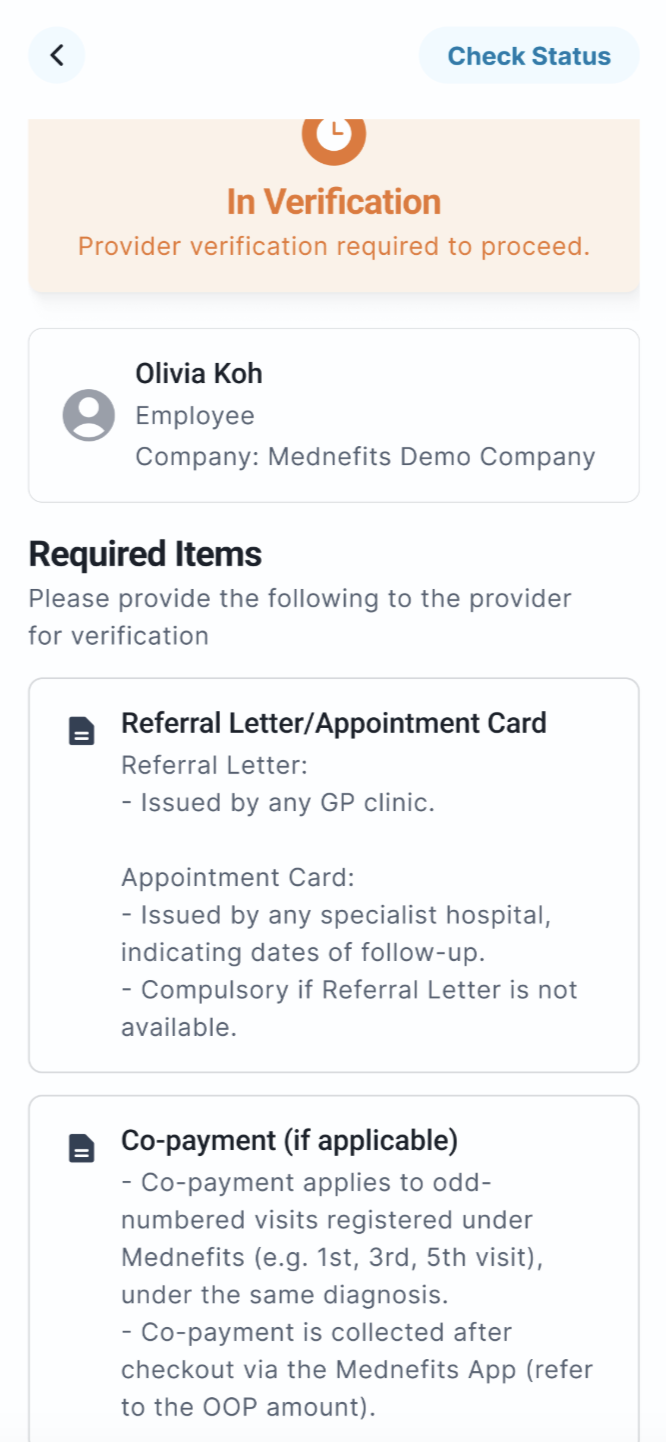
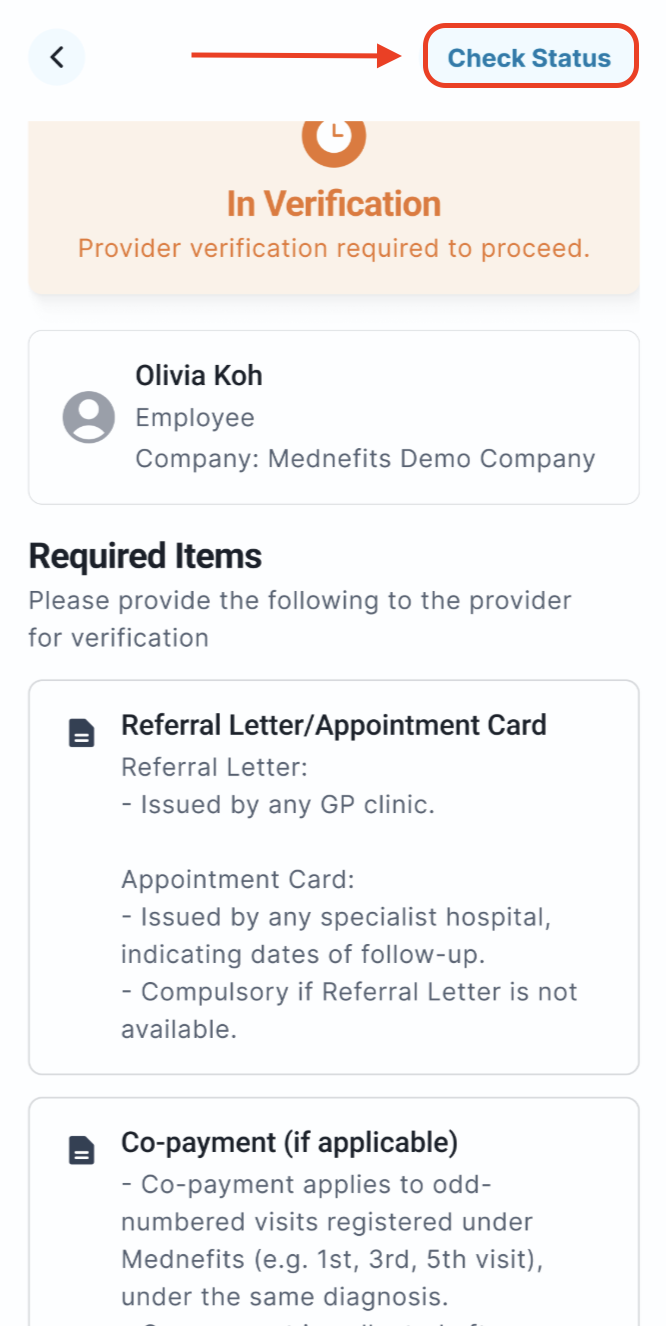
Step 2: You will be directed to the In Verification page (if applicable). Kindly present the listed required items to the provider for their further verification.
- Referral Letter or Appointment card: This is a required item as failure to present either of these may lead to a rejected visit.
- Co-Payment: The co-payment is only applicable to odd-numbered visits (e.g. 1st, 3rd, 5th visit) hence will be verified by the clinic/provider if required.
Step 3: Once the provider has verified the required items, you may click on Check Status in the top-right corner.
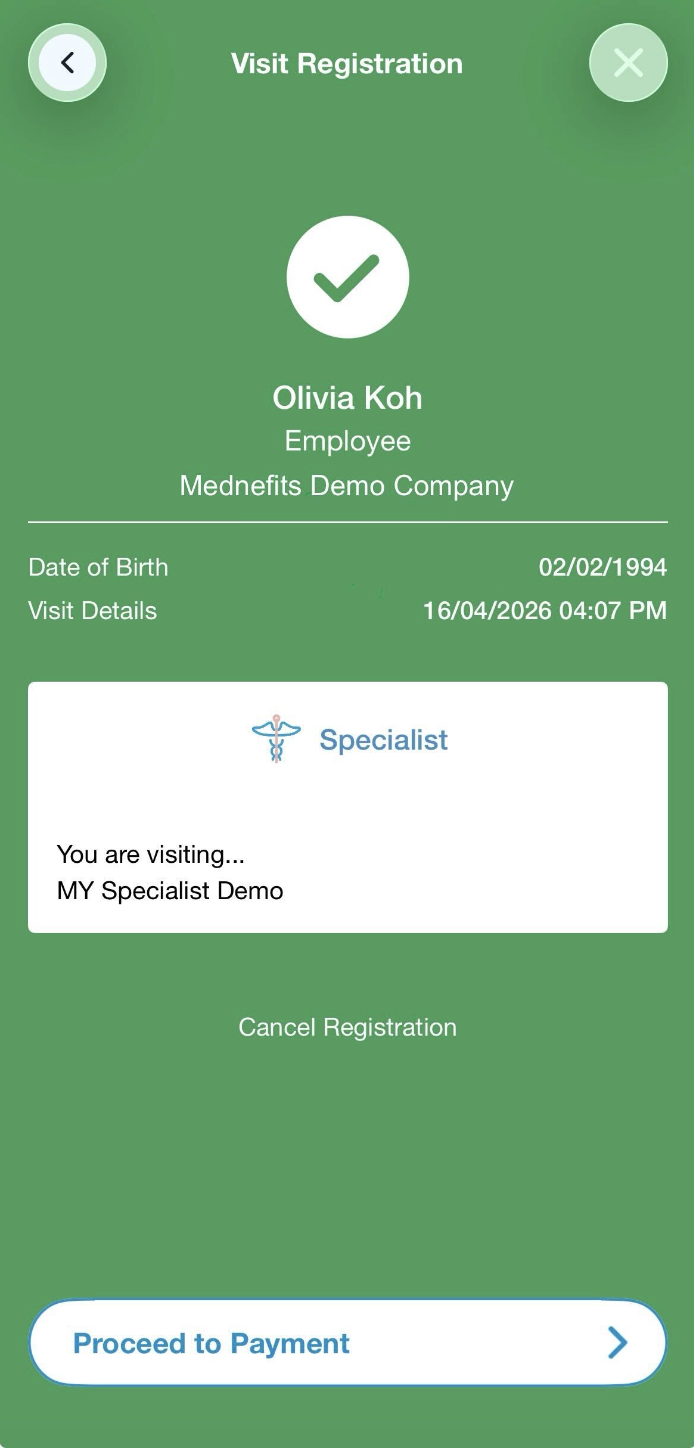
Then, a green confirmation screen will appear to indicate that you have successfully registered.
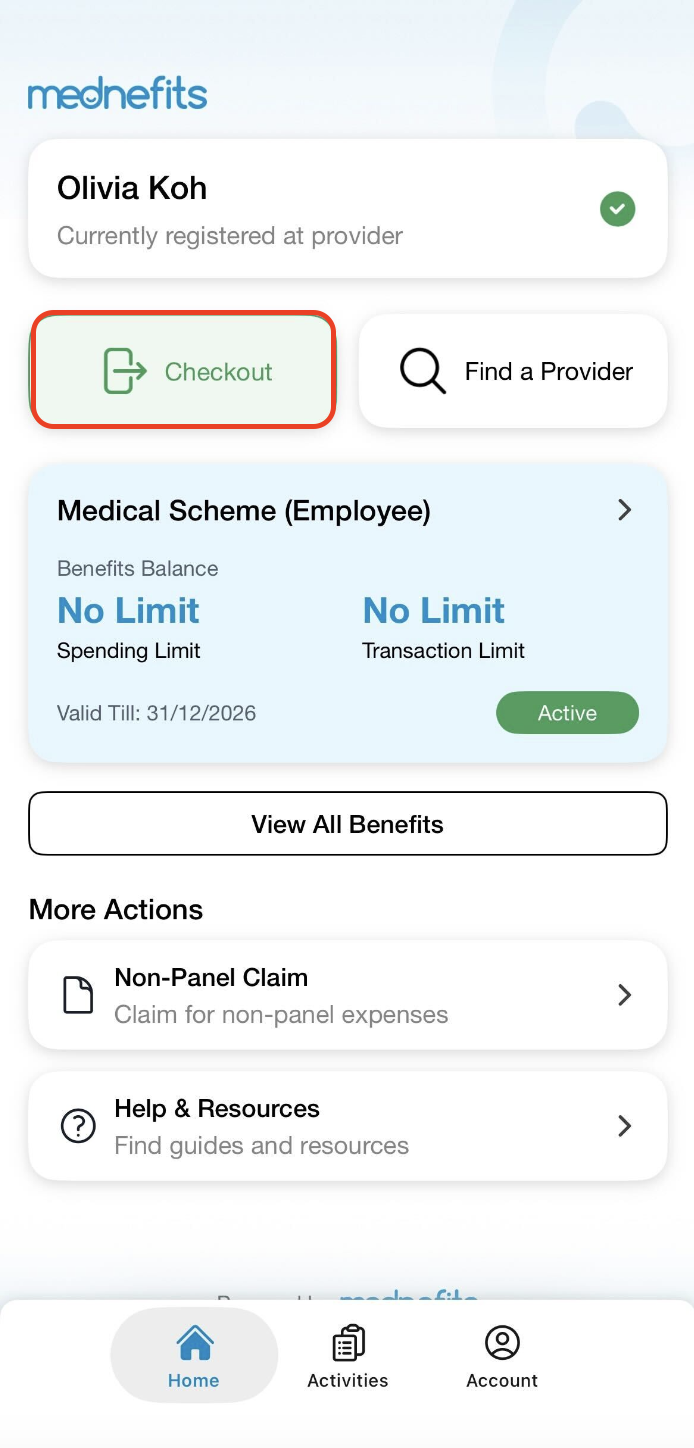
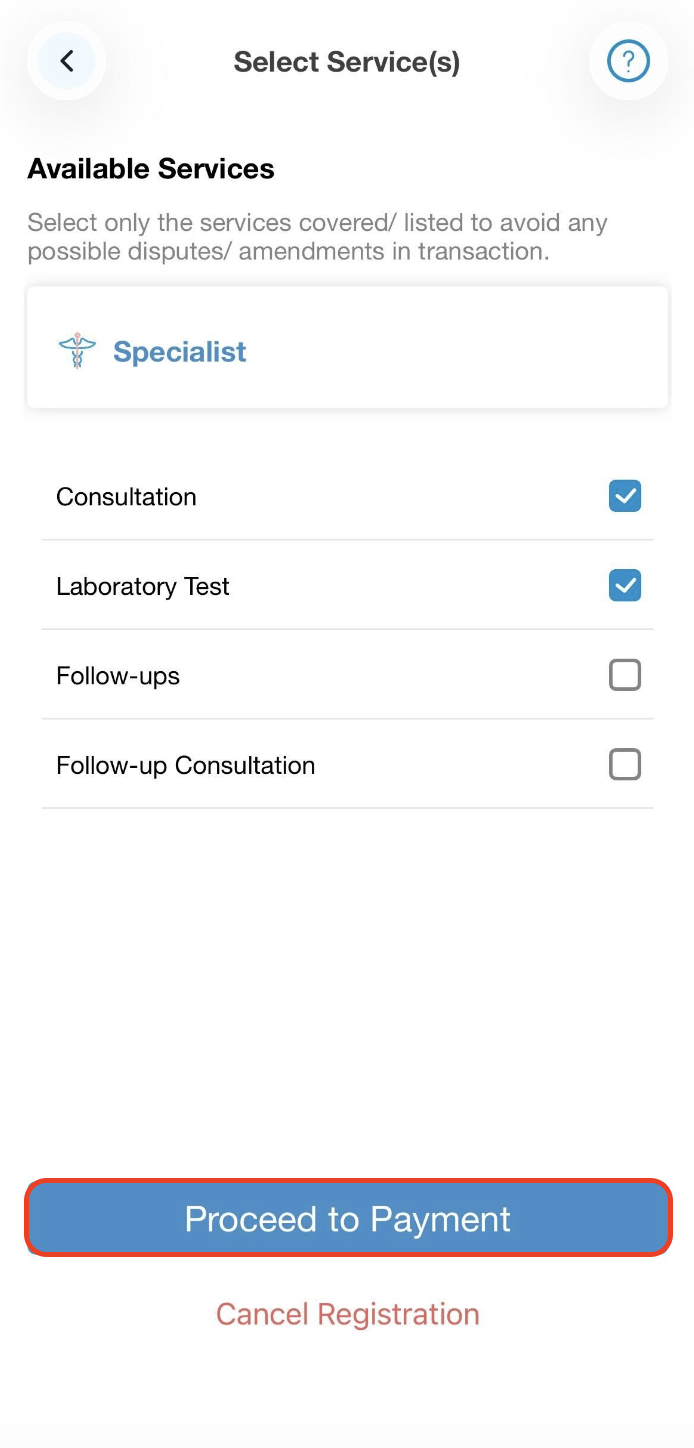
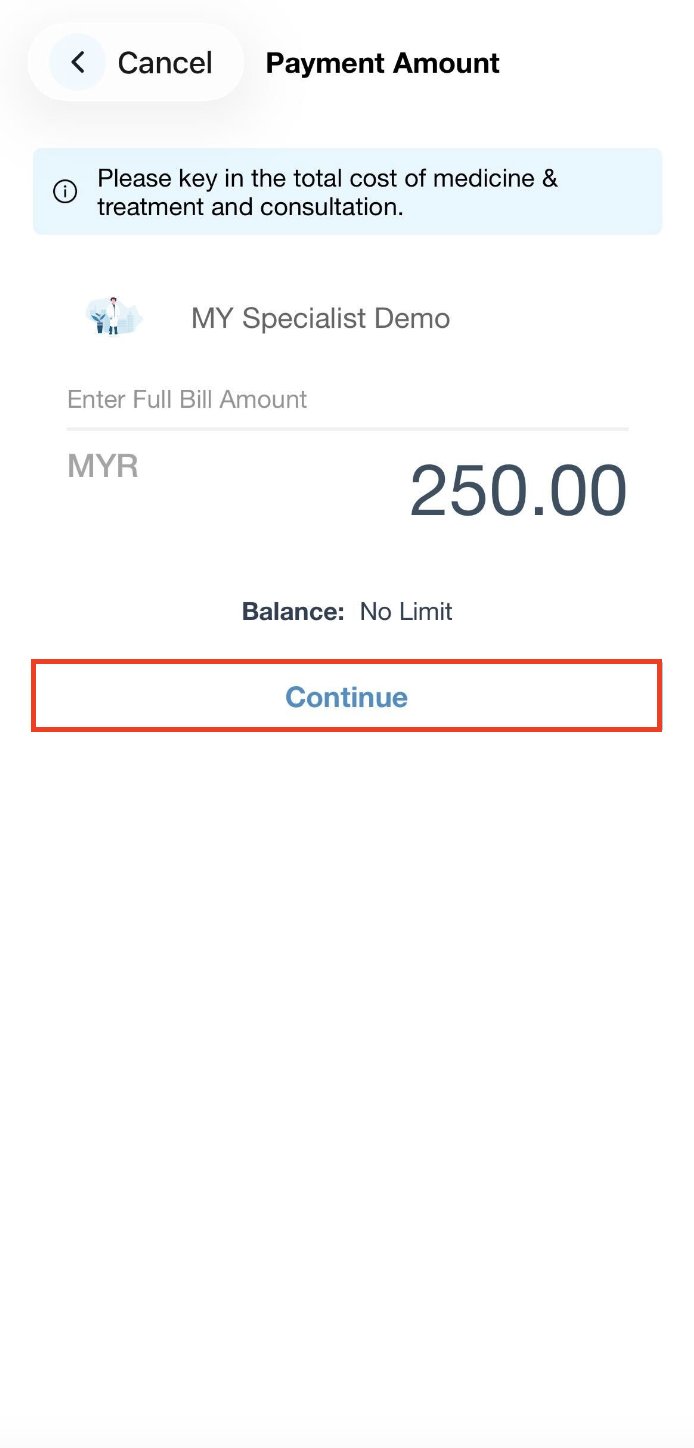
Step 4: After you are done with the consultation, tap on the Checkout button, select the services (if any) and enter the total bill amount to pay. (Select Service(s) page won't be displayed if provider has only one service to offer)
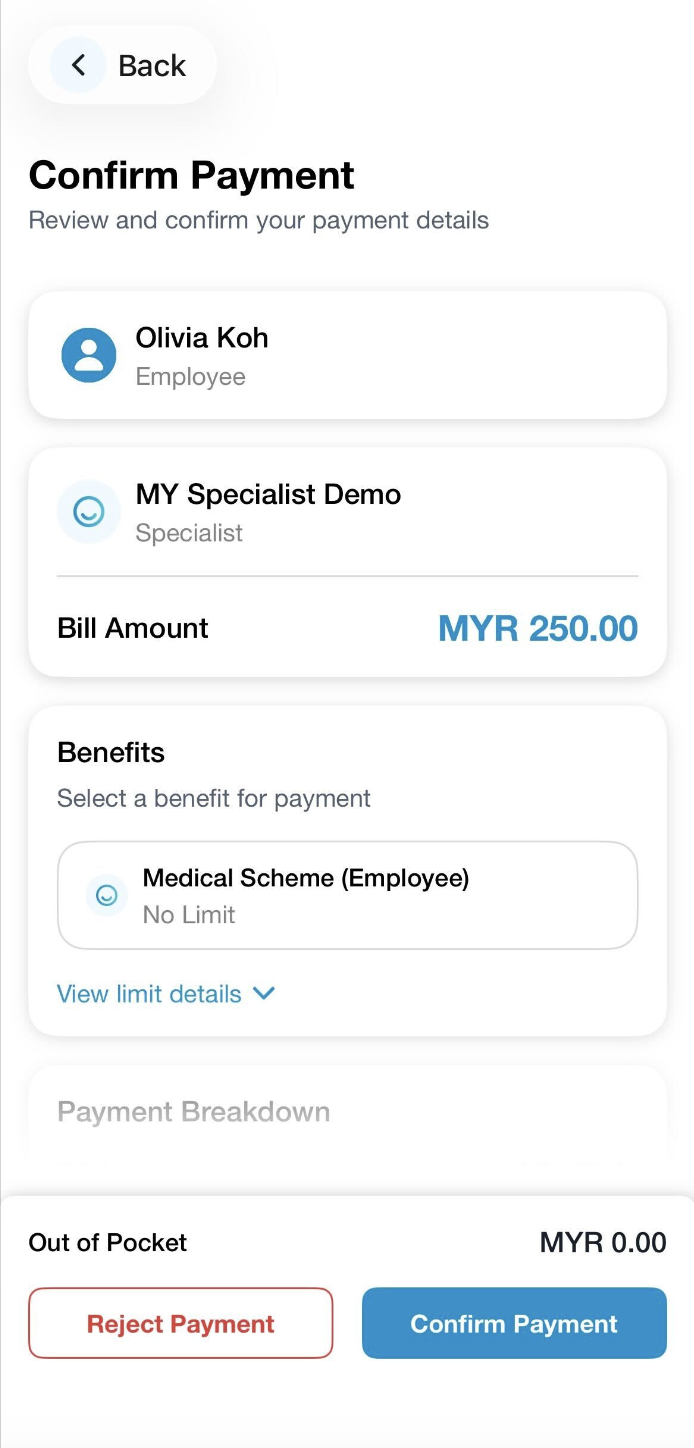
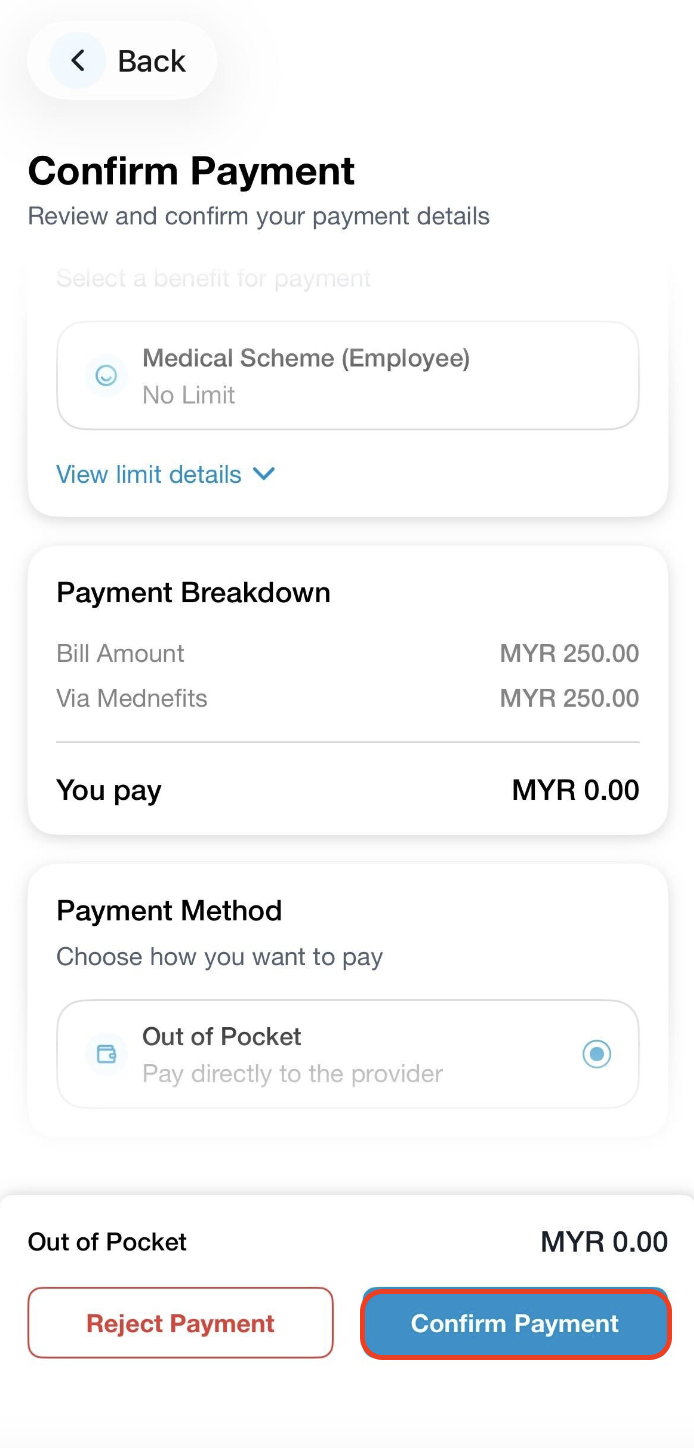
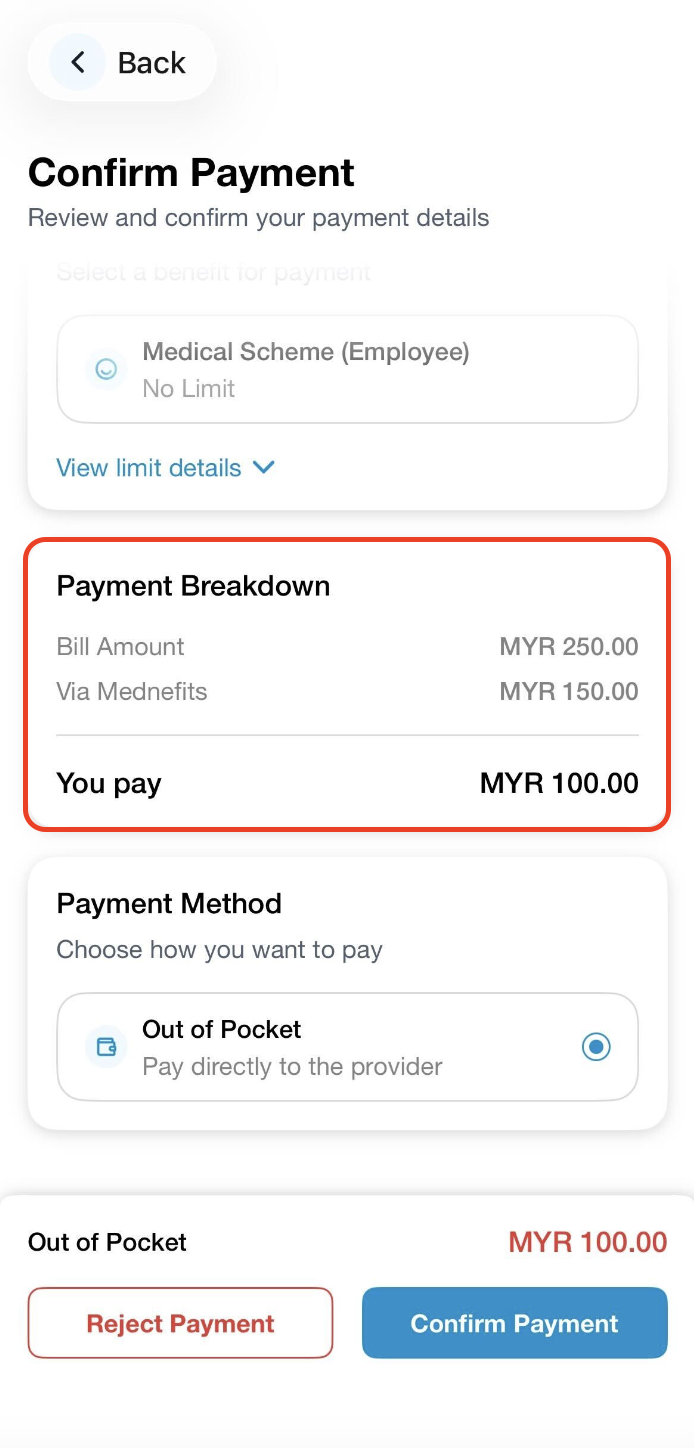
Step 5: In this Confirm Payment page, you are able to view if any Co-Payment is applicable. After you have reviewed your payment details, click on Confirm Payment to complete the checkout process.
- Bill amount: The cost for consultation, medicine, and treatment.
- Co-Payment: The fixed amount that you will have to pay directly to the provider. The remaining balance will be covered Via Mednefits.
- Via Mednefits: The amount deducted from your current balance for this visit.
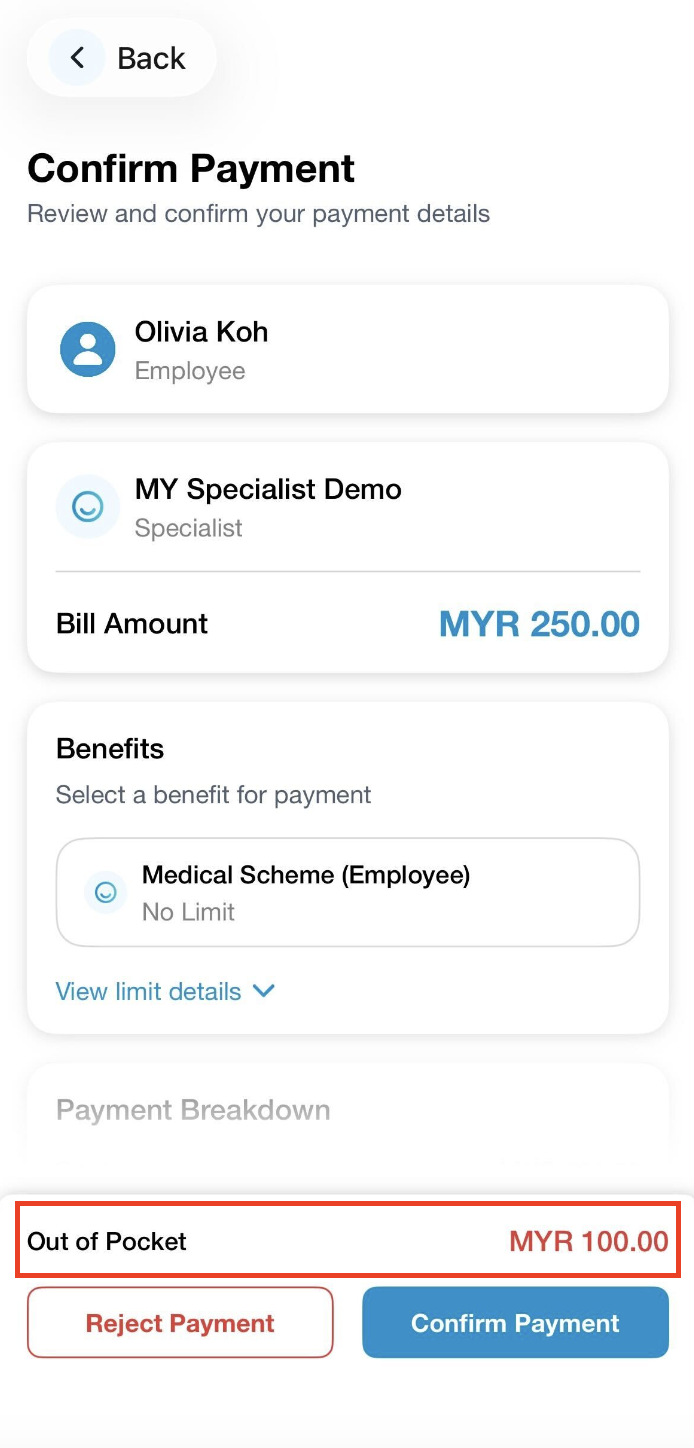
- Out of Pocket: The amount you will have to pay the clinic or provider by self-payment via cash/NETS/credit card for the visit.
Via Mednefits
Amount will be deducted fully from your available balance and no Out of Pocket payment is required.
Co-Payment or Out of Pocket (if applied)
❗Please take note of the Out of Pocket amount, as you need to pay the amount directly to the clinic.
Step 6: You will then see a green screen to indicate payment is successful. The transaction overview will be viewable via this Transaction Completed page.
Note: Out of Pocket will be shown in red if required and you need to make payment directly to the provider.
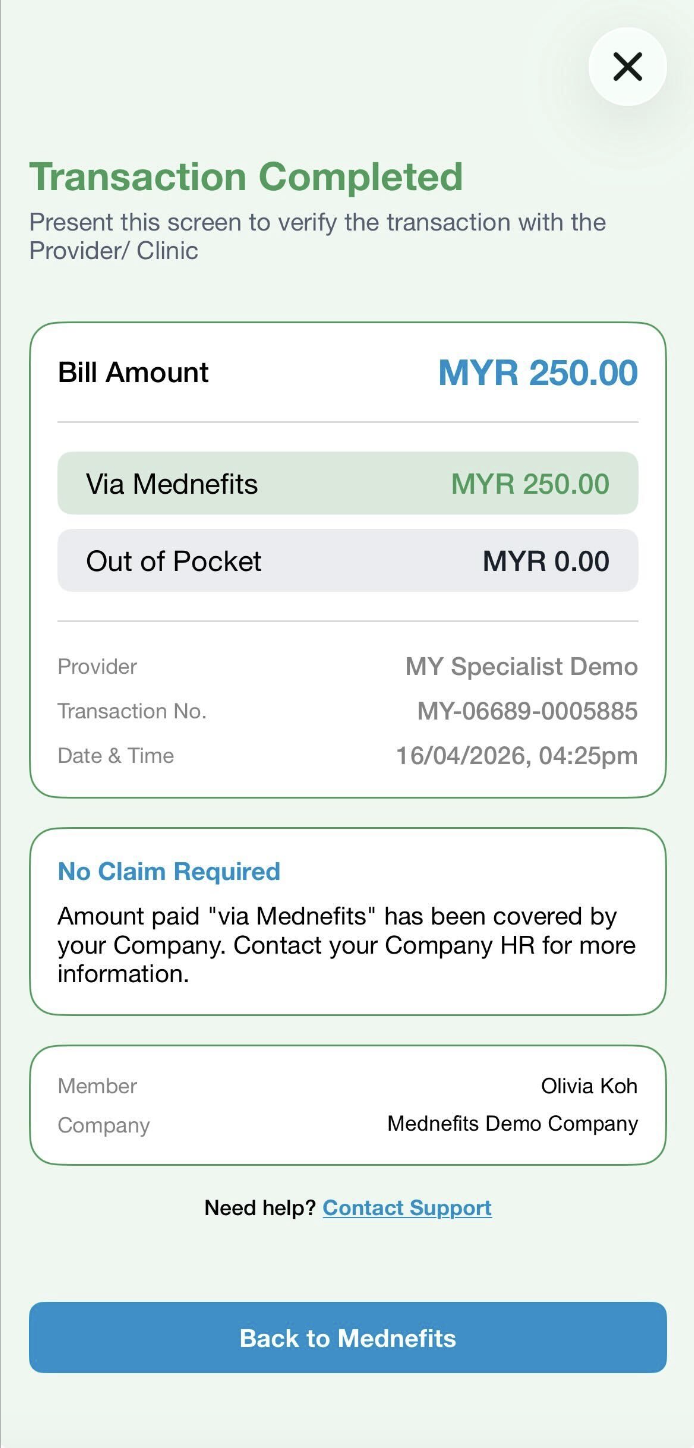
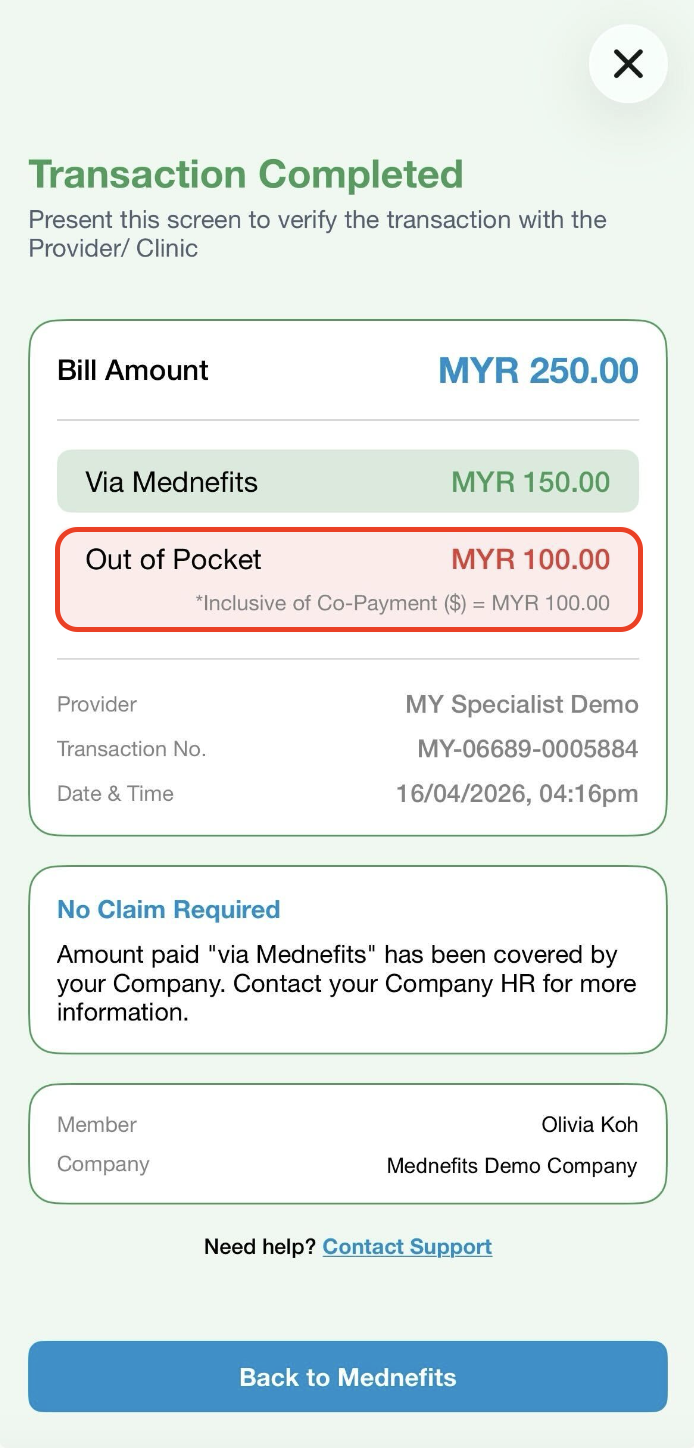
Without Out of Pocket With Out of Pocket
That's it. You have completed a panel transaction!

